


Backup Outlook Express
How can I backup my Outlook Express emails and address book? I tried the Export function but that doesn't work. I can't even drag and drop from the Inbox folder to a diskette or CDROM. Help! |
Backing Up Your Email
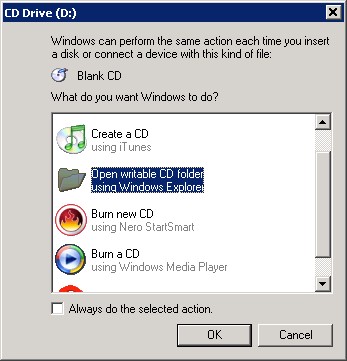
It's really too bad that Microsoft didn't include a simple one-click backup option in Outlook Express. After attempting it myself, I began to think that they purposely made it hard to make a backup of your emails and address book. Here's a step by step guide to burning a backup CD with your Outlook Express goodies...
Start by putting a blank CD in the computer. You should see a little popup window asking what you want to do next. Select "Open Writable CD Folder" and press OK. If your computer doesn't prompt for an action when you insert the CD, just go to My Computer and open the CD Drive folder.
To backup your Outlook Express email messages, follow this procedure:
- Open Outlook Express. On the Tools menu, click Options.
- On the Maintenance tab, click Store Folder.
- Select the folder location (hold down left mouse button and drag across the folder name from left to right) then press CTRL+C to copy the location.
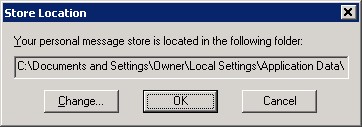
Note: Part of the folder name may be hidden, so be sure to copy the entire string. In a typical Outlook Express installation, the folder name will be something like this, but the characters in the brackets will be different for each computer:
C:\Documents and Settings\Owner\Local Settings\Application Data\Identities\{3D3B1757-A978FC42}\Microsoft\Outlook Express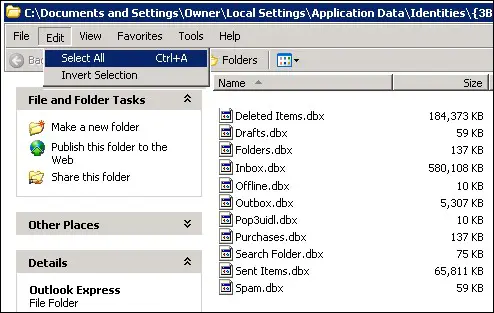
- Click Cancel twice to close the dialog box.
- Close Outlook Express.
- Click Start, and then click Run.
- In the Open box, press CTRL+V to paste in the folder name, then click OK.
- When the folder opens in a new window, click Edit, then Select All.
- Drag the selected email folders to the CD Drive folder.
To backup your Microsoft Outlook Express address book, follow this procedure:
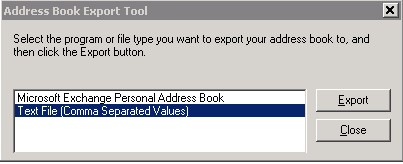
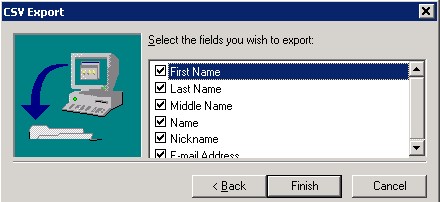
- Click File, Export, then Address Book.
- Click Text File (Comma Separated Values), then Export.
- In the File Name box, type C:\addrbook.csv, then click Next and Finish.
- Locate the C:\addrbook.csv file using My Computer, then drag it to the CD Drive folder.
If you want to go beyond backing up your messages and address book, you can also back up your email account information. This includes your email username, password, mail servers, and other settings that you specified when creating the account in Outlook Express. To backup your account data, follow this procedure:
- Click Tools, then Accounts
- Click the Mail tab, then select the account you want to export
- Click Export
- In the Save In box, type C:\ACCTNAME.iaf, then click Next and Finish. (The "ACCTNAME" will be the actual account name, already filled in for you -- no need to change it.)
- Locate the C:\ACCTNAME.iaf file using My Computer, then drag it to the CD Drive folder.
Note: If you have multiple Identities in Outlook Express, you must repeat the message, address book and account backup process for each identity, storing them separately, so you can identify them later in case they need to be restored from backup.
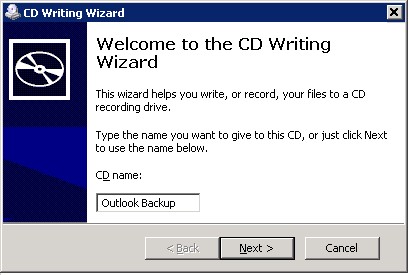
Now go to the CD Drive folder, click on "Write these files to CD" and the CD Writing Wizard will help you complete the process of burning the CD in just a few clicks.
Got any email backup tips? Post your comments below.


This article was posted by Bob Rankin on 7 Feb 2006
| For Fun: Buy Bob a Snickers. |
 |
Prev Article: What is Internet Telephony? |

The Top Twenty |
Next Article: Identity Theft |
 |
There's more reader feedback... See all 48 comments for this article.
Post your Comments, Questions or Suggestions
|
Free Tech Support -- Ask Bob Rankin Subscribe to AskBobRankin Updates: Free Newsletter Copyright © 2005 - Bob Rankin - All Rights Reserved About Us Privacy Policy RSS/XML |
Article information: AskBobRankin -- Backup Outlook Express (Posted: 7 Feb 2006)
Source: https://askbobrankin.com/backup_outlook_express.html
Copyright © 2005 - Bob Rankin - All Rights Reserved

Most recent comments on "Backup Outlook Express"
(See all 48 comments for this article.)Posted by:

Marianne
12 Oct 2007
I did a recovery destructive on my pc. The first thing that I did when my internet was set up was to download avast.
I now find that I can create and send email but can't receive email with outlook express 6. After double checking with my isp, I found that all of my setup is correct. I read a lot of other info and it sounded like avast could be the problem. However I since emailed them and followed their instructions and still can't receive email. What could I be doing wrong. Should I try incredimail or something else? My isp's squirrel mail is extremely taxing and difficult to use and manage. Help!!
EDITOR'S NOTE: How about a web-based email such as Yahoo or Gmail? Simple setup, easy to use and portable.
Posted by:

Beverly
16 Jan 2008
Hi Bob: I just wanted to thank you so much for your help. I have to format my computer and I wanted to save what I needed off of it first. Your step by step instructions were a God-send. Thank you! Enjoy the coffee! :D
Posted by:

Shab
31 Jan 2008
I copied successfully my OE emails to disc as instructed. I understand that .dbx is a database and that I can read it only via the Outlook Express program itself.
What I don't understand is the mechanics of doins so. For example, I start OE then go to "open" but I can't find a way to navigate to a location (either CD drive or a copied .dbx file. I would appreciate some help please.
EDITOR'S NOTE: You can't navigate there. You have to put the DBX file in the Outlook Store Folder. See the article for help determining the folder location.
Posted by:

sameer
11 Feb 2008
thanks you so much i got it, i got it
Posted by:

Dennis
02 Mar 2008
I think it must be stressed that Outlook files are not amenable to manual fiddling. Backup procedures must follow the parental-like directions demanded by Outlook. No assumptions can be made. These are not like ordinary files we are all accustomed to copying, moving and such. Your steps show how to "stay within the lines".
Posted by:

Oliver
06 Mar 2008
I backed up my email messages and copied it to another computer's store folder. After, I opened OE6 and tried Import > Messages... > Microsoft Outlook Express 6 > Import from an OE6 store directory > Chose the Store Folder > Clicked Next.
I then get an error messaged stating:
"No messages can be found in this folder or another application is running that has the required files open. Please select another folder or try closing applications that may have files open." I don't know what to do.
EDITOR'S NOTE: You copied your backup to another computer's store folder? Why? Is that other computer accessing or using the file? I'd move it to some other folder, where OE cannot find it.
Posted by:

Rick
15 Apr 2008
I had been using very similar instructions to yours above when I was on Win 98. (I'm now on MAC and using their mail program.) My girlfriend is on Win XP. She has several Outlook Express folders she has created to retain her e-mails by subject. When I look in the folder you've suggested, I find only the .DBX folders generated by OE, such as Inbox, Outbox, Sent, etc. I can't find any of the folders with the names she created (as I used to under Win 98). Where are they so I can back them up? Are they hidden somewhere (else)?
I tried loading the backup to a different computer running XP and OE and was only able to see the messages stored on the main OE folders (as I expected).
Posted by:

Joanne
20 May 2008
This is great!. So I did it and it worked but I can't open the folders from Outlook on my cd and can't figure out how to do it. I need to reinstall my computer in a week. Please help granny out here.
EDITOR'S NOTE: You can't open the folders directly. You'll have to import the messages from the folder into Outlook.
Posted by:

Andy
21 Jun 2008
when I drag the C:\addrbook.csv file I get an error message: Cannot copy...Access is denied. Make sure the disk is not full or write-protected and the the file is not currently in use. None of those things apply...what now? Thx!
EDITOR'S NOTE: Did you already burn the folders to the disk? If so, the CD is finalized and will be read-only.
Posted by:

LindaC
28 Jun 2008
just about to pull my hair out trying to get the 'read only' file in properties to stay applied. I've been trying to import .dbx files off and on for almost a year. your instructions are the most clear but it still isn't happening.
EDITOR'S NOTE: What happens when you try to import?
Posted by:

zlatan24
30 Jul 2008
I heard about not bad application-outlook password backup, is a program, that helps users to display passwords and logins for all mail accounts, created in Microsoft Outlook as well as for files with *.pst extension, that are stored to keep your mail messages, can easily recover forgotten password for all Microsoft Outlook accounts, can copy recovered data to a text file, Outlook 2003 mail account and password backup is easy.
Posted by:

Mr. B. E. Singleton (Barry)
15 Sep 2008
How do I move around names in the Address Book for Outlook Express? This is to be from one folder to another.
Posted by:

Alex Krenvalk
15 Oct 2008
There is a wonderful tool,possible wiil can do backup,but restore it exactly is doing- can save a lot of time and money, refusing from some services, that are not really needed,can read online user’s guide for this program, where all steps of email recovery process are clearly described,keeps your mailbox in several source files, such as Inbox.dbx, Outbox.dbx, Sent Items.dbx and Deleted Items.dbx, all of these files should be located in the same folder,try to read source files of dbx format and unpack them into a temporary folder,program can save separate files with eml extension, please create a separate folder for this purpose to avoid confusion,works with Windows 98, Windows Me, Windows NT 4.0, Windows 2000, Windows XP, Windows 2003, Windows XP SP2 and Windows Vista.
http://www.recoverytoolbox.com/cannot_open_outlook_express.html
Posted by:

James Wooton
28 Dec 2008
Bob, I backup my outlook express account by making appropriate files on my data storage device that i plan to use and then select the emails one by one. The proccess i use to save them to the device is file-save as - 'F' - 'filename' save
The words in quotation marks are changeble o preference
Posted by:

del_piero
03 Apr 2009
There is a good tool for work with mails - http://www.recoverytoolbox.com/corrupted_dbx.html - as far as i know tool is free,it permits to unpack dbx files, where Outlook Express keeps your messages and to retrieve separate files in eml format, that can be restored without errors,program is compatible with Windows Me, Windows 98, Windows NT 4.0, Windows 2000, Windows XP and Windows Vista,program is working in a batch mode and this tool processes very large dbx files, it is better to launch this program on more efficient workstations for fixing Outlook Express corrupted dbx files and Outlook Express dbx corrupt,all emails will be retrieved separately, users can open these files with any email client, compatible with Outlook Express.
Posted by:

TomB
19 Jul 2009
Great instructions on how to backup e-mail folders. I did so and then can't seem to open the folder to see the messages. They're important re: Genealogy. What's the next step?
Posted by:

David McCabe
03 Feb 2010
I put my emails onto a CD as I was having my operating system re-installed. However, the tech has put Windows Live Mail on instead of Outlook Express. I don't know if this is the reason, but when I try to import the emails (.dbx files) I get "No messages can be found in this folder or another application is running that has the required files open. Please select another folder or try closing applications that may have files open." Any advice on how to get round this?
EDITOR'S NOTE: MS says: "Outlook Express stores your messages in a folder that contains several different .dbx files. These files (folders.dbx, inbox.dbx, outbox.dbx) contain all your messages. Windows Mail cannot import any of these files individually; you must import the entire Outlook Express folder." My only suggestion is to point Windows Live Mail to the folder on your CD that contains the DBX files, instead of the individual files.
Posted by:

steve
28 Jul 2010
I have my outlook express emails backed up. They are actually backed up in three different places.....desktop, E drive (portable hard drive) and F drive (usb key). They are in .dbx format.
How on earth do I import them back into outlook express? Everytime I do it, it says there is an error or the file is in use. I have changed the store directory to several different locations and still can not get them. I tried dragging them over to outlook express, but it just creates an email with a .dbx attachment.
I read your web site on exporting, but did not find anything on importing.
thanks.
Posted by:

Clint A
06 Jan 2011
I have my most of my Outlook Express address book organized into folders--e.g. "Friends," "Family," "Work," etc. I've followed your instructions to export a csv text tile of the address book contents. When it opens in Excel I find that only the address items that are in the "root" address book folder entitled "Main Identity's Contacts" and are not sorted into a sub-folder have their contents in the csv file. Is there a way to back up the sub-folders without un-organizing my address book by moving everything into that "Main Identity's Contacts" folder?
Posted by:

JAKE KORTE
17 Jan 2012
I TRIED YOUR BACKUP OF OUTLOOK EXPRESS ADDRESS BOOK, AND IT WORKED GREAT TO POST TO MY PASSPORT FILE BACKUP. THANKS A MILLION. JAKE