


HOWTO: Upgrade Memory to Boost Performance
Ask any geek how to speed up your computer and you will probably get the question, 'How much RAM do you have?' Adding more RAM memory is supposedly the panacea for sluggish performance, slow screen refreshes, thrashing hard drives, and most other symptoms of a struggling, overloaded computer. Here's what you need to know... |
Should I Upgrade My Computer's Memory?
Adding RAM is certainly one of the fastest and easiest upgrades you can make. It will usually give a performance boost to a system that has a less than optimal amount of RAM memory installed, but it doesn’t cure every problem and it’s not the cheapest solution to many problems. Before adding more RAM, clean up and tune up your hard drive; that costs nothing with free versions of utilities like PrivaZer, Advanced System Care, and CCleanup.
See my related articles Clean and Sanitize Your PC With PrivaZer and "Do Those 'Speed Up Your PC' Programs Really Work? for details on those programs and where to find the download links.
Oh, and let's make sure we're asking the right question... Don't make the common mistake of confusing "computer memory" (RAM) with "hard drive space." RAM memory refers to the working memory that your computer uses to run programs and manipulate files. When you turn off the computer, everything in RAM is gone. Only the files that are saved on your hard drive remain permanently stored. And RAM memory is what this article is concerned with. (If you're running out of room on your hard drive, see my article What's Hiding On Your Hard Drive? for some tips on how to free up storage space.)
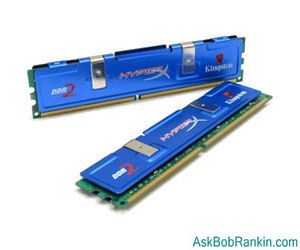
If you still want to add more RAM, start by figuring out how much you have now. In Windows, there is a System Information utility that will display the amount of RAM installed. On Windows XP, go to My Computer, then click "View System Information." On Vista, Windows 7 or Windows 8, go to Control Panel, then System and Security, then System. Look on this window to see how much “installed memory” is available.
Next, you need to know what kind of RAM it is; that is, what bus and pin standard does it fit. You need this information because the RAM slots on your computer's motherboard will take only one kind of RAM. The type of RAM on a RAM stick is printed in tiny letters somewhere on the green part of the stick. But if you do not know what you are looking for it can be easy to miss. A good alternative is to read the user manual for your computer; somewhere in it the type of RAM will be mentioned. The manual will also tell you the maximum amount of RAM your machine can accept.
Memory manufacturers try to help with online "RAM configurators" or a "computer memory finder" on their website, that take your computer’s make and model, look up what kind of RAM it needs, and display various combinations of RAM stick capacities to help you buy exactly as much RAM as you need. Kingston Technology and Crucial are two places to go for a PC memory finder.
In general, 4 GB of RAM is ideal for light to medium home or small office use: Web browsing, word processing, light spreadsheet work, etc. As much as 8 to 16 GB is recommended if you do video editing, CAD, large databases, graphic layout, desktop publishing, or other applications that manipulate large amounts of data. Scientists and intense gamers are about the only people who may need to go above 16 GB.
Note that Windows XP and 32-bit versions of Vista, Windows 7 and WIndows 8 can use a maximum of 4GB of memory. The System window mentioned above will also show if you have a 32 or 64-bit operating system.
Depending on the exact type you need, you can find 2GB of RAM for $30 or less. At that price, I recommend that you install a minimum of 4GB. By maximizing your system RAM, your computer will be swapping less data between RAM and disk. That means your computer will run faster and your hard drive will last longer.
Used RAM is commonly available on eBay or Craigslist and much cheaper than new. Unless the RAM has been physically damaged, it should be just as reliable as brand-new RAM. The used RAM market is a good place to look for RAM for an older computer. Just be sure you've correctly identifed the type of RAM your computer needs before ordering.
A Few More Memory Tips
Adding or replacing RAM isn't really rocket science. On a desktop PC, the RAM sticks click into place quite easily on the motherboard. On a laptop, it's usually just a matter of opening an access panel on the underside of the machine. But if popping the hood on your computer seems intimidating, there's another option. A feature called ReadyBoost uses a USB flash drive to simulate RAM memory, so it doesn't require opening the case, and can provide a significant boost on some systems. See What is ReadyBoost? for more info on that. http://askbobrankin.com/vista_readyboost.html
You may also see ads for so-called "memory optimizers" that claim to do a better job of managing your RAM memory than the Windows operating system. I advise people to avoid these, because they're mostly useless and may actually decrease your performance.
Occasionally, a reader will ask about how to test the RAM memory that's newly purchased, or already installed in a computer. This isn't a bad idea, especially if you're getting occasional glitches such as lockups or unexpected system restarts. In my article How to Test and Fix Your Computer Hardware, you'll find information about a program called MEMTEST86+ that can do the job.
Do you have something to say about finding, buying or installing RAM memory? Post your comment or question below...
|
|
|


This article was posted by Bob Rankin on 9 Dec 2013
| For Fun: Buy Bob a Snickers. |
 |
Prev Article: What is Google TV? |

The Top Twenty |
Next Article: Why Do Chromebooks Worry Microsoft? |
 |
Post your Comments, Questions or Suggestions
|
Free Tech Support -- Ask Bob Rankin Subscribe to AskBobRankin Updates: Free Newsletter Copyright © 2005 - Bob Rankin - All Rights Reserved About Us Privacy Policy RSS/XML |
Article information: AskBobRankin -- HOWTO: Upgrade Memory to Boost Performance (Posted: 9 Dec 2013)
Source: https://askbobrankin.com/howto_upgrade_memory_to_boost_performance.html
Copyright © 2005 - Bob Rankin - All Rights Reserved

Most recent comments on "HOWTO: Upgrade Memory to Boost Performance"
Posted by:

John O'Meara
09 Dec 2013
Another factor in adding memory speed. The same "size" memory comes at various speeds. For example, DDR2 memory for PC's ranged in maximum transfer speed from 3200 to 8533 MB/sec! Some manufacturers offered several versions of PC's in the same frame, with slower memory in the more affordable versions.
When upgrading memory, check your PC maintenance manual (usually available online) and get the fastest speed your PC was built for. If you are keeping any original RAM cards, put the faster memory in the "first" memory slots.
Posted by:

Nigel
09 Dec 2013
Bob, before ordering RAM it is good to look in the computer to see what chips are in place. If you have some empty memory sockets, you might only need to buy the memory you want to add. But if all the sockets are full, you will need to remove and replace the existing memory sticks. So to increase RAM from 4 GB to 8 GB, you might get away with buying 4 GB of new memory or you might have to buy the full 8 GB.
Posted by:

SamG
09 Dec 2013
Very good article Bob. Most recent type of ram is the cheapest. DDR3. When purchasing DDR2 or DDR, select the LOW DENSITY sticks. Do a search at the Crucial memory website for your application. On that page there's a link to a small program to download to scan your computer for the correct memory. Modern operating systems require more memory and you'll need it if doing more than browsing email. Wait- wait- wait- it'll load the program, webpage.
Posted by:

SamG
09 Dec 2013
Another point. When installing ram be careful. Make sure you discharge static electricity from yourself before handling computer components. Seat the ram in the correct position fully and the retainer clips will snap/lock in place. Laptop memory installs differently than desktop and can be confusing.
Posted by:

MmeMoxie
09 Dec 2013
Bob, good article.
One of the first things, I ever learned to do in computer repairs/upgrades, was installing memory modules. After, upgrading my first PC RAM memory modules, I felt "empowered" to learn more and did. It was easy to do, even in those days, when you had to change all of the "jumper" settings, on an old AT motherboard. Today's motherboards, are so much easier to change the memory modules.
Another thing you must be careful with, is that you put in the "right" memory module, for your motherboard. The motherboards of today, have either DDR or DDR2 or DDR3, as their RAM memory. It is very important, that you also know if, your RAM memory is Non-Registered or Registered. It's like putting in the "right" engine oil, in your car. Different auto makers, use different engine oil, for every model they make. The same goes for the motherboards, in the computer world.
Again, to emphasize ... It is really easy, to upgrade your memory modules, once you have the right kind of memory, that your motherboard will take. A bit of research is all, that is necessary. :)
Posted by:

Therrito
10 Dec 2013
Several years ago my Mother was complaining about how slow her PC was running. I ran the usual optimizers to clean her PC but it made little difference. I downloaded the manual for her PC from the manufacturer's web site and found out that they had installed cheap RAM (PC2700).
Her FSB speed of the CPU was rated at 800 but the RAM was rated for a lower speed (566 I think). I purchased 2G of dual channel PC3200 RAM rated at 800 FSB speed and the change was amazing. Boot time was cut in half and it ran so much smoother. Needless to say she was VERY pleased.
FSB speed is important when buying RAM. The lower FSB of her original memory had caused a bottleneck of data flow which in turn slowed down her PC. It's important to get RAM which matches the FSB speed of the CPU.
Posted by:

David Guillaume
31 Dec 2013
Hi Bob
Greetings from Alcester in the UK
Just a couple of lines to wish you and your family a very happy new year in 2014. Joined up in August 2013 and find your articles very interesting and informative. Bought my first computer in circa 1980 an Apple Europlus.
All the very best
David Guillaume, 74 year old pensioner
Posted by:

wild bill
21 Jul 2014
Another source for cheap used RAM I have found to
be Starmicro.net They used to have free shipping
but are still sometimes a bargain for stuff on the
edge of obsolete. The only duds I ever received
were quickly replaced with pieces that worked.
Posted by:

Jimno
13 Apr 2017
Great article with good info for us computer dummies