


Sharing a Printer
I have two computers but only one printer. I understand there is a way to share the printer so both can print to it. Can you tell me how to do that? |
Shared Printers - Switches
Yes, sharing a printer if you have multiple computers is a good idea. And you don't have to be a computer guru to make it happen. If your computers are not already networked, the simplest solution is a switch.

First determine if your printer is connected with a USB cable or a parallel port cable (see diagram). Then purchase either a USB switch or a parallel port switching device. They're not expensive, shop around and you'll find them for under $20 (USD). The USB models are typically automatic switches, but you can get an automatic parallel switch as well, for a bit more money.
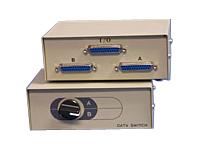

To share the printer, just plug the cables from both computers into the switch, then connect the switch to the printer. (You may need additional printer cables too.) Make sure the software that came with your printer is installed on both computers, and it should work great. If you have a manual switch, you'll have to remember to flip it to the computer that wants to print.
A switch doesn't care if you're running Windows, Mac or Linux. If your computer can print to the desired printer without a switch, it should work just fine through the switch.
Shared Printers - Networks
If you already have your computers networked, sharing a printer is easy. (If you're interested in setting up a home network, see my illustrated Home Networking tutorial.)
Here are the instructions for sharing a printer on a Windows XP network. Start at the computer that already has the printer installed. Go into the Printers section of the Control Panel, right-click the icon for the printer that needs to be shared, and choose Sharing from the resulting menu. By assigning a name to the shared printer, you allow other computers on the network to easily identify it.


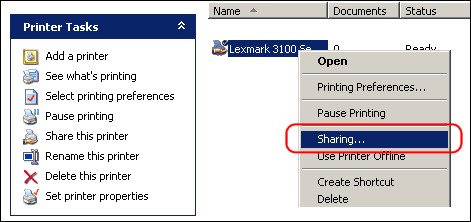

As with a switch, you must install the printer software on both computers. It's a little easier with a network, because you can install the software right over the network. Go to the other computer that needs access to the printer, then in the Printers section of the Control Panel, select "Add a Printer". The Add Printer Wizard will step you through the process of installing the printer software on the second computer.
Your Firewall May Cause Problems
If you have a software-based firewall, it may interfere with printer sharing. I recommend you read Do I Need a Firewall? for some advice on whether or not you should use firewall software. (Hint: Most users DO NOT need it.) If you must have a software firewall, and it seems to be preventing printer and/or file sharing, you'll have to poke around in the options to find the setting to allow sharing.
Got questions or comments about printer sharing? Post them below...


This article was posted by Bob Rankin on 14 Mar 2006
| For Fun: Buy Bob a Snickers. |
 |
Prev Article: What is LSASS? |

The Top Twenty |
Next Article: Reformat hard drive under XP? |
 |
There's more reader feedback... See all 35 comments for this article.
Post your Comments, Questions or Suggestions
|
Free Tech Support -- Ask Bob Rankin Subscribe to AskBobRankin Updates: Free Newsletter Copyright © 2005 - Bob Rankin - All Rights Reserved About Us Privacy Policy RSS/XML |
Article information: AskBobRankin -- Sharing a Printer (Posted: 14 Mar 2006)
Source: https://askbobrankin.com/sharing_a_printer.html
Copyright © 2005 - Bob Rankin - All Rights Reserved
Most recent comments on "Sharing a Printer"
(See all 35 comments for this article.)Posted by:

Syd
17 Jan 2009
Hi Bob, Thanks for the info. I have a Windows XP machine and a Mac OS X (10.4) machine connected to an HP LaserJet 3550. I can connect to the printer with the Mac via printer sharing, but the output is garbage. If I connect directly to the printer with the Mac everything is fine. Am I missing something important here?
EDITOR'S NOTE: I assume the printer is connected to the Windows machine, and you're trying to print from the Mac via the network? Maybe the Bonjour software will help.
Posted by:

Vir
10 Feb 2009
I have a Samsung laser printer ML2150 plug into a desktop w/ Windows XP. My other 2 computers another desktop and a laptop w/ XP are able to print thru my home network but my 2 Vista laptops and a Vista Desktop cannot. All computers have the same workgroup. Is there anything I missed to do?
EDITOR'S NOTE: I hear this a lot, and my usual suggestion is to try it with the firewall(s) turned off.
Posted by:

ritchie
16 Mar 2009
hey bob, i have a problem, i set up a LAN in our school but one of the computer cant be networked, is there a set up for the BIOS?
EDITOR'S NOTE: Need more info on what you mean by "can't be networked"... Did you check the workgroup name? They must all be the same.
Posted by:

Les Huber
22 Mar 2009
Hi Bob, I followed your instuctions, very easy even for a 'dummy' like me to follow, but I must
have something wrong. Could it be that I'm running
Vista on my DeskTop? That's the PC with the printer LexMark X3350)?
Thanks...Les
Posted by:

Patrick
07 May 2009
hey bob i have a problem with my epson lx-300 office network printer. ive already check it to the main computer which is the main user of the printer.. then ive got a laptop Asus eec my other local administrator accounts can easily print through the network printer... but when i already use the other account connected to the main group i have to set up adding printer time and time again and it frustrates me... when i shutdown the computer and turn it on the other day.. ive have to add that network printer again in my laptop. please help me im getting piss off with this network printer..
Posted by:

Oren
24 Sep 2009
In the office my laptop (running windows XP) is set to the office network. I want to use my laptop at home to access a printer on one of the PCs at my home WIRELESS network. My problem is that I need to change the WORKGROUP to that of my home network. Is there anyway I can access this printer or any shared files for that matter on the home network without changing my office workgroup? Thanks so much, Oren
EDITOR'S NOTE: Why not change the workgroup of your home computers to match the work name? It's just an arbitrary name...
Posted by:

Dwaine
31 Oct 2009
Hey Bob,
For network shared printer, does someone has to be logged into the host computer with the printer first before it can be printed to it by another computer over the network or the host computer just needs to be turned on without someone logged into it?
Posted by:

John Harding
24 Nov 2009
Hi Bob,
My host computer refuses to print from wireless lap top. I've gone through all the printer sharing
and add printer palava but all I get is the file
name appearing in the print queue on the
host computer, but no action from the printer.
Any ideas will be most welcome.
Regards, John
Posted by:

Suong
18 Mar 2010
Hi Bob
You have a great guide up there and I have followed the steps. However they are not networked as they have their own internet connection to the Internet through LAN cables.
I have setup as follows:
2 IMacs loaded with bootcamp winxp pro
IOGEAR autoprint switch
HP Laserjet P1006
printer sharing on
It has a software for guests to log on for only 20 mins to do their surfing, print boardig passes. However the problem that i came across is when a guest prints a document on one computer It will print, but on the other computer it will not print as it will show as offline. anytips?
Posted by:

Sumair
05 Jul 2010
Your post very interesting about sharing a printer, I have introduced a lot of friends look at this article, the content of the articles there will be a lot of attractive people to appreciate, I have to thank you such an article.
Posted by:

Joe
06 Oct 2010
Hi Bob,
I have looked through pages of instructions for this and I have tried using the wizard (Windows XP) but the printer never shows up when I browse for it. Please help me!
Posted by:

Judith Kibele
12 Nov 2010
Hi Bob
i have three computer and one printer i shared but one doesnt print while others printing what is the problem
Posted by:

Nitin Jiwane
17 Nov 2010
Hi Bob
I have 30 computer in lAN and one printer but i can share my printer for 14 machine only in workgroup. what is the problem?
Posted by:

Dave Darling
30 Nov 2010
This "simple" connection never works for me. It always asks me for a "network ID" and a "network password" and I have never set up either. When I go to my home computer there are no instructions how to do this. A friend of mine has st up sharing for me by going through run and typing in the ISP, but now I can;t get that to work either on new Windows 07 machine.
Posted by:

DEREJE
22 Dec 2010
writen noet about printer sharing is good but it not full step must write full step |||
my problem is after sharing tow computer i cant remotle print. what is its problem
write me
anybody can write and post printer sharing process
necessary to install printer driver softwer bothe computers
Posted by:

vetrivel
27 Dec 2010
i have only one 25 pin parallel port in my pc but i want 10 output 25 pin port,how to connect.
Posted by:

Chuck B
18 Feb 2012
Bob:
Pretty good article from the archives. I do have a few questions for you about it, though.
Do you have any instructions for setting up a shared printer in a home network, by using a "printserver" -- a PC only used to network the printer? I rarely have both the desktop and laptop on at the same time, and it takes about 5-10 minutes to get the desktop running.
FRom what I've seen, it should be rather straightforward, but the one thing I'm not sure of is keeping the printserver "awake".
Posted by:

Robert
05 Apr 2012
I have been stumped in trying to print to a networked HPC4400 printer connected to a WinXP computer from my Win7Pro computer. I was able to “see” the WinXP printer but not able to print to it from Win7Pro. The message was “Unable to connect to Windows Printer. Access denied”. The firewall settings made no difference. Any suggestions?
Posted by:

rajesh
17 Nov 2014
can not take prints from shared usb printer unless host prints
Posted by:

Sam Soloman
13 Aug 2018
Hi Bob, Thanks for the info. I have a Windows 10 pc connected to a brother printer. My printer is a network shared printer, does someone has to be logged into the host computer with the printer. I am having brother error ts-02