


TV as Computer Monitor
Imagine... putting that big old television set to good use as a secondary, or even primary, monitor for your computer. The thought has certainly crossed the minds of many a technophile. Here's how to hook it up... |
Using your Television as a Computer Monitor
With the advent and ever-growing popularity of LCD displays, the CRT display has seen its day. Despite its superior color consistency and higher resolution within a given area, CRT monitors are quickly giving way to the generally lower power consumption and vastly smaller footprint of the LCD. Similarly, consumer-level television is in the process of being affected by the very same trend; as prices continue to drop, the combination of LCD screens and high definition television (HDTV) is becoming an increasingly viable alternative to its older, bulkier counterparts.
Although the price of CRT monitors have dropped in recent years, to purchase one comparable to the size of an average consumer TV set would be quite expensive. So naturally, thoughts of using larger and comparatively less expensive television sets for computing purposes quickly emerge.
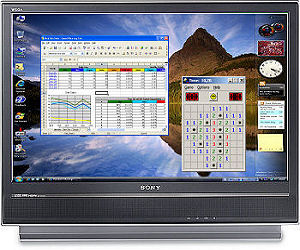
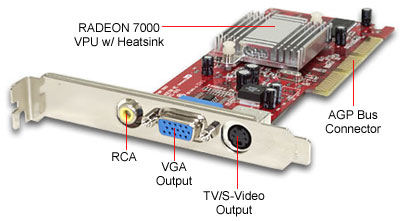
And there are a number of methods that will allow you to make the connection. Many computers have incorporated composite (RCA) or S-Video (TV-Out) output that will either mirror or, better yet, extend your desktop beyond the monitor. For desktop systems, there are numerous AGP video cards available that offer a variety of video outputs. For example, ATI's Radeon X1950 PRO video card includes composite, s-video, and component video connections for analog signals.
Connecting your video card to the big screen, though, depends on what inputs your television can accept. If it has multiple input ports, remember that there is a hierarchy in terms of signal quality among the three typical types of connections, which, from lowest to highest, is composite, S-Video, then component video. So opt for the highest quality connection supported by both devices. Many older or more basic televisions may only have a coaxial cable connection. In this case, there are video cards with coax outputs and scan converters that will pass the signal through a coaxial cable directly to your television. Oh, and remember that you'll also need to connect your sound card's LINE-OUT connector to the TV for sound.
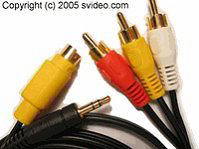
The tricky part may be finding the right cables to go from the computer to the TV, since there are several types of RCA (1 or multi-port) and S-Video (4-pin and 7-pin) connectors. One product I found, the Pro S-Video to 3 RCA cable allows you to connect your desktop or laptop computer's S-Video to your TV. These adapters are compatible with both S-video 4-pin and 7-pin receptacles and also connect your PC's stereo audio output to the TV.
But don't run out and buy any special video cards or cables yet... There are certain limitations of using older CRT televisions as computer displays that can easily render the advantages of size and affordability almost completely negligible. Perhaps the greatest constraint is the relatively low resolution of standard, tube-based televisions. Because of their design to accept NTSC (North American), PAL (European), or SECAM signals, good old-fashioned analog television sets generally cannot display resolutions greater than 640x480. That was barely adequate for a 14-inch monitor ten years ago, so just imagine how it might look on a 32-inch TV screen. Have you ever tried to read those fuzzy disclaimers at the end of a TV commercial? Viewing your computer's video signal through a CRT television will not yield the detail and clarity that you would normally expect, although for games and video playback it can produce acceptable results.
Don't give up on the idea of connecting your computer to a big screen TV just yet... there is a better alternative.
HDTV to The Rescue
With the growing popularity of high-definition television, users are presented with a more tantalizing alternative, one where quality and versatility need not be sacrificed. Even the lower echelons of HD televisions offer a multitude of both analog and digital video input connections. And many come equipped with VGA and DVI inputs, allowing for direct connections to your computer's video output. Video card manufacturers have quickly responded to the demand for HD by including dual DVI outputs to support more than one display, as well as HDMI connections for uncompressed digital video and audio transmission.
The only conceivable drawback to using HDTV is obviously the cost. Used exclusively as a computer monitor, it is difficult to justify such a daunting expense. But if you've already got a large HDTV and you can't wait to see what a Windows or Mac display looks like on a 50-inch screen, go for it!
Got comments or questions about using your television as a computer monitor? Post your thoughts below...


This article was posted by Bob Rankin on 29 Mar 2007
| For Fun: Buy Bob a Snickers. |
 |
Prev Article: Voice Recognition |

The Top Twenty |
Next Article: What is Blu-Ray? |
 |
There's more reader feedback... See all 206 comments for this article.
Post your Comments, Questions or Suggestions
|
Free Tech Support -- Ask Bob Rankin Subscribe to AskBobRankin Updates: Free Newsletter Copyright © 2005 - Bob Rankin - All Rights Reserved About Us Privacy Policy RSS/XML |
Article information: AskBobRankin -- TV as Computer Monitor (Posted: 29 Mar 2007)
Source: https://askbobrankin.com/tv_as_computer_monitor.html
Copyright © 2005 - Bob Rankin - All Rights Reserved
Most recent comments on "TV as Computer Monitor"
(See all 206 comments for this article.)Posted by:

Brent
18 Aug 2010
Bob,
I am trying to connect my Dell laptop (running windows XP) ("NVIDIA Geforce 8400 GS" graphics card) to my about 7 year old tube style analog TV. I'm using a 7-pin S-Video out of my laptop to the RCA on the TV (got the correct cord online). The online instructions I am following have be setting up the TV as a dual monitor. Each time I try to "attach" the 2nd monitor the TV flickers the computer screen image briefly, appearing to flicker the image at different sizes as though it is trying to automatically configue the correct resolution. (I believe my graphics card is designed to do this auto resolution configutation). However, after about 3 seconds of flickering the TV goes black/blank. My computer pixels/resolution is set at 1280 by 1024, with the lowest option being 800 by 600. I'm guessing the TV needs a resolution more like 640 by 480. Any suggestions on how to fix my problem? Thanks.
Posted by:

wdcrachel
29 Aug 2010
I have hooked my macbook to a Samsung LCD using DVI and an audio cord. The TV displays the desktop but nothing from the internet. What do I do?
Posted by:

jv
09 Sep 2010
Hi Bob: This is the first time I have accessed your website in my search for Using your Television as a Computer Monitor. Thank you. Very useful information. My question is: Isn't there a way you can use your TV as both a TV and as a computer monitor, rather than dedicating it to one or the other? If so, how?
Thanks again and I think I'll be revisiting your website often!
Posted by:

Levy Canova
01 Oct 2010
Could you advise me on what outputs,inputs an LCD HDTV set should have for optimal connection to a Dell Studio XPS 435T computer with Windows 7 purchased in August, 2009? Can I run connecting cables about 20 or 30 feet from my desktop computer to the HDTV set?
Thanks you very much for helping me with this.
Levy Canova
Posted by:

Manvir
11 Oct 2010
HI BOB. I HAVE A OLD T.V. ONLY HAS THE RCA FEMALES ON FRONT. I BIUGHT THE VGA TO RCA CONVERTER, BUT I COULD'NT MAKE NO CONNECTION.SO, PLEASE TELL ME WHAT CONVERTER AN / ORCORDS OR ADAPTERS TO GET TO MAKE THIS OLD T.V. USEFUL. P.S. IT SAYS TUNER OR LINE. THE ONLY OPTIONS TO USE. PLEASE HELP. THANKS.
Posted by:

Andre Buecker
07 Nov 2010
I connected my computer to an LG 32" HDTV using the TV's VGA input, I set the video mode of the computer to match the TV native resolution 1360x768, every thing looks good except for text.
JPEG's and videos look awesom, but reading news aritcles hurts my eyes, I think I will only use it as a second monitor for watching video.
Posted by:

Lisa
17 Nov 2010
I connected my Dell laptop (running windows XP) ("NVIDIA Geforce 8400 GS" graphics card)to a new LED flat screen 42" tv with the VGA input/output. The reason for the big screen is to view blue prints without having to always print them. I cannot get the image on the "tv" clear or true to size, it takes what is on the 15" laptop screen and just blows it up. Are there settings to make the print clearer and true to size?
Posted by:

Mike
28 Nov 2010
I'm running a Gateway dx4200, AMD Phenom X4 9100e(1.8GHz) 64 bit Quad-Core Processor, 4GB DDR2 800, ATI Radeon HD 3200 Graphics on a desktop PC and I'm trying to connect to my 32” Philips HDTV, to watch internet TV. I connected hdmi on back of tower to TV hdmi , computer doesn't recognize, blank screen on TV? What am I missing?
Thanks, Mike
Posted by:

Peter Disuja
29 Nov 2010
Hey Bob. Good information i am seeing at here and learn some of the things which i don't know. your presentation is quite good. Thanks
Posted by:

George Henson
21 Dec 2010
Hey Bob. I got for Christmas a INSIGNIA 26 LCD 1080 TV. It has the VGA connector that I was able to hook up to my laptop. My desktop has a built-in to the motherboard a VGA port. when I connect the desktop to the TV, it doesn't work. I get "unsupported signal" on the TV screen. Would I need to buy a video card with S-video, DVI, HDMI connectors to hook up (or is that a waste of time).
EDITOR'S NOTE: If it works with the laptop, but not the desktop, it must be the video card.
Posted by:

tj
21 Jan 2011
after hooking up the vga cable from tv to pc what do I set the tv mode on?
EDITOR'S NOTE: TV sets vary widely, but if you cycle through the various input settings, you should find the right one.
Posted by:

Darryl
04 Feb 2011
I was using my laptop connected to my TV and everything was working through VGA cable. I connected it the other day and I was getting nothing on my TV display. The TV was set to PC but kept shutting off. I replaced the VGA cable but the same thing occurred. What happened??
Posted by:

Dennis
15 Feb 2011
Back in 1980 I was a mainframe programmer well versed in IBM 360 assembler as well as 4GL languages. I still remember my first Sinclair Z80. Didn't have any electricity at my cabin yet so I took my first PC over to my brother's college dorm and hooked it to their then humongous 36" CRT TV. When we powered the system up it gave an absolutely huge KHA-WHAM and displayed a tiny little >_ . Seeing no obvious smoke we attached the tape drive, an external cassette drive that was a HUGE improvement over 8 track tapes (at the time). In practically no time we were playing Pong and saving our Basic programs to tape. Such heady times.
PS I just bought a printer for $88.00 that has more computing power built in than the IBM 360 I started on.
Posted by:

David
03 Apr 2011
I hooked my Compaq 6720s to my Sony Bravia 52" via VGA. Everything works fine except the size of the screen on the tv is only so big and does not use the entire 52"
How do I adjust the computer screen size on the television to be larger?
EDITOR'S NOTE: The only suggestion I have is to try different screen resolutions on the PC side.
Posted by:

Chakravarthi
25 Apr 2011
Hi Bob,
My requirement is a bit strange.
I want to connect my desktop to my latest LCD TV.
In my PC, I will play multiple videos simultaniously (means.. many instances of video player running with each instance playing a different video file). For example, 1.avi, 2.avi, 3.avi. In my TV the output of 1.avi should be displayed in 1st channel, 2.avi in 2nd channel, 3.avi in 3rd channel. So that I can switch movies by using TV remote.
How can I achieve this?
I have been searching in internet for months now.
Please help
Thanks
Chakravarthi
Posted by:

Matt
02 Sep 2011
"Thank's Bob!"You've been a big help.I plan to return next time I have a question,very bigginer friendly site.
Thank's again:
Matt R
Posted by:

matt
12 Sep 2011
Hey I have pluged my vga cable to my hitachi lcd tv and it says that its not supported why?
Posted by:

T Smith
25 Mar 2012
I have a wired pc and would like to connect my internet ready tv and sky anytime + via a wireless connection. The pc is in a different room from the tv,but is this possible.
Posted by:

faz
09 Oct 2013
hello, bob
i have a 42 inch led tv which i occasionally connect to my laptop through hdmi for movies ect,
question is if i where to use a pc machine for long term display wireless key board with roller pad, so technically i would have a wireless work station at the confort of my sofa what kind of pc spec am i looking at for continued use 8-10 hours
Posted by:

Luke
17 Feb 2018
Hi Bob,
Do you know of any modern graphics cards (2018) that still have composite video output?