


Wireless Printing
I have a laptop with no printer attached. But I do have a wireless network in my home, and one of the desktop computers on the network has a printer. How can I print from the laptop, over the wireless network, to the printer that's hooked up to my desktop? |
Sharing a Printer On a Wireless Network
Although it may seem like printing over a wireless network requires come special magic, it's really no different than printing with a regular wired network. It doesn't matter if you connect your laptop to the network router in your home with a network cable, or if you use an invisible wireless beam to connect. (If you need help setting up a home network, see my illustrated Home Networking tutorial.)
If one of the computers on the network has a printer attached, all of the computers on the network should be able to access it -- as long as your printer is designated as a "shared" printer for the network.
To make sure your printer is network shared, open the Control Panel (on the computer that has the printer), click Printers and Other Hardware, then View installed printers.
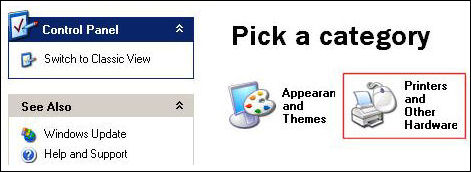
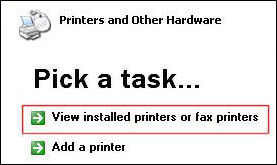
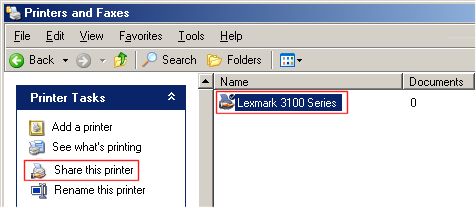
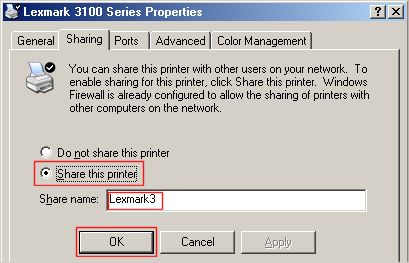
Select your printer from the list of installed printers, then smack the Share this printer button. Now click the radio button next to Share this printer, enter a Share name, then press OK. (The example below shows the Lexmark 3100 printer on my desktop computer... yours will most likely be different.) Mac users, make sure the printer is shared in the Mac OS Sharing control panel.
Now your desktop computer's printer is shared, so any computer on the network can send print jobs to it. Oh, and it really doesn't matter if you're printing from a laptop to a desktop, a desktop to a laptop, a desktop to another desktop, or a laptop to a laptop. As long as both computers are on the network, and the printer is designated as shared, it should work.
Setting Up Network Printing
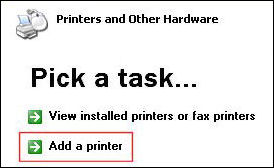
Now on your wireless (or direct wired) laptop, you will need to visit the Control Panel, click Printers and Other Hardware, then Add a printer. This will define the connection between your laptop and the printer on the network.
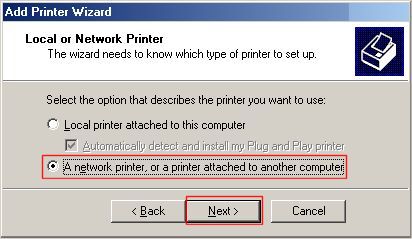
When the Printer Wizard opens, tell it you're looking for a network printer, then browse for the desired printer on your network. You should select the printer that you just designated as the shared printer on your desktop. In the example below, there are two printers connected to a computer named GW3. You may have more than one computer on your network, with or without printers attached.
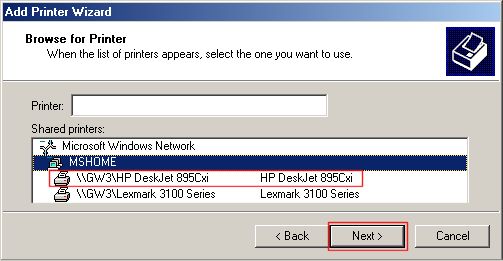
Press Next and the necessary printer software will be copied from the desktop to your laptop. In some cases, you may need to insert the CDROM with the printer driver, but usually not. The Printers and Faxes window should show your newly configured printer.
If you're connecting to a printer on a Mac computer, you'll need to download Bonjour for Windows so your Windows computer can access the Mac-connected printer.
If you have more than one printer defined, take note of which is the default printer. When you print from the laptop, the print job will go to whatever printer you have defined as your default printer. To change the default printer, right-click on the desired printer and select the Set as default option, or just select the printer you want to use from the application that you're working in.
Got comments or questions about networking printing from a wireless laptop? Post them below...


This article was posted by Bob Rankin on 5 Dec 2006
| For Fun: Buy Bob a Snickers. |
 |
Prev Article: Revealing Your Email Address |

The Top Twenty |
Next Article: Is Genuine Advantage Spyware? |
 |
There's more reader feedback... See all 224 comments for this article.
Post your Comments, Questions or Suggestions
|
Free Tech Support -- Ask Bob Rankin Subscribe to AskBobRankin Updates: Free Newsletter Copyright © 2005 - Bob Rankin - All Rights Reserved About Us Privacy Policy RSS/XML |
Article information: AskBobRankin -- Wireless Printing (Posted: 5 Dec 2006)
Source: https://askbobrankin.com/wireless_printing.html
Copyright © 2005 - Bob Rankin - All Rights Reserved
Most recent comments on "Wireless Printing"
(See all 224 comments for this article.)Posted by:

Tony
26 Dec 2010
I read your article on wireless printing. My printer is not in a place I can attach it to any of our laptops. Is there a device I can attach to it to make it part of the network for printing?
Posted by:

Pam
07 Jan 2011
Just bought an HP 6500 which is connected to Windows XP desktop. I have a wireless network and need to connect my Mac laptop to the printer. I thought it was a simple as ethernet plug from printer into wireless router, but can't get access to the printer from the laptop.
BTW, I have a Windows workgroup setup and able to access files from my desktop. Had my old printer networked in but have deleted the connection and now forgotten how I did the original setup.
Posted by:

Brian
09 Jan 2011
Worked great. Have a MAC connected to USB and had to enable my Airport to get the MAC on the wireless network.
Great Article.
Posted by:

D.S.
23 Jan 2011
Great article which solved my problem of trying to print from our Toshiba laptop to a shared printer on our iMac. Thanks!!!
Posted by:

David Stevens
04 Feb 2011
This useful description helped me connect from Vista laptop to my Brother MFC Printer but it does not seem to function through my new Windows 7 PC and wireless router. Have I missed something or do you have an 'updated' version now? Thanks
Posted by:

PRM904
16 Feb 2011
Thank you so much for posting this! I have been trying to print with my Toshiba laptop wirelessly to my printer which is connected to my Mac for the last 3 years! Bob you ROCK!
Posted by:

Mike
25 Feb 2011
I have done all this and it works great. I am wondering though why it will only allow me to print when the desktop is fully powered on, but not when it's on standby. Really its no big deal, I can walk back to the office and hit the space bar to bring it back up to full power, but I am curious if there's a way to print while the desktop remains in standby. Thanks Bob!!
Posted by:

Sharons
02 Mar 2011
Hey bob, my printer's been going off with a beeping sound all night. I've already unplugged it so the beeping sound stopped but as soon as i plugged it back in the beeping sound continued--this time no error message. I've already asked the guys who sell toners to me but they can't seem to help.
EDITOR'S NOTE: Probably indicates a hardware failure. Try searching Google with your make, model and "beeping".
Posted by:

Karla
06 Mar 2011
I have never had a problem printing from my HP laptop (useing Windows 7) wirelessly to my Brother MFC490CW. Now I cant. I can shut down or restart my laptop and a page will print but then the printer goes back to "offline". I have uninstalled then reinstalled the printer. I have checked my cables. I have even unplug the printer from the outlet and the USB cable. Still getting "offline". I have also checked and the "print offline" is not checked. Dont know what else to do.
Posted by:

nikki
23 Mar 2011
when trying to connect laptop running windows 7 to the printer it found, brother MFC 7420, it asks me for my credentials and user name. I am using my sign in for the laptop, but it says these are incorrect. what 'credentials' is it asking for?
Posted by:

Meryl
01 Apr 2011
Is there a way to use a wireless printer on a network without connecting it (with a wire) to a computer?
EDITOR"S NOTE: Yes! That's the whole point of having a wireless printer. The printer connects to the router via wifi. Your printer's manual should describe how to set it up.
Posted by:

Lexmark printers
01 Jun 2011
Hey Bob,
I've found Lexmark printers work best when setting up a wireless printer network. You can find more info about their printer options
here. Thanks.
Posted by:

Canon User
30 Jun 2011
Great Info Bob!!
I had to try different things, but it worked very nicely. I had downloaded the driver on my laptop, but it didn't work, since it asked for a particular port, so it did not work. Then I tried to go straight to the "Shared" printer, on Windows Explorer, and it worked at that time.
Thank You!!
Posted by:

milka
04 Dec 2011
I have a MAC and I have a cannon Mx350 printer which is connected to print wirelessly. I also have a Sony VIAO windows XP that I have tried to configure to do wireless printing with no success. The add printer wizard where it browse for printer the only thing it shows is Microsoft Windows Network and nothing else.I even downloaded the the BonJour print services for windows.As per Apple this Bonjour installer will configure the Windows firewall appropriately during installation on supported systems, but if I have a separate "personal firewall" enabled, I will need to ensure that UDP port 5353 is open for Bonjour to work correctly.But how do I know and do this?, if that is the reason,... I am getting nowhere.Can you help?
Thank You
Milka
Posted by:

James Matin
13 Jan 2012
Thank you Bob this guide instruction is excellent.
Will certainly contact you again.
Jim Martin
Posted by:

Kari Milhous
27 Mar 2012
I have tried everything just as you have indicated and when I try to add printer to my laptop it says no printers were found. Am I missing something?
Posted by:

JESUS ALVARADO
21 Dec 2012
HELLO BOB, JUST WANT TO THANK U FOR THE INFO ON HOW TO PRINT FROM A LAPTOP ON A WIRELESS NETWORK. TRIED MANY OTHERS REMEDIES TO NO AVAIL. FOLLOWED YOUR INSTRUCTIONS, VOILA! THANK U.
ONE QUESTION, THE DESKTOP THAT THE PRINTER IS CONNECTED TO MUST BE TURNED ON TO BE ABLE TO PRINT IS THERE A WAY AROUND THIS? JAY
Posted by:

Jae
03 Apr 2013
There are two laptops that are connected to the same wireless printer. They both find, connect & print just fine. However... MY laptop MUST be ON for the other to be able to print. What must I do/change so that either laptop can print when the other is not available/on?
Thank you in advance.
Posted by:

Robert
05 Sep 2013
Thank You Very Much Bob!!!!
I have been wondering for a long time how to hook my desktop PC printer to my wireless laptop. After following your instructions, It works great!!!
Again, Thank You!!!!
Robert, Harbor City, Ca.
Posted by:

Phil T
21 Nov 2013
Bob, I have spent hours trying to get my laptop to print via a wireless router through a new HP desktop installed yesterday with no success....until I red your guide and... it worked like a dream. Brilliant job thanks.