


Automatic Backups
My hard drive failed last week, and my latest backup was a year old. So I lost pretty much ALL of my important files. Can you recommend an AUTOMATIC backup that just works? |
Automate Your Backup Process
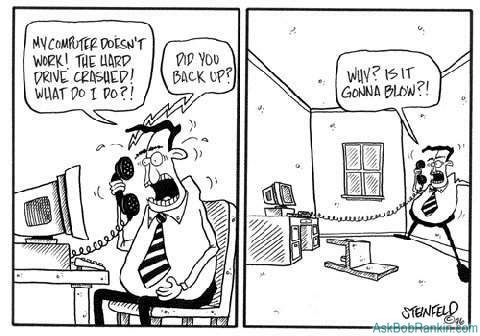
A grief observed... sooner or later, this will happen to most computer users. Every day, files are lost due to hard drive failure, user error, system malfunctions, viruses and other computer disasters. Are your important files -- documents, spreadsheets, photos and emails -- backed up daily? Even more important, is your backup process automatic? In my experience, if your backup strategy involves any human intervention, it will fail at some point. You've invested a lot of money in your computer system, and countless hours creating the information that's stored on your hard drive. So why leave the safety of it all to chance?
Automatic backup systems, which can be online, or based your own hardware/software combo, will faithfully backup the files on your computer so that in the event your system crashes or you lose data, you can quickly and easily restore those files. Here are some options to consider for automatic backups...
Online Backup Options
Online backups are a great option if you have limited technology experience and a high speed internet connection. All of your files (or just the ones you select) will be automatically transferred to an online file storage server. Once you install the backup software, you don't have to worry about it again. If you need to restore a file, you just login to a website, find your file, and download it to your hard drive. There are lots of online automatic backup services to choose from. Here are some popular options:
Mozy.com is an affordable online automatic backup system. It has subscription options for both home users and business users to protect your data, and this site uses both 128-bit SSL encryption and 448-bit Blowfish encryption. To use this service you will need to sign up for an account, pay for your subscription, download the software and set up your scheduled backups. Your first backup will be a complete back up of your system including your email files. Subsequent backups will only target files that have been changed or added since your last backup. If you have less than 2 GB of data to back up you can sign up for a free account, however, if you need more than 2GB of data storage, then your subscription options will start at about $60 per year.
Carbonite.com offers similar security protection and backup procedures. What is different about this online option is that the default backup setting will only backup your settings files and document files. If you want to backup other system files and programs, you will need to modify your backup options. This service is also slightly less expensive than Mozy.com, with an annual subscription running about $50.
For more information about this topic, and other online backup services, see my Online Backup article.
Offline Automatic Backups
If you decide to roll your own automated backup system, you'll need a combination of hardware and software. In ages past, people used tape backup systems, or a big stack of CDROM disks. Neither option is viable today if you want to backup a large hard drive. Your best best now is a portable external hard drive that's connected via a simple USB or firewire cable.
The ABSplus is an all-in-one software and hardware solution from CMS that comes in various sizes, from 80GB ($133) to 750GB ($400) of storage capacity. The software is pre-installed on the device, so you don't have to install anything on your hard drive. Oh, and you can get Windows or Mac versions. Just plug it in and go! The ABSplus automatically does a complete backup of your hard drive. I like this one because it copies both the files and the operating system, so if you your drive fails, you can boot and restore from the backup drive.
The Iomega portable hard drives are another good choice. These stylish and durable drives will protect against accidental oopsies, and are available in 80GB ($65) up to 250GB ($170) capacities. Professional backup software is also included.
There are lots of other options when it comes to external hard drives. Western Digital, Fujitsu, Maxtor, Buffalo and other companies make good ones. When choosing a size, pick one that's larger than your current hard drive, so you'll have room to grow, or make multiple backups.
Software for Automatic Backups
If your external drive doesn't come with backup software (or even if it does) consider these two top-shelf software packages for automated backups:
- Acronis True Image for Windows ($49) will create a mirror image copy of your hard drive, or backup only the files and folders you choose. You can schedule the backup to run every night, once a week, or on whatever schedule you like. And when you need to recover files, you can easily navigate your backup and select individual files, folders or the entire drive. You can even backup your files via FTP for online storage.
- Retrospect for Mac or Windows ($129) is another award-winning software product that focuses on small and medium sized businesses. Retrospect is network-aware can backup two networked Macintosh, Windows, or Linux computers.
Do you have tips or questions about automatic backups? Post your comments below...


This article was posted by Bob Rankin on 4 Apr 2008
| For Fun: Buy Bob a Snickers. |
 |
Prev Article: What is Google Sky? |

The Top Twenty |
Next Article: Ubuntu Hardy Heron |
 |
Post your Comments, Questions or Suggestions
|
Free Tech Support -- Ask Bob Rankin Subscribe to AskBobRankin Updates: Free Newsletter Copyright © 2005 - Bob Rankin - All Rights Reserved About Us Privacy Policy RSS/XML |
Article information: AskBobRankin -- Automatic Backups (Posted: 4 Apr 2008)
Source: https://askbobrankin.com/automatic_backups.html
Copyright © 2005 - Bob Rankin - All Rights Reserved
Most recent comments on "Automatic Backups"
Posted by:

Randall Granaas
05 Apr 2008
Hello, Is there a particular reason you didn't mention Windows XP's built-in backup program?
EDITOR'S NOTE: I've never heard anything good about it. I think it creates a "blob" for the backup and you can't go in and select an individual file to restore.
Posted by:

John
13 May 2008
For "offline automatic backups", here are some free software options:
For backing up MS Office settings, use Office Resource Kit tools (http://www.microsoft.com/office/orkarchive/2003ddl.htm#ork for Office 2003).
I also use a batch file that is automatically executed by Windows XPs built in scheduler. The batch file uses Winzip's command line add on. I know Winzip isn't free, but I'm sure there are a number of free compression utilities out there if you don't already have it...
Posted by:

Don Stallone
13 May 2008
What's your opinion on "Ghost." While I've never used the automatic backup feature of Norton's (Symantec's?) "Ghost" I believe it DOES in fact exist.
Obviously I don't do regular backups. The backups I did manually saved my bacon on more than one occasion. Now might be a REAL GOOD TIME to start doing this on a regular, automated basis. Thanks. You da man!!
Posted by:

Richard
13 May 2008
How about Genie Backup Manager? Excellent program with lots of features including backups to local, removeable, or CD/DVD drives. If that's not good enough you can also backup to an FTP site. The Pro version is very useable however there is also a slightly less expensive but competent Home version too. Take a look at http://www.genie-soft.com/products/gbmpro/default.html
Posted by:

Geoff
13 May 2008
True Image and Ghost are definitely the best for image backups. (FYI: Acronis is currently offering a free older edition, v.8, at their website.) But I personally consider imaging the entire drive to be an occasional task... more than monthly would be overkill for most people... 1-2 times per year is enough for those who don't install software very frequently.
For the daily backups (i.e. strictly data), there is an abundance of free, lightweight, simple-to-use options, most of which can be automated
Posted by:

Jan te Kiefte
13 May 2008
Apple's Time Capsule works without any user attention (until the backup is needed) and deserves a mention in your automatic backup story.
EDITOR'S NOTE: Thanks for mentioning that. What happens when the backup is needed? Does it prompt for something, or Just Do It?
Posted by:

Derek
13 May 2008
The best "free" automated (or manual if you prefer) backup program I have found is called Karen's Replicator: http://www.karenware.com/powertools/ptreplicator.asp
It is so easy to use. Pick your source location, backup location, sync it!
EDITOR'S NOTE: Ahhh, yes. I used to use that on my previous computer. I forget, does it have an option to run on a specific schedule?
Posted by:

William van Erp
15 May 2008
Cobian Backup is the way to go...and it is free
Posted by:

Outtanames999
23 Jul 2008
My understanding is that very few backup programs are actually capable of backing up EVERY file on a Windows machine. Apparently some system files do not get copied by most programs, perhaps because they are in use by the os at the time of the backup.
What program would be able to do this so that I can create a second hard drive mirror. I don't want to install a RAID card because I don't trust them - they can fail, too.
EDITOR'S NOTE: You need a program that can create a disk image. I like Acronis for that.
Posted by:

Jackie
05 Nov 2008
If you didn't back-up your data and your hard drive did indeed crash, I'd recommend using Selkie Rescue Data Recovery. Since a lot of people get into this situation, it's nice to have another option of getting your data back. It is a bootable cd that will by-pass the Windows Operating system and start getting your data back within minutes. It's do-it-yourself software that I think everyone should check out. www.SelkieRescue.com
Posted by:

Mal
07 Mar 2009
on your URL here -
http://askbobrankin.com/automatic_backups.html
OFFLINE AUTOMATIC BACKUPS)
does the second 'best' need changing to 'bet' in this para?
QUOTE:
Your best best now is a portable external hard drive that's connected via a simple USB or firewire cable. END QUOTE
Mal