


9 Good Reasons to Try Dual Monitors
An AskBob reader says: “I am considering upgrading to dual monitors because my 17-inch monitor seems to be shrinking. Sometimes it seems like I spend more time scrolling and tabbing between programs than on actual work. But still not sure... should I upgrade to a big 30-inch monitor, or go with a dual monitor setup?” Here's my advice on dual monitor upgrades... |
Try Dual Monitors For Increased Productivity
If you've ever wished for a bigger computer screen, here's an even better idea. Get two! Use a dual monitor (or multi monitor) setup to extend your desktop across two or more screens. Windows, Mac and Linux computers have the ability to simulate one BIG screen using a dual or multi monitor configuration. Adding a second monitor will be cheaper than upgrading to a super-size screen, and there are other advantages too.
I've used two monitors on my PC for many years. Years ago, I got a pair of 22-inch monitors with a new computer. When they finally died (within two days of each other) I replaced them with dual 24-inch flat-panel monitors and I love it. I set both monitors on my desk, side by side, and a bit of software magic creates the illusion of one giant screen. I can open a website on one screen, and a word processor on the other, then copy and paste from one screen to another. I can drag a window from one screen to the other, or even open a spreadsheet and stretch it A-L-L T-H-E W-A-Y across the full width of both screens if I want.
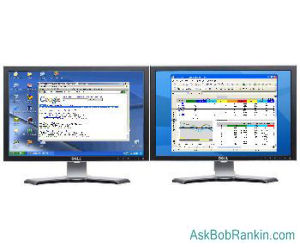
One of my AskBob readers concurs: "I added a second monitor to my desktop about a year ago on a whim: A friend upgraded to a larger monitor and gave me his old one. I thought, "Let's see what it's like to have two monitors!" IT IS FANTASTIC - THAT'S WHAT IT'S LIKE! I can't imagine ever going back to one."
Personally, I find that all the extra desktop space makes me much more productive and greatly enhances the fun of computing. When I am forced to use a laptop or desktop computer that has a single screen, I notice the limitations right away, as the extra scrolling and alt-tabbing becomes tedious. Others have told me that after ten minutes of using a dual monitor setup, they can't imagine living without it.
Here are NINE good reasons to have dual monitors:
- Published studies indicate that having a dual monitor in a workplace setting can increase productivity by 20 to 50 percent. For example, if you're a computer programmer, it should be obvious that having your source code on one side and your program on the other side of a dual monitor display would be very helpful.
- Real multi-tasking requires enough screen space to keep two or more apps in full view simultaneously. If you have ever tried to size and align windows on a single monitor, you'll appreciate the ability to have several apps fully open at the same time. Customer service reps and web designers are additional examples of people that would benefit from dual monitors.
- Cutting and pasting between documents is much easier when you don't have to alt-tab between them and scroll up or down so much. If you create newsletters or PowerPoint presentations, you'll identify with this.
- Picture and video editing is a whole new experience with dual monitors. You can have all of your editing tools on one screen while you work on the project in the other. You can compare before and after views of the same work, or supersize panoramic pictures.
- Comparing products is easier when you have dual monitors. You can show two cameras' specs side by side in separate browser windows, for example.
- Video and gaming take on a whole new dimension with dual monitors. You can view much more of a virtual world and see bad guys coming from a distance. Some gamers like to have Skype or another chat app open on a second screen.
- Similarly, dual monitors can help with video conferencing. During Zoom or Microsoft Teams calls, it’s much easier to stay engaged when your meeting is on one screen and your notes, agenda, or browser are on the other. No more frantic window shuffling while someone’s talking.
- Windows 10 and 11 offer multi-monitor features, such as the ability to use different backgrounds on each monitor, span multiple screens with your background image, and multiple taskbars.
- Dual screens are ideal for traders, analysts and genealogy buffs. Finance professionals and data analysts love dual monitors because they allow you to view multiple data streams, live charts, and reports simultaneously. One friend of mine keeps his Family Tree genealogy program open on one screen, with his browser and word processor on the other.
Hardware Required For a Dual Monitor Configuration
That was nine reasons, and I'm sure I could list more if I rubbed a few brain cells together. Despite all that, a Microsoft study showed that less than 15 percent of all PC users have a multiple monitor configuration. But now that you know all of the benefits, let's move on to the actual nuts and bolts of adding a second screen, to make your dual monitor dreams come true.
Windows 7/8/10/11, Mac OS and Linux all have built-in support for dual monitors. Setting up dual monitors takes about five minutes. But first, you need to make sure you have the right hardware. Almost all laptops have a VGA, DVI, HDMI or DisplayPort connector where you can plug in a secondary monitor. If you have a spare monitor, and the video cable required to connect it, that's all you'll need. If your video cable has a different connector than your laptop, you can buy an adapter to make ends meet.
On a desktop, you will need two video connectors on your computer, matching connectors on the two monitors, and of course appropriate cables. Some desktops come with two video ports, but if you have only one, you can add a second video adapter, or swap yours for a dual-port model. Adding or swapping a video adapter sounds geeky, but it's actually a pretty easy upgrade. After popping the hood on your system unit, the video adapter simply plugs into a slot on the motherboard. If you know how to use a screwdriver, you can do this.
Some computers, however, simply lack the capacity for internal hardware upgrades. In these unfortunate cases, there are ways to get around this limitation, such as the Matrox Graphics DualHead2Go, which functions almost identically to a standard video card, yet is actually an external device that makes use of your existing video out port. With DualHead2Go, you can add an additional display to your PC or Mac desktop, or another two monitors to a laptop.
How to Connect a Second Monitor
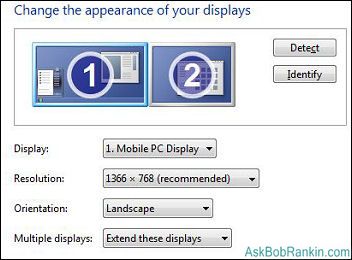
On Mac OS X and most Windows computers, your second monitor should be automatically recognized and enabled. Connect your second monitor to the computer and power it on. On Windows 10 or 11, Select Start > Settings > System > Display. Your PC should automatically detect your monitors and show your desktop. In the Multiple displays section, select an option from the list to determine how your desktop will display across your screens.
"Duplicate these displays" shows the same display on both screens. This is handy when monitoring a presentation on a laptop while it is displayed on second, larger screen. "Extend these displays" makes one big screen out of the dual monitors. You can actually drag objects across the boundaries of the two monitors. This is the setting that most people use, and the one I recommend. "Show desktop only on 1" or "Show desktop only on 2" disables one of the monitors.
Once you've selected what you see on your displays, select Keep changes. Adjust the screen resolution of the monitors as desired, and you're done.
Some Monitor Upgrade Options
Prices have dropped quite a bit since I paid about $200 each for my last set of monitors. The Dell 24-inch Monitor with built-in speaker is just $119. It has HDMI ports, and an ultra-thin bezel that’s great for a multi-monitor set-up. The stand has adjustable height, tilt and rotation.
If you want to start fresh with a matching set of monitors, consider this dual pack of Kado 22-inch HDMI Monitors with built-in speakers. Currently offered as Prime-Day Deal for $111.89. Yes, that's the price for the set. There's also a 3-pack for $183.89 that will provide an immersive viewing experience for gamers.
Dual monitors are not for everyone. They take up more desk space, obviously. If you are a programmer, graphic artist, website designer, author, editor, proofreader, support technician, gamer or power user, dual monitors will boost your productivity and definitely look cool on your desk. If you're just an every-day ordinary computer user, I think you'll find there are benefits you didn't expect.
Do you have something to say about dual monitors? Post your comment or question below…
|
|
|


This article was posted by Bob Rankin on 8 Jul 2025
| For Fun: Buy Bob a Snickers. |
 |
Prev Article: How to Choose a Desktop Computer Monitor |

The Top Twenty |
Next Article: Cousin Vinny Strikes Again! |
 |
Post your Comments, Questions or Suggestions
|
Free Tech Support -- Ask Bob Rankin Subscribe to AskBobRankin Updates: Free Newsletter Copyright © 2005 - Bob Rankin - All Rights Reserved About Us Privacy Policy RSS/XML |
Article information: AskBobRankin -- 9 Good Reasons to Try Dual Monitors (Posted: 8 Jul 2025)
Source: https://askbobrankin.com/9_good_reasons_to_try_dual_monitors.html
Copyright © 2005 - Bob Rankin - All Rights Reserved
Most recent comments on "9 Good Reasons to Try Dual Monitors"
Posted by:

Dan
08 Jul 2025
I write, read Kindle books, research the interwebs, and do IT work on my home tower setup. With degraded vision, I rely on my dual monitors: a 32" Roku TV with a 27" ASUS computer monitor on the side. Can't imagine how I would function without them.
I would upgrade to a 43" or 50" main display if I could shoehorn it into the desk hutch area.
The main problem I have: LibreOffice gets flustered when I show a presentation as part of a Zoom call. Windows are likely to show up anywhere on either screen.
Bonus: I can switch the main unit to watch my NFL team when I have some time to spare.
Posted by:

bb
08 Jul 2025
For me, two wasn't enough - I have three (3!) side-by-side-by side 24" HD monitors.
As Bob says above, it did require a video card in my desktop; built-in integrated graphics seldom have 3 video outputs, but just about any gaming video card has enough. My old GT-1060ti has 4 and works great.
Posted by:

RandiO
08 Jul 2025
Dual 27" monitors is what I find to be my happy place.
For video performance, I was even willing go spendy and add a large-memory graphics card.
The Windows "Monitor Auto Detection" feature (when enabled) seems to assign Monitor#1 to the first plugged-in monitor, thus there is a bit of a switcheroo possible during POST (UEFI boot up), where the motherboard will identify #1 and #2 depending on the cable connections... but after POST (during Windows boot), the "Auto Detection" will switch them around.
I still continue to prefer having my auto-hide Taskbar on the left-side of the Left Monitor (older Windows UI style). StartAllBack app is a worthwhile install in Windows11. It even allows the use of a second (auto-hide) Taskbar -independently- on any side of Monitor#2.
In Windows, for even quicker navigation between 2 monitors, using keyboard combination of Win+Shift+Left arrow (or Win+Shift+Right arrow) can quickly move apps between the 2 monitors on the fly (w/o drag-n-drop).
Posted by:

Doug Richards
09 Jul 2025
I use a 6'8" x 2' door as my desktop so in 2023 I was able to move from 2 26" monitors to 2 32" ViewSonic VX3276-2K-MHD that I bought from ViewSonic as "re-conditioned". I did have to put a new "used" graphics card in my very old Dell XPS 8500 CPU - a MSI GT 1030 2G LP OC GeForce GT1030 Graphic Card - off of EBay - to get the right port at the back of the CPU for the second monitor. I also had to buy a Plugable Active DisplayPort to HDMI Adapter. But those parts were money well spent IMO to baby my ancient system along for a few more years. Moving from 1920x1200 with the old monitors to 2560x1440 was worth every penny.
Posted by:

Russ Baldwin
09 Jul 2025
At work, I have 2 w-i-d-e screen monitors and for what I use andhave opened, it works great! At home, I used to use a 27” Asus, and my 17 laptop. Was getting to where the laptop was either too close or too far depending on what you were reading or watching. I ended up with a 43” ASUS gaming monitor, which provides the readability I need at home, but also doubles as my TV for movie viewing. Caught an almost Black Friday deal last year. Love it!🥰
Oh, and it has 4 inputs, great sound, and I use a newer version of a Roku box for my streaming stuff. Awesome 😎
Posted by:

Dane
09 Jul 2025
Have you tried monitor extenders for laptops?
To make 2 more screens, around the laptop?
Posted by:

RandiO
09 Jul 2025
imo: The most optimum configuration of a dual-monitor setup is one which matches both monitors to be of the same exact size and matching Model#s.
I upsized to a 27" Acer (displayPort) some years ago. Within a year, I had decided to go dual-monitor and bought the 'same exact Model#'. Sadly, I found out that the firmware had been upgraded (non-user accessible) and there is a tad bit of display differences that I cannot equalize.
Posted by:

Citellus
12 Jul 2025
My desk top died many years ago. So I now use a 16" screen laptop, but also connect to my old 21" monitor from the desk top. Works great, but I miss the extra monitor when I travel.