


Gmail: Beyond the Basics
You've opened a Gmail account and now you can send and receive email on the web. Lots of email... 5.2 gigs and counting. But beyond all that space, Google's Gmail can give you better control over how you manage your emails. Here are some tips and tricks for the Gmail user who wants to advance beyond the basics... |
Gmail Labels and Filters
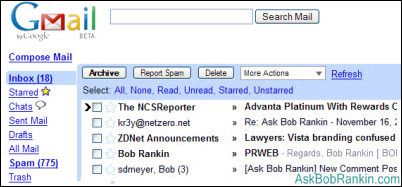
I've heard some people complain about having no folders in Gmail. I say hooray, because Gmail has something better: labels. When you view an email, you can label it, which is a lot like moving it to a folder. Only it's more powerful because your emails don't actually move. You can have an email with multiple labels, and it can still sit in your inbox. Labels you've created are listed on the left hand side of your Gmail window, and when you click on a label, Gmail will search through ALL your emails and find the ones tagged with that label. You can create as many labels as you need and when a new email comes in, select a label that is appropriate for that email. Gmail Labels can be renamed or deleted if desired. Just remember that deleting a label does NOT remove any emails that were tagged with that label.
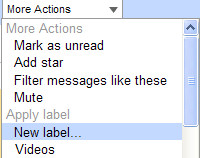 In addition, Google has a "star" feature, so you can flag conversations that are important to you. It makes those emails easier to see in your inbox, and easier to find later. Just hit the "Starred" link on the left side of the Gmail window, and all of your starred conversations will be displayed. You can even use labels and stars together, if needed.
like most email programs, Gmail has filters and rules for automatically taking certain actions when new emails arrive. If you get regular emails from Aunt Betty, you can have a filter tag them all with a Family label. Or you can automatically archive, forward or delete certain emails, based on any combination of the sender, subject, message text, or the presense of an attachment. I use Gmail filters to control spam, label or star certain messages, and even forward specific emails to my cell phone. Just click on Create a filter near the top of the Gmail window to add email filters or manage your existing filters.
Spam and Junk Mail Handling With Gmail
Gmail automatically recognizes many spam messages you get, and like other systems, moves them from your inbox to a Spam bin. Although Gmail seems to to a very good job of filtering out the bad and keeping the good, you should occasionally peruse the Spam bucket to see if anything slipped through. If you think something really is junk mail, and Gmail didn't flag it as such, just select it and then click the Report Spam button. This not only banishes it from your Inbox, it will help Gmail do a better job of filtering in the future. It's also a good idea to add friends, relatives and colleagues to your Contacts list, to prevent their emails from being accidentally labeled as spam.
I've never seen it documented, but I think Gmail uses a collaborative spam filtering system, in which the spam/not-spam decisions made by ALL Gmail users are taken into account in order to make the filters more effective and dynamic. I've come to believe this is true because I see more spam slip through in the early morning hours (when not many people are online) than I do in the afternoon when usage is highest. It seems that if lots of people get the same spam message, and report it as Spam, then the filters are tweaked and copies of that spam that come in later are automatically blocked.
Some people even use Gmail as a spam filter for other email systems. Because Gmail allows you to access messages via POP3 or IMAP, you can direct your email to a Gmail address, and pull it into a traditional email client such as Outlook, Eudora or Apple Mail -- minus the spam.
Gmail Keyboard Shortcuts
Gmail has some handy keyboard shortcuts to eliminate lots of pointing and clicking with your mouse. Using these will save you time and may even reduce your changes of getting carpal tunnel syndrome. Here are some of the keyboard shortcuts that I use often:
| c | Compose |
| / | Search |
| k | Move cursor to next item |
| j | Move cursor to previous item |
| Enter | Open the highlighted message |
| u | Return to Inbox |
| y | Archive message |
| x | Select a message |
| s | Star a message |
| ! | Report spam |
| r | Reply |
| a | Reply all |
| f | Forward |
| # | Delete |
Advanced Searching in Gmail
 Gmail makes it super easy to find anything you've sent or received. You don't have to go poking through each and every folder one by one, or search on any specific field, such as sender, subject or keyword. Just enter your search words in the search box at the top of the Gmail window and whack that big Search Mail button. Gmail will display all the messages that match, if your keywords appear in the sender's name, the subject line, or the message text. I find this incredibly powerful, because it's like doing a Google search across all your emails.
Let's say I want to find an email that my friend Dave sent me a few months ago, asking about that new Panda Calc spreadsheet. I just enter dave panda in the search box, and Gmail finds it for me. If Gmail finds too many messages, you can narrow down your search by typing from:dave subject:panda or similar. Sometimes I search with a label and a keyword like this: Label:TODO johnson to narrow things down. If you know the date range of the message(s) you're after, you can specify it like this: after:2007/01/15 or before:2007/03/30.
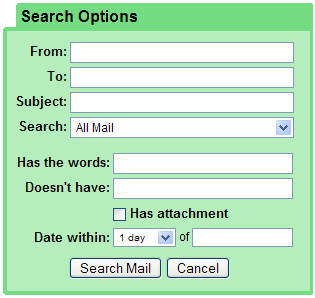
For complex searches, you can also throw in boolean search operators such as OR (must be in CAPS), the minus (-) sign, or parentheses. I should mention that you never need to specify AND in your searches, it always implied when you give more than one search term. Oh, and you don't have to remember all those search modifiers. Just click on Show search options near the top of the Gmail windows and you can enter you search terms in a convenient form.
Tweaking Advanced Gmail Settings
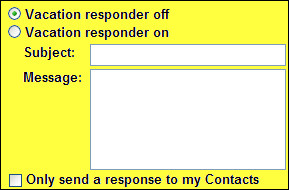
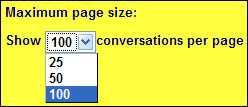 If you click the Settings link at the top of the Gmail window, you can customize many options that control the way Gmail works. For example, I like run with a big screen, so I changed the Maximum page size setting to show the maximum of 100 conversations per page. You can also customize your signature for outgoing emails, or use the built-in vacation autoresponder to send an automatic reply message when you're away. Only one auto-reply will be sent to a given sender within a 4 day period.
 Click the Accounts tab to access even more settings. I find it very handy to be able to change my From: address so that outgoing mails are sent as "bob@rankin.org" instead of my default "bobrankin@gmail.com" address. This allows you to use Gmail and still send messages "from" a business address. Nobody need ever know that you're using Gmail and not your own email server. The Forwarding tab lets you forward a copy of incoming mail to any email address and optionall keep a copy in your Gmail inbox.
You can also use this page to configure Gmail to get mail from other email accounts via POP3 or IMAP, reset your password, or change your security question. And if you really like Gmail, you can provide a private label, industrial strength version to your employees. For $50 a year (per account), the Premier Edition gives you 25 GB of storage, a 99.9% uptime guarantee for email, the option to turn off all ads, policy management tools, access to an application progamming interface and 24/7 phone support.
Gmail's ease of use and generous storage space for emails makes it an ideal web-based email service for work or personal use. With the advanced Gmail features, it becomes easier to organize, find and filter your messages. Explore the Settings and customize Gmail to suit your own special needs.
Are you a Gmail power user? Share your own tips and tricks in the comments below...


This article was posted by Bob Rankin on 29 Nov 2007
| For Fun: Buy Bob a Snickers. |
 |
Prev Article: Free HDTV on Your PC |

The Top Twenty |
Next Article: Skype: Beyond the Basics |
 |
There's more reader feedback... See all 21 comments for this article.
Post your Comments, Questions or Suggestions
|
Free Tech Support -- Ask Bob Rankin Subscribe to AskBobRankin Updates: Free Newsletter Copyright © 2005 - Bob Rankin - All Rights Reserved About Us Privacy Policy RSS/XML |
Article information: AskBobRankin -- Gmail: Beyond the Basics (Posted: 29 Nov 2007)
Source: https://askbobrankin.com/gmail_beyond_the_basics.html
Copyright © 2005 - Bob Rankin - All Rights Reserved
Most recent comments on "Gmail: Beyond the Basics"
(See all 21 comments for this article.)Posted by:

Dennis Anthony
06 Dec 2007
I clicked at the bottom of your message 'Send this message to a friend'. I get to a GMail email field but there is nothing there except the one line - 'This may be interesting...'
Also I find that 'Send to' (a webpage) shows GMail but gets a to blank GMail email field. There is nothing to send. What's wrong? Please advise.
EDITOR'S NOTE: What browser and OS are you using? Do you have Javascript turned on?
Posted by:

Agaba
06 Dec 2007
5GB and counting storage capacity, less or no ads, search tool, .... all these are amazing but the one thing i really like about Gmail is that when i receive say eight emails from a friend Jane, they all appear as one, that way i wont have Jane in my inbox eight times on eight lines like yahoo does. I have both yahoo and Gmail but I'm not about to let go any coz google has its share of problems usually when signing in.
Posted by:

Vicki
06 Dec 2007
I have to admit that gmail is the best I've seen for screening out spam without canning my good mail. My only complaint about gmail is that I haven't been able to find a "Return Receipt" feature. Otherwise it's great!
EDITOR'S NOTE: I think Return Receipt is a vestige of the past. Not very many emails clients honor it anymore. And since it happens on the receiving end, it's never going to be very reliable.
Posted by:

Larry
07 Dec 2007
The one thing I DON'T like about Gmail: After reading a message, and hitting the delete button, it would be nice if the next message were automatically displayed. Instead, Gmail deletes the message, and reverts back to the Inbox page page, where you have to then select the next message. Also, there is no Next Button on the email message display. It's always back to the Inbox view to start the process over for each mail message.
Select, Read, Delete, Inbox, Select, Read, Delete, Inbox, is not just inconvenient, it's annoying. So the "Back to the Inbox View" after every email message action, is why I'm not into Gmail 100%. If it wasn't for that flaw, I'd be a fan.
EDITOR'S NOTE: Larry, first of all, with Gmail you almost NEVER need to delete anything. Just archive messages you've already read. If you're reading a message, press ] to archive and move to the next message. Or press [ to archive and move to the previous message. If you really want to delete, you can quickly press # o (poundsign and the letter "o") to to get the behavior you were asking for. Oh, and you CAN move from message to message with j and k.
Posted by:

Marika
10 Dec 2007
What Larry considers a flaw I consider a bonus. That may be a left-over from the early days of Hotmail when the next message was invariably spam, or worse (when just opening the message would subject you to untold horrors.)
And Bob, thank you for the editor's note to Larry's post. Where on (Google's) earth did you dig those up?
Posted by:

hoophead
15 Dec 2007
Does Gmail still have the problem I've heard about with Firefox? IIRC, people have said it takes too long to load messages and sometimes even freezes up. I run FF and that has been the reason to make the leap to Gmail.
EDITOR'S NOTE: I've been using Gmail on Firefox for over two years, and never had that problem.
Posted by:

Doug Smith
06 Jan 2008
I was surprised that you don't mention the serious limitation of gmail's searches - it won't search for partial words! There have been quite a few notes written about this at gmail, but they haven't seen fit to fix it yet. For instance, if you search for "banana" in your mail but it only appears as "bananas," you won't find it. Likewise, if you're not sure the name was spelled "Eddelberg" or "Eddelburg" you won't find anything by searching for "Eddelb," and there are apparently no wild cards.
EDITOR'S NOTE: That's correct... I'd love to see wildcards or regular expressions for searching.
Posted by:

jennie
10 Jan 2008
I love gmail. I couldn't work without it. The spam filters are exemplary, the new coloured labels are wonderful, the search facility means no more scrolling through the inbox and racking my brains to remember when that message came in...the filters are the best thing, though. I have set filters on all regular email newsletters which means they don't sit in the inbox; when I have time to read them I click on the labels in the LH column and work through them. Google Docs backs up all my important files and collaborating on them allows people miles away to work on them without emailing attachments back and forth and getting confused over which one is the most up to date.
Picasa is the easiest image manipulation software I have tried and Google Photos backs up all my important pix. Only downside is, if anything ever happens to their servers, I am going to be completely lost. Hope they've backed up! PS I use Firefox and have no problems at all. Love it as much as I love Google. Which is a LOT.
Posted by:

new to gmail
29 Feb 2008
I'm new to gmail and having trouble getting used to the earliest-first presentation of a series of replis. The display of inbound msgs isn't really a problem, but when I send replies I'm not 100% sure my latest message will be at the "top" of the email when read by conventional, latest-first email program. When I print them they're Google-style earliest-first, and when I forward them to another account they're sometimes received and displayed (incorrectly) as earliest-first. This seems to happen when I "re:all" to something I sent in the first place to add (yet more) detail.
Will gmail *always* send so non-gmail readers read the latest message at the top? I'm concerned people are a) not reading my replies because they see the oldest message and assume it's a sending error, and b) thinking I'm an idiot for the same reason....
EDITOR'S NOTE: When I press Reply in Gmail, the cursor is placed at the top, so my reply will show up as the first thing in the message, with the quoted text below. That seems like the correct behavior to me.
Posted by:

johnabdl
06 Mar 2008
To E. Harrison, regarding keeping group emails private:
1. Click 'Compose'
2. Click 'Bcc:' on the new message
3. In the Bcc: field, type the name of your mailing list.
You'll see all the addresses in the list appear in the Bcc: field.
Posted by:

Tim
26 Jun 2008
How do you remove the feature where any sent mail is sent as a receipt to your inbox? This is really annoying. Thanks.
EDITOR'S NOTE: Not sure what you mean... are you getting something in your inbox after sending a message? If so, that's not a feature I've ever seen in Gmail.
Posted by:

viv Riff
05 Sep 2008
I can't find how to edit incoming mail so I can change the subject line.
EDITOR'S NOTE: I don't think you can do that in Gmail. But you can forward a message to yourself and change the subject line.
Posted by:

Krista
05 Sep 2008
I know what Tim is talking about and please help if someone knows how to fix it...every SINGLE time i send an email from my gmail i am then sent a "Return Receipt" from gmail in my inbox. The body of the Return Receipt email looks like this:
"This is a Return Receipt for the mail that you sent to billybob@where-ever.com.
Note: This Return Receipt only acknowledges that the message was displayed on the recipient's computer. There is no guarantee that the recipient has read or understood the message contents."
it is SUPER annoying, i one with every single reply, forward, or new message i write in gmail and i have been searching desperately to try and turn it off.
PLEASE HELP. it's the only thing i don't like about gmail.
EDITOR'S NOTE: Gmail does not have a Return Receipt feature. Do you have another email service that's tied to Gmail in any way?
Posted by:

Bob
06 May 2009
I use Gmail all the time. I stumbled across this hints page and tried using the keyboard shortcuts. It does not specify to use CTRL or ALT. I tried both individually and combined but could not get the shortcuts to work. what am I doing wrong.
EDITOR'S NOTE: You're pressing CTRL and ALT! The Gmail keyboard shortcuts don't use any modifiers. Just press "c" for example, to compose a new message.
Posted by:

Jorge
03 Aug 2009
I´m a fan of Gmail.
I only wish it could have nested labels.
Posted by:

Cait
25 Aug 2009
I want to forward only certain length emails to my cell from my gmail account. Is there a way to use the filter to forward only short emails (i.e., no more than 160 characters...the allowable length of a text message)?
EDITOR'S NOTE: I don't think there's a way to do that. But if you send a longer message to your cell, won't it just chop at 160 characters?
Posted by:

Steven
28 Sep 2009
Does gmail email account has the Return Receipt feature. I find this feature very important and necessary to have, as i would be able to know whether the recipient has opened it or has not done so yet.
Posted by:

Anders Cornell
31 May 2011
There is now a Lab for nested labels.
I wonder how long it'll be before it'll be rolled into Gmail...a very necessary feature.
I am sure that every minute spent in Gmail is equivalent to an hour spent in any other email client.
Posted by:

Michel M
11 Apr 2012
Hello, I searched high and low, to no avail, for a way to delete private text from an email. I wanted to forward it, only for its attachment (photos)But it came from my daughter to whom it was also forwarded and had private text for her in it before she sent it to me and should not have been shared to others. I did highlight that text (initial message to her) and neither space bar or delete would get rid of it. I hope someone has an answer to this.
EDITOR'S NOTE: If the image is an attachment, maybe switching to "plain text" mode in Gmail would help.
Posted by:

Michel M
11 Apr 2012
Thank you Editor. I'm not sure what you meant by the "image being an attachment but what I have is an email that has "Skydrive" photos as Att. When I open it I get the usual text presentation with blank squares under it (probably waiting for image to be displayed)...Anyway I think you led me to the fix looking for converting to plain text -
All that time I was trying to delete from the original email that showed first when I clicked on Fwrd! And this time by accident I scrolled the little scroll bar down within the main screen and found my actual forward and was about to delete what I wanted out!
I guess this is one of those things once you know about it, it's so simple - But it would be better if the forward action would open a window of its own instead of within the original.
Well thank you just the same.