


New Power Supply
My computer is making a loud noise that sounds like a fan going bad. A friend told me I should replace the power supply. Can you give me some tips on installing a new power supply? |
Installing a New Power Supply
You're lucky you caught the problem in an early stage. When your power supply fails, you won't even be able to turn on your computer. So if you have a noisy fan, a burning smell, smoke or flames shooting out the back of your computer, your power supply may well be the culprit. Replacing your power supply is not expensive and if you catch the problem early, you shouldn't have problems with other components.
There are several things that can kill a power supply. In some cases, the fan gets gunked up with dirt or dust, and begins to slow down. The fan bearings can also go bad, which may be the case for you, since you're hearing a loud noise. When the fan dies, the power supply will overheat and fail. (See burning smell, smoke and flames above.) And sometimes, the circuitry inside the power supply is faulty and the unit will fail for what seems like no good reason.
If you have problems with your computer shutting down or restarting at random times, it could indicate that the power supply is going bad. And since the power supply provides juice to the motherboard, CPU, disk drives and some peripherals, you don't want to take a chance that an overheating condition or a power surge will cascade into bigger problems.
Fortunately, replacing a power supply is not rocket science. In fact, it's one of the easiest computer components to replace. And since most power supplies are relatively cheap ($20-$40 USD) it won't break the bank, either.
Removing the Power Supply
 Most of the time, if you hit the power button on your computer, and nothing happens, it indicates a bad power supply. It's possible that a short in your motherboard could cause the problem, and you might want to test your power supply just to be sure. Doing so is beyond the scope of this article, so I'll leave that topic to the motivated and geeky. But there are a few "obvious" things you should check before assuming the power supply is bad:
- Is the power cord plugged into both the wall socket and the power supply?
- If you're using a power strip/surge protector, is it turned on and working?
- Look for an On/Off switch on the back of the power supply. Is it on?
- Look for a 110/220 Volt switch. In the USA, select the 110 volt setting. In Europe, 220 volts.
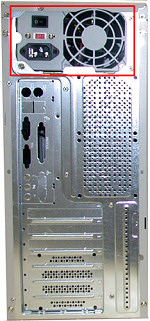
Even before you remove the system unit case, you can see where the power supply sits inside. Look on the back of the unit and you'll see the electrical power input and the opening for the power supply fan in close proximity.
Let's begin by removing the ALL plugs and cables that are attached to the system unit. We don't want any power flowing for this operation. Next, open up the system unit case. Unfortunately, there are quite a few varieties of cases, and quite a few different ways to remove the case or access panel(s). Normally you undo a few screws and either the whole case or the side panels slide off. You may need a phillips screwdriver, but that's the only tool required to replace a power supply.
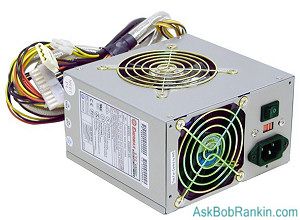
Once the case is open, your next task is to identify the power supply - a metal box with colored wires that connect to the motherboard and other components. (See photo above) Disconnect all the connectors that run from the power supply to the components inside your PC. A gentle squeeze and a tug should do it. Sometimes the little plastic clips on the side of the connectors need to be coaxed a bit, but you won't need a crowbar or vicegrips. I suggest you make notes so you can remember all the components that need power when you're installing the new power supply.
The power supply unit is connected to the case with mounting screws. Remove those screws and gently side the power supply unit out. Do not use force. If some other parts of the computer obstruct the removal of the power supply, it may be necessary to remove them also. Remember to keep all those little screws in a place where you can easily find them.
Purchasing a New Power Supply
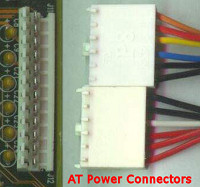
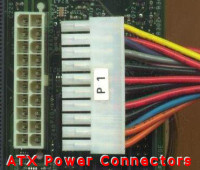 Most power supplies available today are of ATX variety. If you have the ATX motherboard plug and ATX connector (see photo) on your power supply, that's good. If you have the older AT style power supply, it will have different connectors, as will the motherboard. The presence of an AT power supply should tell you something else... your computer is an antique, and you should probably replace the entire thing instead of just the power supply.
 If you're not sure what kind of power supply to buy, or how many watts it should have, refer to the manual for your computer or motherboard. Most computers will work well with a 400-500 watt power supply. If you have a heavy-duty gaming system, extra drives, or scads of USB peripherals, you may need more wattage. Check the power supply you just removed, and upgrade by a 100-200 watts if you want to be cautious. I've never shopped for a power supply by brand, but you can always do a little Googling to see if a particular unit is praised or panned by others. Tiger Direct is a reputable component supplier where you can order online. You can also find power supplies at most electronics stores.
Installing the New Power Supply
Now you have a shiny new power supply and an empty space in your system unit waiting to be filled. All the power is off, right? Take the screws you carefully saved when removing your old power supply, and use them to bolt the new power supply into place. Now follow these steps:
- Find the ATX power connector and firmly plug it into the motherboard's ATX receptacle.
- Now plug the power connectors into the hard drive, cdrom drive, and all other components that were previously plugged in to the power supply.
- Make sure that there are no unused power connectors hanging around in the case where they could touching a fan or heat sink. You can use a rubber band to keep them in a safe place if needed.
- Put the system unit case back on.
- Reconnect the monitor, keyboard, mouse, speakers, etc.
- Check the On/Off and 110/220 switches (if present) on the back of the power supply to make sure they are correct.
- Connect the power cable to the back of the power supply and plug it into your wall socket or power strip.
Hopefully your system will now power up normally, with a nice quiet fan. If not, see the notes above about burning smells, smoke and fire. :-) Have you replaced a power supply? Share your tips with other readers here.
|
|
|


This article was posted by Bob Rankin on 25 Oct 2007
| For Fun: Buy Bob a Snickers. |
 |
Prev Article: Maps and Driving Directions |

The Top Twenty |
Next Article: XO - The $200 Laptop |
 |
Post your Comments, Questions or Suggestions
|
Free Tech Support -- Ask Bob Rankin Subscribe to AskBobRankin Updates: Free Newsletter Copyright © 2005 - Bob Rankin - All Rights Reserved About Us Privacy Policy RSS/XML |
Article information: AskBobRankin -- New Power Supply (Posted: 25 Oct 2007)
Source: https://askbobrankin.com/new_power_supply.html
Copyright © 2005 - Bob Rankin - All Rights Reserved

Most recent comments on "New Power Supply"
Posted by:

Steve heDGE
04 Nov 2007
Having removed the PSU, you could open it up, blow it out with compressed air (at a garage)and even clean the fan blades manually. A couple of drops of light oil on the fan bearings may help. If none of the above work, it is quite easy to replace the fan as the power supply is usually still 100% functional. We used to do this in a computer company I worked for. Cheaper than a new PSU!
Posted by:

Linda
08 Nov 2007
We recently replaced my power supply. The pc was humming along nicely but after about 20 minutes, I heard a pow! and the computer died! (Made me jump as I was sitting beside it at the time). My husband took out the power supply and as he lifted it out he tipped it and something fell out. The only thing we could find on the floor was what looked like 2 silver twist ties put together in a figure 8 shape, it was about 3 inches long! Did that thing really come out of the power supply and could I return it and get my $40 back?
This is the 2nd power supply, the first one my husband accidently fried it (no it wasn't in my pc at the time!). Would there be something else in my tower that would cause the power supply to just stop working? That's what happened to the original and the 1st replacement. I walked away with it running and came back 10 minutes later to a dead pc.
EDITOR'S NOTE: I can guess only guess it was a piece of bare wire that popped loose and fell out. I would return it and try again.
Posted by:

Linda
08 Nov 2007
In regards to the editors note (hi!), the wires were covered with a very shiny silver paper or something like it. It literally looked like twist ties, not plain wires. Weird
Posted by:

David
08 Nov 2007
2 things:
While you're replacing your power supply, look for one with a larger down-facing fan. These ones run slower so are much quieter. They replace the same way and also help cool internal components more.
The other point is knowing what wattage you need.
http://www.journeysystems.com/?powercalc
Has a handy online calculator to give you an idea. All those extra USB devices will also tap your power supply. Just add a little headroom
Posted by:

Walter Hansen
08 Nov 2007
I've had many power supply fans fail, but never an actual power supply. I just replace the fan. I have a half dozen or so generic ones at work here for that purpose. Generally the leads for the new fan don't work with the old fan so a little splicing is necessary, but no big deal. One big thing to remember when dissecting a power supply is that the capacitors can be hot (have power) for a day or so after removing power. It's not as bad as TVs, but I respect them anyway.
Also I've left power supplies open (without any cover) for extended periods looking for a replacement fan. This seems to provide adequate ventilation, but don't go sticking your fingers in there and watch your cat.
Posted by:

Duncan
08 Nov 2007
When you are plugging in the new power supply, take care to get the plugs in the right places and right way round.
I managed to connect the floppy drive connector wrong somehow and set fire to the insulation when I switched on! Fortunately it over-heated so fast (seconds) I caught it before too much damage was done.
Posted by:

Mark Neville
08 Nov 2007
The power supplies in PC offline switching power supplies. That means that the voltage exposed with the cover off can be as hundreds of volts. In addition, the cover is probably considered a safety enclosure which is designed to contain any burning pieces if the power supply fails.
As the power output capability of the power supply goes up, it becomes important to consider purchasing one with power factor correction. Power factor correction assures that the voltage and the current drawn from the power line is in phase. If your computer seems to be running hot, consider purchasing one that is certified to be a minium of 80% efficient.
Make sure that where you have located your computer has sufficient ventilation. I have replaced one computers power supply and 6 months later the owner had the power supply fail again. I was surprised at that and asked some questions about their setup. It turned out that the computer was enclosed such that cool air couldn't get in. For every 10 degrees C a capacitor temperature is increased, its life is cut in half.
Speaking of capacitors, there is a specification that you usually don't see on most PC power supplies and that is hold up time. Hold up time is the amount of time the power supply can deliver its load with no input power. Usually you would like to see this number be longer than one line cycle (1/60 Hz = 16.7 milliseconds). This helps keep your computer from crashing if there is a power flicker.
You should examine the output voltages and currents on your origional power supply and make sure that the new power supply has a current rating for each voltage at least as high as the origional one.
Make sure that the connectors on the new power supply match the original. Not all power supplies have connectors for the newer serial ATA harddrives.
As far as fans go, make sure that your case does not block the vents or fans on the power supply.
As far as the twist tie is concerned, it is possible that a twist tie used to bundle the power cable or the output cable found its way into the power supply. If it did, the high voltage and current available inside the power supply could easily have shorted out to the case.
Make sure that your wall outlet has a good ground. There is a short to the case, you want to know that the current has some place to go other than through the next person to touch the computer. Don't use a cheater plug, all three wires are required.
This is probably more than anyone wants to know.
Posted by:

Mike Bellinger
08 Nov 2007
What about problems with power supplies for CRT displays?
Posted by:

Jim Harris
08 Nov 2007
This article is pretty good but omits at least two items that are important in my opinion:
1. WARNING: Some (in my opinion nefarious) computer vendors, notably Dell, make a few changes in the pinout (which functions connect to which pins or contacts) of their power supply (and of course the matching connector on their motherboards) with the worst possible result: You buy a standard ATX power supply (with either the 20- or 24-pin motherboard ATX power connector options) and you find that it physically mounts fine (# 2 below) and all the connectors match so you hook everything up and when you apply power, you generate smoke in either the power supply or your computer (motherboard, drives, peripherals, everything) or both. I don't know if currently shipping Dell computers still do this, but many already out there do, and those are the ones most likely to be considered soon for power supply replacement.
Conclusion: If you have a Dell computer, you MUST somehow reliably figure out if it requires a Dell power supply or a standard one (my experience with Dell Tech Support is don't bother; they won't actually help you). This may also apply to other brands, but I am not aware of any.
2. If buying a replacement power supply in a physical store, take along the old one or otherwise assure yourself that the new one will mount in the same space (including screw-hole locations) and that the leads (wires) and connectors will reach all the necessary connections. If ordering online, find a computer geek to help you (or perhaps call and ask the vendor) to achieve the same goal before ordering.
Posted by:

Bill Spradlin
12 Nov 2007
The noise maybe not the power supply. It could be the fan on the video card if that computer has one. Of course one would verifiy it before replacing the power supply. Be carefull when buying power supplies. You get what you pay for. The cheaper ones have lower/size gauge wires.
Posted by:

Rx
16 Nov 2007
Hiya is it worth replacing power supplies on laptops yourself as well?
EDITOR'S NOTE: I've never done so. Everything is packed so tightly inside the laptop case, so it might require removing and replacing quite a few parts to get the job done.
Posted by:

LNMP
19 Nov 2007
Here's a strange one: My computer only shuts down when it tries to read a CD (any CD) I've inserted into the CD-RW drive. I hear a "click" and it just turns off. Is the problem something with the CD-RW drive, or with the power supply? Or both?
EDITOR'S NOTE: My guess is that the CD drive is bad. But before you replace it, try replacing the software driver. Check the CD manufacturer's website and see if you download the driver.
Posted by:

Zahid
13 Jul 2008
I replaced my power supply. I have been using it for a month now. Is it normal that there is burn smell coming out from the power supply? Is it because it is new? Will the smell go away after some time?
EDITOR'S NOTE: I don't think that's a good thing... especially after a month's time. Usually that burning smell indicates that there is a problem.
Posted by:

Suz
04 Jan 2011
I have a custom built PC that is about 4 years old. For at least 2 years now, it periodically emits a foul synthetic/burning type odor. I usually notice it after a restart, but the odor goes away the longer the PC is on. If I don't restart my computer for weeks on end, once the initial odor goes away, it doesn't come back until the next restart. PC runs fine. The temp seems fine. There is no smoke, no burn marks on the mother board and I have periodically cleaned/dusted inside the case, which doesn't seem to make a difference.
When I say this odor is foul... I mean FOUL. It stinks up the entire house and permeates fabric and clothing to the point that I and others can ocasionally smell it on my clothing. I have never smelled anything even remotely like it.
Any ideas what on earth is going on here?
Posted by:

Sharon
21 Jan 2011
My friend tried to help me clean my power supply fan. Before I knew what happened, she took a small plastic and wire brush out and stuck it right into the fan. Luckily the pc was off but the power cord was still attached. I hear a shriek, and come around the corner to find my pc smoking from the power supply, a foul odor of melted wiring and nothing working. I asked her what she had done and she told me she put the brush into the supply unit from the fan side and just touched the case and there was a sharp spark and the smoke and the breaker blew in my apartment. I reset the breaker and switched the power on. Nothing at all. Did she fry my motherboard along with the power supply?
EDITOR'S NOTE: Hard to say from here... replace the power supply first. (See instructions here: http://askbobrankin.com/replace_your_power_supply.html) then see if the PC will power up.