


Is Your Wireless Router REALLY Secure?
A Minnesota couple were terrorized for months by a neighbor who hacked into their WiFi network. They did have a password, and the WiFi connection was encrypted. But their secure router was just an illusion. Find out what critical security mistake they made... |
The WiFi Security Mistake You Must Avoid
The hacker, Barry Ardolf, used his illicit access to try to frame his neighbors for child p**nography, sexual harassment, and even sent threatening emails to Vice President Joe Biden. Fortunately, Ardolf was caught and sentenced to a well deserved 18 years in federal prison. But how did he crack the victims' WiFi network, which was secured with WEP (Wired Equivalent Privacy) encryption?
With the greatest of ease, it turns out, because WEP is an old and weak security standard. Ardolf simply downloaded a WEP-cracking hackware package that is widely available on the Web. His hackware took two weeks to crack the victims' password, but security researchers have used more sophisticated methods to crack WEP in less than one minute.
WEP was the first WiFi security standard, ratified in 1999. Basic WEP uses a 40-bit encryption key, which is pathetically weak by modern standards. Extended WEP uses 128-bit encryption; better, but still vulnerable. Furthermore, WEP generates one key for all wireless devices that connect to it, and the key never changes. So the key is sort of a "sitting duck" for hackers. That's why Ardolf could take two weeks to crack his neighbor's WEP password.
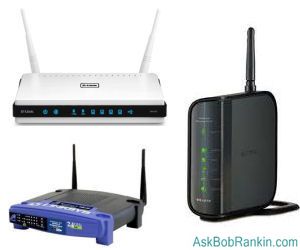
A new wireless security protocol called WPA (WiFi Protected Acccess) was hastily introduced to address WEP's many shortcomings. WPA was a stopgap measure meant to replace WEP until the 802.11i standard was finalized. WPA2 debuted in 2004. It is in full compliance with the 802.11i WiFi standard. WPA2 uses the AES (Advanced Encryption Standard). The only downside is that WPA2 will not work with some older WiFi hardware.
WEP, WPA and WPA2
GEEK ALERT: The following is a bit tech-heavy, so feel free to skip this paragraph if you eyes begin to glaze over. The wireless security protocols (WEP, WPA and WP2) can use encryption methods known as RC4, TKIP and AES. It has been determined that WEP with RC4 and WPA with TKIP are not secure. You might hear some people say that "WPA is broken" but the real problem with WPA was the TKIP encryption method. If you use WPA with RC4 or WPA2 with AES, you are fully secured.
WEP, WPA, WPA2, and sometimes other authentication protocols are available options in every modern router's security configuration settings. Unfortunately, WEP is usually the first option listed. Users like Ardolf's victims, who know they should "set up a password" but don't know WEP from WPA, often go with the first option they see. That leaves them with a very poorly secured router. If your router is using WEP, change it to use WPA2. (If your hardware insists on WPA, see the previous paragraph.)
The exact procedure varies from one router model to the next, but here's the general idea: Log in to the router's built-in configuration Web site. (See my related article Wireless Network Security Checklist for details on how to login, as well as other router security tips.)
Navigate to the security settings page. Select WPA2 if it is available. (If it isn't, upgrade your router's firmware or buy a recent model.) Choose a password that's 12-16 characters, or longer if you can. Thankfully, most recent versions of Windows will automatically detect the router's authentication protocol and configure network adapters for it.
Do you have something to say about wireless router security? Post your comment or question below...
|
|
|


This article was posted by Bob Rankin on 14 Jul 2011
| For Fun: Buy Bob a Snickers. |
 |
Prev Article: Online High School Education |

The Top Twenty |
Next Article: Alternatives to Netflix |
 |
Post your Comments, Questions or Suggestions
|
Free Tech Support -- Ask Bob Rankin Subscribe to AskBobRankin Updates: Free Newsletter Copyright © 2005 - Bob Rankin - All Rights Reserved About Us Privacy Policy RSS/XML |
Article information: AskBobRankin -- Is Your Wireless Router REALLY Secure? (Posted: 14 Jul 2011)
Source: https://askbobrankin.com/is_your_wireless_router_really_secure.html
Copyright © 2005 - Bob Rankin - All Rights Reserved
Most recent comments on "Is Your Wireless Router REALLY Secure?"
Posted by:

Derek
14 Jul 2011
If I have WEP router secured with a password, and I constantly monitor my router's built-in configuration Web site to see which devices are accessing my router, I should be fine -- right? So far this has worked well for me. I've never seen anyone connected from the outside and anytime I give visitors the password I can see the connect.
EDITOR'S NOTE: If you're willing to constantly monitor the situation, maybe. But you'd be in almost exactly the same situation if you had no password at all. WEP security is like locking a screen door.
Posted by:

Jorge
14 Jul 2011
I´ve been using a MAC list to reduce posible users to my wifi router. Is that enough secure??
EDITOR'S NOTE: No. Read up on "MAC address spoofing".
Posted by:

Jeff
14 Jul 2011
Great article!
Some friends of mine briefly mentioned the content in this article, but you never know if what they say is factual, or if they read something which was factually wrong.
Thanks also for the ending on how to change protocols, especially the encryption tips. I know what I'll be doing tonite.
Posted by:

Kim
14 Jul 2011
Hi Bob. Another thing to watch out for is a "war driver." This is a person who drives through a neighborhood, with their laptop, looking for a wireless or WiFi network. Once found, the "war driver" uses your wireless as they please. I remember running my ant-spyware program where a hack tool was found called "Kill-It."
EDITOR'S NOTE: They can only access your wifi network if you have no password, or weak security.
Posted by:

Walt
15 Jul 2011
I have a Combo Modem/Router provided for by my ISP (Which I pay dearly for!) I asked to have it changed to WPA2 by my ISP, Is this secure enough as I have some bad news folks within range of picking up the signal..?? Thanks, Walt.
EDITOR'S NOTE: WPA2 with AES encryption is the most secure solution at present.
Posted by:

Bob Greene
15 Jul 2011
Take care to use a reasonably long password-- mix letters and numbers in ungrammatical fashion, since the unconventional drives code-breaker dictionaries crazy.
And since password-breaking is now done predominantly online, there is presumably less risk in writing the password down on a conventional piece of paper. A paper record of any password is still a bad idea, except for something worse-- being unable to find the actual password in timely fashion on a hard drive or thumb drive.
Posted by:

MmeMoxie
15 Jul 2011
Two summers ago, someone 'hacked into' my wireless router. I thought, I was 'secure'. I immediately, called AT&T Tech Support. I was most fortunate, I called late at night, like I usually do, & got someone highly knowledgeable.
He walked me through the process, to using WPA2 with a powerful password!!! Of course, someone could 'break' the password, but in all honesty, why would they bother?! What with all the Capital Letters, Numbers & Spaces in my now password, it simply isn't worth the bother.
This tech took a very simple, several word statement & make it very difficult to duplicate! I now, have to have a piece of paper with the password on it, so that if, anything happens with my husband & daughter's wireless connections, I can get them back online.
Am I worried, about having a piece of paper around, no. I do NOT connect to the Internet at a Wi-Fi Hot Spot & my two wireless connections are at home, as well. All of my info is kept at home.
I now have a WPA2 AES password setting, which at this point in time, is fairly secure. Plus, I have always had Ping turned off, unless the darn router re-sets itself. The router will 're-set' itself to 'Default Settings', when you have to re-start the system. Be aware of that & after your system has re-started, check all of your settings, to make sure they are where you want them. }:O)
Posted by:

MmeMoxie
15 Jul 2011
Sorry, just one note, by using WPA2 your password should include Capitol Letters, Small Letters, Numbers, Punctuations, Symbols and Spaces.
I wasn't aware that you could use all of your keyboard, to build/make a powerful password. On the Internet, you usually aren't allowed to use it all. Mostly, you are only allowed Case Sensitive passwords, of Alpha-Numerical configuration.
As Bob Greene mentioned, "Take care to use a reasonably long password-- mix letters and numbers in ungrammatical fashion, since the unconventional drives code-breaker dictionaries crazy." It really will. No one has hacked me, since I got a really good password & moved to WPA2 - AES.
Posted by:

Steve Stephenson
15 Jul 2011
Bob,
Thank you for this. A few days ago I had problems accessing only one (1) website. I'm a golf nut and this guy has helped me tremendously so I was twitching a bit when I couldn't access his latest tips!
My daughter has the same ISP and is on the same local exchange, also experienced the same problem. My colleague on the other hand, was on the other side of town, was ok. A call to support was warranted.
After a long call, fortunately free as part of my package, we managed to get on the site. However during the call the security of my router was changed to WEP. I did question it at the time, but I was assured it was as good as WPA2-AES, who am I to argue, after all we could now get on the website!
The good news, I am now back to WPA2-AES and all is well with the world. I can access the website and my original claim when talking to support that there may have been a caching problem at the exchange may have been valid.
Thanks Bob I can now rest easy, it's been bothering me for over a week whilst in the WEP mode.
best wishes
Steve
Posted by:

Jim Burnett
15 Jul 2011
Don't overlook a very powerful protection, MAC address filtering. There is a very brief period of time when your wireless device is coming up that the MAC is visible. Even at that the combinations of Hex characters are very easy to mistype, which adds frustration to a hackers attempts.
Great article Bob, keep up the geek work and no my eyes did not glaze over.
JIM
Posted by:

Sandy Papavasiliou
03 Aug 2011
Recently one of my overseas students couldn't get into my router (for his use on his laptop)by using my password so he came out of his room and took note of the serial number on the router. He keyed something into his laptop and was able to access my router. Later I checked and saw that my password had changed to an unrecognisable series of letter/numbers. When he moved out I re-entered my original password and changed the country shown to Australia (it showed Europe). How was he able to do this? It is worrying.
Posted by:

Daniel
10 Aug 2011
What about WPA(AES)? My router has the WPA2(AES) option. But I am using Sony PSP to access the web and only WPA(AES) and WPA(TKIP) is available in this device. Is WPA(AES) safer than WPA(TKIP)?
EDITOR'S NOTE: As I said in the article, WPA/TKIP is broken and not secure. I don't think AES is an option with WPA. But WPA2 with AES is fine.
Posted by:

Kevin
10 Aug 2011
Bob, One thing that I hardly see mentioned in these discussions is to turn off broadcast of your SSID. If you change the SSID to something unique then a hacker will not even know it exists. Combine this with the right protocol and encryption and you are as about secure as you can get. The only time I had to turn on my WiFi broadcast was for a very few minutes to let my Wii find it.
EDITOR'S NOTE: A determined hacker can still find your router, and even get your SSID. It's a deterrent, but not a good one.
Posted by:

Ruth
11 Aug 2011
Bob,
Besides WEP, my router only has WPA-PSK (Wi-Fi Protected Access Pre-Shared Key). Is that any good or do I need to buy a new router?
EDITOR'S NOTE: The best info I can find on this says: "Shared-key WPA remains vulnerable to password cracking attacks if users rely on a weak passphrase. To protect against a brute force attack, a truly random passphrase of 13 characters is probably sufficient." My take on this: Don't buy a new router, just use a random 16-character password. Something like "Q8C$K6P5G+M0@7B9" should do, but don't use that one, of course! Oh, and assuming you can trust the members of your household, it's OK to write this password on a piece of paper and stash it in your desk drawer for later reference.
Posted by:

Macman
15 May 2012
"Navigate to the security settings page. Select WPA2 if it is available. (If it isn't, upgrade your router's firmware or buy a recent model.) Choose a password that's 12-16 characters, or longer if you can. Thankfully, most recent versions of Windows will automatically detect the router's authentication protocol and configure network adapters for it."
So will anyone's recent version of Windows pick up the router and use it?
Posted by:

Andrea
26 Feb 2013
Yes, I am commenting an old thread, but maybe helps someone. As today, WEB and WPA (any algorythm) have been proven breakable, who easily, who less easily, by rogue listening devices. Until today, the only methods I witnessed to break WPA2, were all ones coming from an already connected WPA2 device. It means, you already have a working WPA2 connected device and you will go to figure algorythm and keys. Put it as "insider" hacking. No one -still- was able to break WPA2 from the outside in a reasonable timeframe. I think if your device does not support WPA2 as today, return it to the seller! WPA and WEB are still options available, just to let run legacy devices in some wireless situations, but not really a choice of security.
Posted by:

Paul
22 Jul 2014
The WPA2 with AES encryption is the most secure protocol - BUT you must use a fairly secure password also. A hacker could try a dictionary attack to try lots of common passwords. For the ultimate password you can use Steve Gibson's Perfect Passwords site https://www.grc.com/passwords.htm and choose the "63 random printable ASCII characters" option for your password. Now way it can ever be guessed. Downside is that it is a pain in the you-know-what to type in the password to a connecting device unless you cut and paste it from an email or other source.
Posted by:

Martin Elb
01 Sep 2014
One thing missing from the advice is that it is important to make your SSID (the name of your wireless network) unique. The reason is that the encryption keys are generated from your passphrase and your SSID. If you have a common SSID (such as "linksys", "NETGEAR", "default" or "Home"), an attacker can use precomputed rainbow tables to significantly reduce the time needed to crack the password.
Regarding password length, I personally think that a truly random 12-character, all-lower case password is more than sufficient (as long as you have a more or less unique SSID). With truly random, I do me created by a good random number generator.
I prefer lower-case characters as you typically have to enter the wireless password mostly on smartphones with non-password-entry-friendly keyboards.
12 characters are based on current state-of-the art WPA2-AES cracking speeds, a sensibly assumed speed increase for the future, an assumption that 1,000 computers are trying to crack my password, and that I want an average cracking time of 10 years or more.
Of course it is perfectly fine to use longer passwords or mix in capital letters, digits or symbols, but I don't think it is necessary as long as your password is truly random.
Posted by:

cathowie
19 Sep 2016
Love your articles and learn something new almost everytime! Thanks for the good info! Cat
Posted by:

Skeeter Sanders
16 Apr 2018
My internet service provider at home is Comcast Wi-Fi. Where I live, there are two main Wi-Fi signals, one secured, the other open.
As fate would have it, the open Wi-Fi channel has the stronger signal (100 percent), compared to that of the secured channel (68-85 percent).
Because the secured channel's signal is unstable (Even when using a long-distance external Wi0Fi antenna), I have to use the open channel. Consequently, I employ five lines of cyber-defense on my laptop.
I connect to the internet through a virtual private network (VPN) to mask my actual IP address. I have four security software suites installed: AVG Internet Security, Webroot SecureAnywhere, IObit Malware Fighter and Microsoft's built-in Windows Defender (The latter in passive mode).
I've never accepted the argument that one security suite is sufficient. No one single cyber-security program can detect every single virus malware or ransomware. I made sure to put each security software suite in each other's whitelist, so that they don't interfere with each other.
Unfortunately, I had to remove Malwarebytes from my laptop, because of Malwarebytes' ongoing war with IObit, constantly quarantining IObit as a potentially unwanted program (PUP). Repeated complaints to Malwarebytes were met with a stubborn refusal by Malwarebytes to stop quarantining IObit, which I have used for more than a decade. So I was left with no alternative but to remove Malwarebytes.
Now, if I can just get AVG to stop insisting that I install AVG Secure VPN, even though I already have a VPN installed (PrivateTunnel).