


Add a Second Hard Drive
Adding a second hard drive to a computer system is an easy way to get around storage problems, and also a good way to protect valuable data. With the cost of hard drives dropping well below $1 per gigabyte, it makes good financial sense to increase storage capacity by adding a second drive. But what kind of drive? And are they easy to install? Read on for buying tips and installation help... |
Preparing for a New Hard Drive
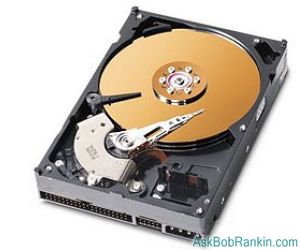
First, determine whether the computer system has room for an additional hard drive. Following the instructions in your computer's operations manual, open the computer case and find the hard drive. (It will probably be about an inch high, three and a half inches wide, and about five or six inches long, with two connectors plugged into it.) If there is room above or below that hard drive for another device the same size, you probably have room for a second hard drive.
IDE or SATA?
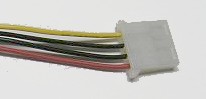
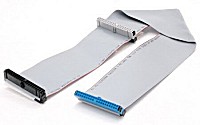
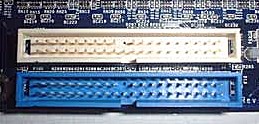
Next, look at the cables attached to the existing drive. One will be a power connector and the other will be a data connector. The power connector routes to the computer's power supply and the data connector routes to the motherboard. If the data connector is wide (about two inches), this is an IDE drive, and you will need to get a second IDE drive. Also, check to see if there is available space to plug in a second drive on the same ribbon cable. If not, you will need to install a second ribbon cable in the second drive controller slot on the motherboard, assuming it's available. (The cable should come with the drive.)
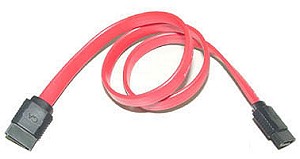
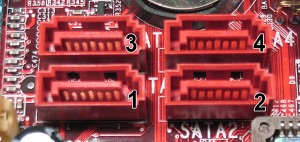
If the data connector is small (less than an inch wide), you have a newer SATA (Serial Advanced Technology Attachment) drive, and will need to purchase another SATA drive. You should have plenty of space available on the motherboard to add another SATA drive, as most motherboards that support SATA have at least four SATA connectors.
Megabytes or Gigabytes?
The storage capacity of the Hard drives of yesteryear were measured in megabytes, and one megabyte (MB) is about one million characters. There was a time when hard drives cost about $10 per MB, and they were about the size of a small toaster.
Today, hard drives are much smaller and much cheaper. You can buy one gigabyte (1GB = 1000MB) of storage for under a buck, and they're just a little bigger than a calculator.
So live large! I recommend you go for at least 80GB, or larger if it fits your budget. But check your computer's manual to see if it can handle a monster drive before you buy.
Installing Your Hard Drive
If you are installing an IDE drive, on the same cable as the original drive, set the new drive's jumper (the small plastic connector on the set of pins by the data connection) to the Slave setting. If you're installing an IDE drive on a second ribbon cable, and it's the only device on that cable, use the Master setting. If you have a CDROM drive attached to the secondary IDE connector, make the new hard drive Master and the CDROM Slave, setting the jumpers on each device accordingly. The position of the pins for the Master or Slave setting may vary from one drive to another, so refer to the documention that came with the drive.
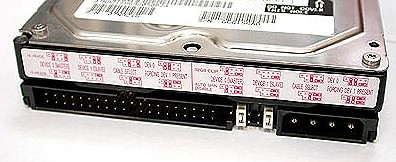
Most importantly, before you mount the drive in the computer, look on the printed circuit board on the bottom of the drive to find which pin of the data connection is pin 1. It will be labeled with either a "1" or a solid white triangle. This information may also be stamped into the drive case near the connector. The ribbon cable will have a speckled red edge, and this edge MUST correspond to Pin 1 on the data connector, or the computer will not recognize your new drive.
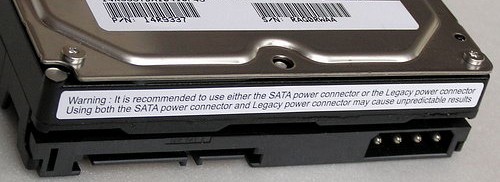
With a SATA drive, the process is much easier. Simply plug the power connector into the drive, and connect the drive to the motherboard SATA controller using the supplied SATA cable. (Both connectors are both keyed to prevent improper connection.) With SATA drives, there is no need to change jumper settings, though you may need to update your computer's BIOS if it can't see the drive.
External Drives
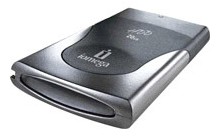
If messing with motherboards is not your style, you can get an external hard drive that connects easily to your computer with a USB cable. External drives are a bit more expensive, but the easy setup and the fact that it's portable make it a good choice for some. The Iomega 33xxx series and the Maxtor OneTouch get high marks from reviewers and users, but other manufacturers such as Seagate and Western Digital make good products as well. Look for a drive that supports a USB 2.0 connection, or the faster FireWire hookup if your system supports it
Copying Your Data
Chances are, your new drive will be larger and faster than the old drive. If so, you may want to copy the contents of the old drive to the new one, and keep the old drive as additional storage. You may also opt to leave just the operating system files on the old drive and keep all user data on the new one.
For help copying your old drive to the new drive, see my article Copying Old Hard Drive to New PC.


This article was posted by Bob Rankin on 17 Jan 2006
| For Fun: Buy Bob a Snickers. |
 |
Prev Article: Which PDA Should I Buy? |

The Top Twenty |
Next Article: Red X appears instead of image? |
 |
There's more reader feedback... See all 137 comments for this article.
Post your Comments, Questions or Suggestions
|
Free Tech Support -- Ask Bob Rankin Subscribe to AskBobRankin Updates: Free Newsletter Copyright © 2005 - Bob Rankin - All Rights Reserved About Us Privacy Policy RSS/XML |
Article information: AskBobRankin -- Add a Second Hard Drive (Posted: 17 Jan 2006)
Source: https://askbobrankin.com/add_a_second_hard_drive.html
Copyright © 2005 - Bob Rankin - All Rights Reserved
Most recent comments on "Add a Second Hard Drive"
(See all 137 comments for this article.)Posted by:

Ben
07 Oct 2009
Hi there. My sata hard drive is dieing so I bought a new one. I have it up an run. My prob is I connected up my old sata hard drive to get info off it but my windows xp is not picking it up. What do I need to do? I also have a old hard drive as well it worked as a second hard drive well but i cant see my it in my computer any more?
but i see it in devise manager. thanks
Posted by:

JWC
06 Nov 2009
Bob,
If you have your two IDE HDDs connected to an 80 ribbon cable, do you set the jumpers on both to CS?
Posted by:

Mark
26 Nov 2009
I've just got a new PC with a SATA drive and I want to transfer data to it from my old IDE hard drive. I've removed the jumper to make the IDE a slave and I can see it in BIOS but Windows 7 isn't recognising it. Any ideas what I need to do to sort this please?
EDITOR'S NOTE: Your IDE drive is not a slave to the SATA, since SATA does not have a master/slave system. Try setting the IDE to master, or connect it externally via USB.
Posted by:

Sam
10 Dec 2009
I bought a 2nd SATA hard drive to put in my computer. When I opened it, I discovered the motherboard only has 2 SATA connectors. Would getting a PCI card be the best and most affordable way to be able to accomodate for the new drive? I plan on using the card for the DVD drive, since I don't plan on using it as much as the HDDs, however I will need to use it to install three OSs on the new drive (Server 2008, Windows 7 and Ubuntu Studio). If this won't work, is there another option?
EDITOR'S NOTE: Why not add a SATA controller card, it'll give you the extra SATA ports you want.
Posted by:

Ron S
29 Jan 2010
old hard drive with windows xp that was on a computer that was built. Have the windows xp key and cd and want to install in new computer that has windows 7. Want to boot from both. the old hard drive is sata as well as the new hard drive in the new computer
thanks
Posted by:

lu
29 Mar 2010
I cloned my C disk with an external USB memory disk. Can I use it as my OS and use mu C disk for back up and or storage?
And if so, when I turn on my PC, will start from external USB memory disk?
Thanks
Lu
Posted by:

don
06 Apr 2010
I want to download movies to my pc but save them on another hard drive so that I wont lose memmory. Is that the correct way or do you have another suggestion.
Posted by:

Julie
20 Apr 2010
I bought an HP6320F. Comes with a Western Digital powered 1TB SATA drive. the last computer I built I had a WD 250G boot drive (powered) and 2 SATAII Maxtor 200G drives. the two MAXTOR just needed the SATA cables to run on the motherboard and recognized them. This stupid PC won't recognize the two new drives...they aren't powered like WD is...they have a 15pin SATA and a 7 pin SATA connector on the back...what do I do - HP support are all idiots
EDITOR'S NOTE: I think you need one of these to connect power to the 15-pin SATA port:
http://www.exporties.com/site/web_images/01774.jpg
Posted by:

Al
10 May 2010
I installed a hard drive from a computer that the power supply died on. The computer reconized the drive and I can see the folders but it won't let me access the files or start any programs on the old drive.. What do I need to do?
EDITOR'S NOTE: It's odd that you can see folders but not access the files. What happens when you try to open a file?
Posted by:

KCP
27 May 2010
I see in the article you talk about changing the BIOS settings if a new hard drive isn't being recognized. Can you tell me how to do this? I have a new computer and have installed our old hard drive but it will not recognize it. I think I can see it in the disk management section but when I right click to maybe assign a letter etc. almost all the options are greyed out so I can't click on them. Thanks. Both drives are SATA.
Posted by:

K Potter
29 May 2010
I have a new computer and am in the process of adding a second hard drive (from our old computer). From my googling and this website, I have discovered that having Norton GoBack on my secondary hard drive is making it impossible to read and use with the new computer. I have a found a couple solutions but none have worked since they are set up for Windows XP etc, but my new computer has Windows 7 (for example booting to MS-DOS and then running a file from Symantec to remove GoBack but I can't make an MS-DOS startup disk with Windows 7). Please help me, I would REALLY appreciate an answer to this...it's driving us crazy. I don't think there's any other relevant information. Both are Sata drives and the secondary drive is recognized in disk management and BIOS but I cannot assign it a letter because of the GoBack issue. Hope this makes sense and I would very much appreciate your help with this issue. Regardless, I'm thankful for your website for those of us who would like to become my computer savvy but have a long way to go! Cheers.
Posted by:

Dan
06 Jul 2010
I just reinstalled windows on my computer. And as always went through the same reutine of instalation. Now after it insatalled it restarted the computer. And went to windows. Then automatic updates started installing. And restarted again but this time there was no BIOS just loaded up windows. Thats when I looked to see if all my devices were working properly. Yes it said both hard drive were listed but no drive letter attached to the secound hard drive. So I went even further to see if I still had approximately 80 gigs between the two. No I did not it was only working the first hard drive on 38 total gigs. So I have a C: but no D: and no Bios to turn it on myself. Why/What can I do to fix this.
One more thing Ive been updateing for the last 3 days and the updates alone are nearly 15 gig whats up with that. Can you please tell me what I can do. Everything was just fine till I decided to reinstall my windows. Everything was working, Drive D: as well as my BIOS.
EDITOR'S NOTE: If everything was working, why would you want to reinstall?? Anyway, your BIOS is not gone. You couldn't even boot up your computer without a BIOS. Shut down completely, power off, then power on. You should see the BIOS info flashing by, and you can press Del, F1, Alt, or Ctrl within a few seconds of seeing the instructions to enter the BIOS setup screens.
Posted by:

Japs
21 Jul 2010
Recently, I wanted to made the the second IDE drive become the slave but when the PC started, the settings indicated as the disc as the master eventhough I removed the pin to made it as a slave disc.
I do not know what to do next. Please help me..
Posted by:

Valert
26 Oct 2010
Would getting a PCI card be the best and most affordable way to be able to accomodate for the new drive? I plan on using the card for the DVD drive, since I don't plan on using it as much as the HDDs, however I will need to use it to install three OSs on the new drive (Server 2008, Windows 7 and Ubuntu Studio). If this won't work, is there another option?
EDITOR'S NOTE: If you have no available SATA or IDE slots on the motherboard, an IDE card would be a good choice.
Posted by:

Elizabeth
30 Nov 2010
Is there a way I can switch hard drives between my Hp laptops just to save my documents to an external hard drive. Then switch it back?
Posted by:

Joop Duijf
11 Dec 2010
Dear Bob,
So far as I am concerned I have a slight mystery.
First the good thing: installed a USB 1TB WD disk to my HP Pavilion and it runs like a dream.
Secondly I connected a 2TB USB WD disk to my Compaq Presario desktop. Both disks basically used for backup purposes (for the time being). So far so good. However, the deskop will not boot up with the USB disk connected. It comes to screen with Bootup change, run diagnostics etc. and then no activity anymore. The startup in the BIOS is the C/D drive (original situation) and secondly the DVD/CD drive. So far so good I think. Apparently Windows 7 X64 thinks it has to load/boot from the USB disk (I presume). And of course nothing there to boot from.
The laptop has no problem at all.
So far as I can think the boot up process is OK.
USB drive is partitioned in 2 (1TB each)done via standard W7 disk manager. Any suggestions?
EDITOR'S NOTE: I think if it was trying to boot from the USB drive, and found no operating system, you'd get an "Operating System Not Found" message. A bit of searching shows that others have also had this problem. You might try looking in your BIOS for settings that deal with USB booting, or "Boot from other Devices" and disable them.
Posted by:

Steve
08 Feb 2011
What do I do if I already have a second drive? (This was not my doing, and I think they're sharing & copying things)
They're filling up, and I din't know how; (for the most part).
(I'd like to wipe/kill C: with Killdisk, move everything there; then wipe the other. Hopefully then, encrypt everything.)
Thanks
Posted by:

Chris
17 Jun 2011
I just got a 160gig hard drive and want to add it to my computer that is already has 30 gig Master
I was planning to make the 160 into a secondary/slave hard drive but it will not hook on the tower frame correctly, pins fit just fine.
I think it is because the 160 is from a compaq Presario XP and my computer is HP a305w
I might just a will take it to someone else for installing
what do you think?
EDITOR'S NOTE: Every hard drive I've ever seen for the last 15 years has standard mounting holes and fit into the slide-in mounting cages in the system unit. Take another look...
Posted by:

Don
16 Aug 2013
Hello,I have a HP-Pavilion; model AY601AA-ABA HPE-130f, OS Win 7 home premium x64, Ever since I got this comp (3yrs ago) I have had many problems trying to get my old games to run, tired of the useless answers I get from most help sources, I've decided to put in my old 160gb WD IDE hard drive with WinXP into 1 of the many bays available, so I could play the games again without all the win7 issues,seemed like the best choice, and use it just for the old games again. I've read a lot of the posts here, and seems easy enough, but is there anything u can tell me to ake sure I don't screw this up? my current hard drive is 1TB sata, and i'm concerned about conflicts, any help would be greatfully appreciated bob, ty for reading my post, am disabled and comp gaming is my only hobby, and I really miss my old games...ty Don
Posted by:

Paul Morris
20 Mar 2017
Sometime ago, I copied the Game ''World of Tanks", from my Old Laptop[of which was dying] to an
External Hard Drive. When my New Laptop came in[a friend did it], he made it where I could Play W.O.T., off of my External Hard Drive, onto my New Laptop. Microsoft, about 2 weeks ago Screwed up my LAPTOP[LONG STORY],and then Re-Installed Windows 10 of which I had originally. Now, I Cannot Play W.O.T. Off of my New Laptop anymore! How can I do it? I want to play the game off of my New Laptop,[it does not have enough space] like I was doing before. Again, How do I do it?
Thank you,
Paul from Toms River, N.J.