


Your Hard Drive Will Crash in 3, 2, 1...
A concerned AskBob reader says: 'Sometimes I hear a click-click sound from my hard drive, but it's only occasionally. Does this mean my hard drive is going to crash soon? Are there any tests I can run to check the health of my hard drive?' Read on to learn the tell-tale signs of impending hard drive doom, some things you can do NOW to protect your data, and what to do if it's too late. |
How Can I Tell If My Hard Drive Is Going to Crash?
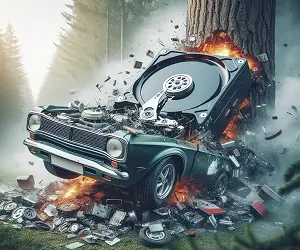
How long will your hard drive last? Is it giving you subtle signs that a data disaster is looming? How will you know when it's time to buy a new hard drive? Here are some of the warning signs you can look for. (Fortunately trees and green Chevy Novas are not on the list.)
Your computer's hard drive is its permanent memory, the critical repository of all your important data, the programs and operating system that make a computer "smart". If the hard drive doesn't work, the whole computer is as useful as a brick. Human memories break down gradually, in most cases, giving ample warning that something needs to be fixed. So how can you tell if your hard drive is close to failing and needs fixing or replacement?
The bad news is that hard drives may give NO warning of imminent failures. Like a tire that runs over a nail, a hard drive most often just dies, leaving you stranded suddenly. The sudden burnout of electronic components; a bearing that blows in a second; a "head crash" in which the read/write head touches and scratches the magnetic platter; these sorts of catastrophes usually happen without warning. Fortunately, they are pretty uncommon. But don't take chances – especially if you don't have a backup plan in place.
The good news is that modern hard drives last a long time. Look on your drive's label or in its technical specs and you will find a value labeled MTBF – Mean Time Between Failures. That's the average (mean) number hours a whole bunch of drives spun at full speed before something broke in each of them. An MTBF of 50,000 hours is the minimum acceptable today; 100,000 hours is not uncommon. There are about 2,000 hours in a typical employee's work-year.
Note that "average" does not mean "guaranteed minimum." An exceptional drive that runs 400,000 hours may be offset in the average calculation by one that burns out after only 5,000 hours – and that early departer could be yours. You just never know. (Did I mention that you should have a backup plan?)
Warning Signs of Hard Drive Failure
If you start getting read/write errors, i.e., "cannot write to disk" or "cannot access file," something is going wrong. It may be the drive's firmware, and downloading the latest firmware update from the manufacturer's site could fix you right up. It may also be corrupted or cross-linked files. Run CHKDSK to find and fix such errors. These are the easiest and cheapest problems to fix.
CHKDSK comes with Windows, and it's pretty good at detecting bad files and physically damaged sectors. It will lock damaged sectors so that the computer will not attempt to write to them. To run CHKDSK, open a command prompt, then type CHKDSK C: /F /R then press Enter. This tells CHKDSK to scan for bad sectors, and fix any errors found. Substitute the "C:" with another drive letter if you have multiple drives (or partitions) and want to check those as well. CHKDSK may ask if you want the scan to be done on the next boot (start up) cycle. If so, respond with Y for yes.
There are free utilities out there that run more thorough tests. One of the highly recommended utilities is Seagate SeaTools for Windows. Another commercial alternative is Hard Disk Sentinel. Note that you don't have to have a Seagate brand hard drive to use these tools. They'll work with other brands, such as Samsung, Fujitsu, Western Digital, and Maxtor just as well.
Listen to your hard drive. If you hear a clicking sound, especially during startup, that's often a sign of a damaged disk, and impending data doom. Just like you can hear when a car engine is "laboring," you can often hear when a hard drive is working too hard. That means it's wearing out faster, just like an engine that climbs steep hills every day. If you hear vague rattling noises when your hard drive is accessing data, you should run a disk cleanup and defragmentation right away. The less the read/write head must move to find, read, and write data, the longer it will last. If your hard drive makes an undulating whirring sound and your startup takes longer than usual, that's another red flag.
If noises or errors become frequent, don't hope the problem will go away -- because it won't. Back up all your data and buy a new hard drive. Move everything onto the new drive. Wipe your sensitive data from the old drive using a disk-wiping utility that overwrites every sector so it is very difficult to read what was there. Then toss the old drive; do not keep it around as an "emergency" drive and do not use it as a secondary drive. You wouldn't count on an old car with a blown engine seal in emergencies or even for backup use, would you?
Your thoughts are welcome on this topic! Post your comment or question below...


This article was posted by Bob Rankin on 26 Feb 2024
| For Fun: Buy Bob a Snickers. |
 |
Prev Article: Saving Your Digital Bacon |

The Top Twenty |
Next Article: Computer Problem? Test and Fix it Yourself |
 |
Post your Comments, Questions or Suggestions
|
Free Tech Support -- Ask Bob Rankin Subscribe to AskBobRankin Updates: Free Newsletter Copyright © 2005 - Bob Rankin - All Rights Reserved About Us Privacy Policy RSS/XML |
Article information: AskBobRankin -- Your Hard Drive Will Crash in 3, 2, 1... (Posted: 26 Feb 2024)
Source: https://askbobrankin.com/your_hard_drive_will_crash_in_3_2_1.html
Copyright © 2005 - Bob Rankin - All Rights Reserved

Most recent comments on "Your Hard Drive Will Crash in 3, 2, 1..."
Posted by:

John Burrows
26 Feb 2024
With Solid State Drives so affordable just replace the hard drive and be done with it.
Posted by:

Renaud Olgiati
26 Feb 2024
If you have free HD disk bay(s), a good way to protect your data is to add a second HD to your system, and configure the HDs as a RAID 1 array.
This ensures that if one HD fails, your data is safe.
Of course, you will have to check regularly that the array is up, with both HDs functioning, and regularly backup your data on an external unit
...
Posted by:

POLLY
26 Feb 2024
What are your recommendations on this subject if you have a cloud drive in use?
Posted by:

Jose M
26 Feb 2024
When SSD's fail do they give any warning or do they also just go "poof"?
Posted by:

David J Ruedeman
26 Feb 2024
For those of you that use SSDs and think you are immune from sudden drive failure , all I can say is "Good Luck with that". I've been using SSDs since 2013 and more that rotating hard drives, SSDs suffer from catastrophic failure. This just happened to me last month.
All I can say is try to buy from manufactures that make all of the SSD assembly. I.E. the Flash parts, controller and software. I've good luck with Samsung and also with Crucial. As far as the others , YMMV. Historically, for me, 3rd party flash drives stink.
Posted by:

bb
27 Feb 2024
Jose M: Yes, SSDs just go "Poof!"
Spinners usually give warnings, and there are lots and lots of tools to recover and potentially "fix" HDDs. SSDs, not so much.
2 Months ago, I had a SSD suddenly and unexpectedly become read only. Anything written to it was accepted, but nothing actually happened. According the the manufacturer, it had (and "has") 98% life left.
The very easy solution: frequent and good backups. They can fix *anything!*
Posted by:

John Burrows
27 Feb 2024
The comments about SSD failures are spot on. Of course I did not mean to imply that backups will no longer be necessary.