


[HOWTO] Boost Your Laptop Security Now
Laptops are great because they offer computing with convenience and mobility. But that makes it imperative for users to take steps to secure their laptops, and the sensitive data often stored on them. There are several simple things that you can do to keep your laptop safe. Read on to learn how to protect your laptop from theft, snooping and data loss... |
Laptop Security Tips
According to FBI stats, over two million laptops are stolen every year, from homes, cars, coffee shops, college campuses, and hotel rooms. Sadly, only 2 or 3 percent are ever recovered. I'm always surprised when I see people set their laptop or smartphone on a table, then saunter up to the coffee shop counter to order. But it's not always carelessness that results in a laptop being swiped.
One woman was sitting in a Starbucks, actively using her laptop, when three men grabbed it and took off. So keeping your laptop safe involves a combination of common sense, awareness, physical security devices, and software strategies. Let's start with devices that make it harder for your portable computer to be carried off by someone else.
Physical security devices are used to keep your laptop from being stolen or used without your authorization. One that won't cost you anything is the trunk of your car. To avoid a "smash and grab" theft of your laptop, store it in the trunk while traveling, instead of on the seat where it's visible to passers-by. If you have to leave your laptop unattended, the most basic physical security device is a laptop security cable. This cable connects to your laptop and secures it to a non-moveable item in your home, office, hotel or conference room. For example, you can connect your laptop to your desk, or the leg of a conference room table.
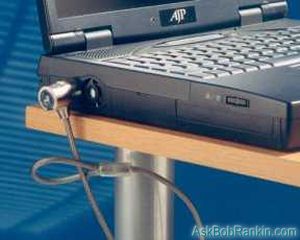
The cables usually have a combination or key lock device, and attach to the security slot found on some laptop computers. Expect to pay about US$40 for a high-quality laptop security cable. Newer Macbooks don't have a lock slot, but the third-party Maclock product solves that problem. A determined thief with a bolt cutter could foil a security cable, but it certainly makes it a lot harder to grab and run.
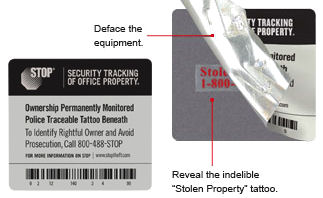
Another physical security device that you can add to your laptop is a theft protection plate. This plate, which applies like a sticker on steroids, is used to identify the owner of the computer and to prevent people from trying to resell your stolen computer. If the plate is removed then it leaves a permanent acid "tattoo" on the laptop, indicating that it has been stolen. These security plates are available from STOP for about $25. A small version is also available for tablets, smartphones, cameras and other mobile devices.
Biometric devices can also be used to ensure that if your laptop is stolen, it can't be used by someone else. Biometric devices include fingerprint scanners and retina scanners. These devices are commonly found on smartphones, but can be added to just about any laptop. The fingerprint scanner comes standard on some Toshiba laptops. Some smartphones have the "face unlock" feature, but these technologies are not fool-proof, though. A ZDNet article showed how the Samsung Galaxy's face unlock could be fooled by a video of the owner.
Security Software
Prey is a free cross-platform tracking app that runs on Windows, Linux, Mac, Android and iPhone/iPad devices. If your laptop or other mobile device is lost, Prey provides location data, Webcam, and screenshot reports. Prey can make your lost or stolen device sound a loud alarm, snap a photo of the person using your computer, or display a message onscreen. It can also lock down your device or wipe stored passwords, via remote command. The free version supports up to three devices.
Absolute Home & Office (formerly called Lojack for Laptops) is another software-based laptop recovery product. This company provides you with a Theft Recovery Team that's actually a licensed private investigation agency. They will work with local law enforcement and Internet Service Providers, using information sent from the stolen computer, to assist local police in recovering your computer. The Basic account costs $19.99/year, which includes the Locate/Lock/Delete functions. The Standard account is $39.99 and includes recovery assistance. Premium ($59.99) adds a guarantee that if your stolen device isn't recovered within 60 days, Absolute will pay up to $1000 for a replacement.
And of course, there's always the "inside job" that nobody sees coming -- the threat of hackers and snoops that attack through viruses, ransomware and other forms of malware. Every laptop should have an up-to-date anti-virus software package installed, to identify and remove malware from your system. My recommended computer security product is PC Matic. Read my review of PC Matic to see why I use and recommend it.
File Encryption
File encryption is used to protect your data from hackers, thieves and others who may access your computer without permission. Windows has BitLocker, which can be used to encrypt an entire hard drive. Bitlocker is available on Windows 7 Enterprise and Ultimate editions, Windows 8.1 Pro and Enterprise editions, Windows 10 and Windows 11.
Another option for encryption is the free VeraCrypt software, which can encrypt a hard drive partition, USB flash drive or external hard drive. VeraCrypt works on Windows, Mac and Linux systems. Learn more about encryption in my related article Time to Start Encrypting Your Stuff?.
Password Security
In addition to physically securing your laptop and protecting your computer with security software, you also need to take steps to protect your laptop with strong passwords. While it is important to set up a user account password for your laptop you will also want to set up a power-on password. These passwords will prevent unauthorized people from logging in to your computer, or accessing it by using a boot-up disc. To create your and power-on password you will need to enter your BIOS security set-up menu. This is usually accessed by pressing the Del, F1 or F2 key while your computer is starting up. Try to use passwords that include a combination of at least eight letters and numbers, and stick to a password rotation schedule that changes your passwords on a regular basis. Make sure you remember the passwords, or you'll lock yourself out!
Here's one other point on passwords, particularly relevant for travelers. If you allow your web browser to store your passwords, and your laptop is stolen, you've given away the keys to the kingdom. Roboform and similar tools can keep all your passwords handy (even across devices) but with the protection of a master password. See How Hackable is Your Password? for more information on password strategies.
Keeping Your Laptop Safe
Here a few more practical tips you can use to secure your laptop and your data.
Consider using free Portable Apps that can be loaded on a USB flash drive. Using this approach, all your software and your personal files never need to be stored on the laptop's hard drive. This has the additional advantage that you can plug the flash drive into any available computer, and work without fear of leaving behind any personal data. Just be sure that the drive and the laptop don't travel together in the same bag.
If you'll have Internet access while traveling, an even better solution might be cloud-based apps and storage. By managing your email, documents and other tasks with free cloud-based services, all your data is stored online, and you don't need to carry a flash drive that could possibly get lost or stolen. Google Docs, Google Sheets, and Google Slides together provide online word processor, spreadsheet, and presentation capability. Microsoft offers a similar suite of online office tools. You can even find free web-based photo editors.
And finally, if you use wifi while away from home, you need to take some extra security precautions. See my article Free Wifi Hotspots - Are They Risky? to understand the risks, and learn how to protect against them.
To keep your laptop as safe as possible you will want to combine physical, software and use password strategies. While not all of the above security methods are applicable, practical or necessary for all laptop users, it is still important to understand your security options so that you can alter your security strategies as your computer use changes.
What strategies do YOU use to keep your laptop safe? Post a comment below...
|
|
|


This article was posted by Bob Rankin on 28 Sep 2023
| For Fun: Buy Bob a Snickers. |
 |
Prev Article: Reverse Directory Lookups: Searching in Reverse |

The Top Twenty |
Next Article: Will Your Antivirus Software Fail You? |
 |
Post your Comments, Questions or Suggestions
|
Free Tech Support -- Ask Bob Rankin Subscribe to AskBobRankin Updates: Free Newsletter Copyright © 2005 - Bob Rankin - All Rights Reserved About Us Privacy Policy RSS/XML |
Article information: AskBobRankin -- [HOWTO] Boost Your Laptop Security Now (Posted: 28 Sep 2023)
Source: https://askbobrankin.com/howto_boost_your_laptop_security_now.html
Copyright © 2005 - Bob Rankin - All Rights Reserved
Most recent comments on "[HOWTO] Boost Your Laptop Security Now"
Posted by:

Walter T
28 Sep 2023
Bob, in the paragraph on password security, you talk about adding a power-on password, and then you say, "... and stick to a password rotation schedule that changes your passwords on a regular basis." Really??
For one thing, the whole strategy of "changing all of your passwords on a regular basis" has been somewhat debunked, and replaced by "use long and strong passwords or pass-phrases, and no need to change them unless you think they have been compromised."
But your power-on password, isn't it just local to your PC/laptop? Why keep changing it? Can some outsider actually do a hack to learn what your power-on password is?
Posted by:

Lee McIntyre
28 Sep 2023
Walter T., I believe you're right on all counts.
Posted by:

Ernest N. Wilcox Jr. (Oldster)
29 Sep 2023
For local access, I use passphrases, one for logon and another for access to UEFI (BIOS). A passphrase is a string of words (all ran together - no space characters) which can optionally be misspelled to create a long strong password. An eighteen character password may be something like "MaryHadALittleLamb". To make it more difficult to guess, change an 'a' character to an '@' symbol or add an '!' exclamation mark' or some other special character to the beginning or end. Another option would be to put an '*' asterisk as the first and last characters, making it 20 characters long now. "MaryHadALittlelamb" is an example, and I don't recommend using it although you could try a convolution of some popular/well-known phrase. For example, rather than 'MaryHadALittleLamb" you could use a variation like "MarhHadABabyLamb", or maybe "MaryMadeALittleLambForDinner" (even longer!). The most important things are that the phrase is something you can very easily remember, and it is long - I suggest 16 to 20 characters at a minimum - my login phrase is about 20 characters, but now I'll change that just to remain safe :).
In Windows I use a fingerprint scanner to log in using Windows Hello. In my Linux installation, I use a long password - different than either my login or UEFI access passwords. For everything else, I use a password manager with yet another 'Master Password', so I have 4 passwords to remember for each of my three PCs (one desktop, two laptops). My solution is to use the same four passwords, but with variations for each PC. This makes it much easier to remember them without making them easier to guess.
I use BitLocker to encrypt my Windows partitions and my GNU/Linux distribution offered whole-disk encryption when I installed it, so I have all my Linux partitions encrypted too. On my laptops in GNU/Linux, I can configure "What happens when I close the lid" to be 'Lock the screen" but Windows has no such setting so I use a utility named "Lidlock". You can get it free from cNet at "https://download.cnet.com/lid-lock/3000-2094_4-76464070.html".
At home, when I walk away from either of my laptops, I always close the lid and when I leave my desktop PC, I always lock the screen. I've been doing this for many years, so when I forget, alarm bells go off in my head and I go back and close the lid or lock the screen anyway. Since I'm retired and I no longer travel, I seldom take my laptop(s) anywhere anymore, but when I do, I take only one, and I keep it with me - if I go to the restroom, I take it along. If I go up to the counter at a restaurant for any reason, I take it along. If someone does a 'Snatch-and-run' attack when I'm out in public with my laptop, I use am app on my phone to get it's location and give that information to the police when I report the theft (this has not happened to me yet).
All this effort gives me peace of mind because if any of my computers are ever stolen, they'll essentially be door stops for the thieves, because they won't be able to boot the computer without my login password, they won't be able to access the UEFI without my UEFI password, and they won't be able to access the content of any of my drives because they're all encrypted. If the thieves somehow were able to get past my login password (a knowledgeable tech-head probably could accomplish that), they still won't be able to log into Windows without my fingerprint and they won't be able to log into Linux without my long, strong Linux password (by the time my 20 character Linux password can be cracked, the computer won't be worth using/selling). In the end, the only thing they might be able to do would be to wipe everything and fresh install Windows to sell or use the computer, and even that would cost more in effort than they would get from its sale/use.
These are the things I do to keep my computers physically secure. I hope this information is useful to others,
Ernie (Oldster)
Posted by:

Michael
29 Sep 2023
The number of ads make your articles unreadable.
Posted by:

Ernest N. Wilcox Jr. (Oldster)
29 Sep 2023
@Michael, I had a similar issue about a week ago. I installed the uBlock Origin extension and returned to this website. The adds were gone. When I finished, I disabled it so other sites could still get revenue from my visits. Since then I no longer have any issues with this site or any other in terms of dds blocking my view of the content.
I hope this helps,
Ernie (Oldster)
Posted by:

FrancesMC
08 Mar 2025
Michael, if you use Firefox, try Reader View. (On the URL line, it's the second character to the left of the star.)