


Run Windows On Mac
Why choose between Windows and Mac? Now you can run BOTH operating systems side-by-side on your Mac desktop. Here's the scoop on how to run Windows on your Mac... |
How to Run Windows Programs on Your Mac Desktop
One would think from all the media buzz, that computer users fall into two distinct categories: right-brain dominant, artsy, latte-slurping Macintosh users and left-brain dominant, corporate drone, numbers-crunching Windows users. The reality is that there's both a sterotypical Mac user and a Windows user in all of us. We want the secure multi-media friendly environment of the Mac, and we want the ability to run the myriad of software out there that's mostly created for Windows. Depending on the task at hand, sometimes a Mac is just right for the job, and sometimes a Windows application is what you need.
So what's a computer user who wants the best of both worlds to do? Buy two systems? Sure, that's an option. But if you are limited in regards to financial resources and space, or if you just want to be edgy, you can run BOTH Windows and Mac on one computer. The most effective way to do this is to use the various tools available that allow you to run Windows and Windows-compatible applications on a Mac.
NOTE: This article is the second in a two-part series. See also Switching From Windows to Mac.
A Virtual World
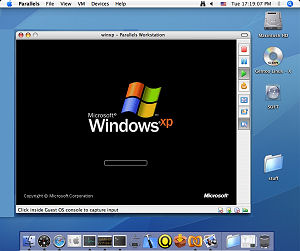
One way to get Windows running on a Mac desktop is to install an emulator or virtualizer program. A virtualizer creates a virtual PC in your computer's memory, then boots up a different operating system on the virtual hardware. Parallels Desktop is a program that will do this. The caveats are: it will only run on Apple's newer Intel-based line of computers and only on Mac OS X 10.4.6 or higher. Also, you do need a full version of the Windows system you want to install as the secondary OS -- upgrade versions will not work.With Parallels Desktop for Mac, you can run any version of Windows, from Windows 3.1 to Windows Vista, on your Mac OS desktop, right alongside your Mac apps. You can even copy and paste items between your Mac desktop and your Windows desktop. The new Coherence mode makes your Windows desktop disappear so that Windows apps look like any other Mac application. Their icons even show up in the Dock and the Option-Tab application switcher. And by the way, you can also run Linux, OS/2, Solaris or FreeBSD with Parallels.
Installation is easy -- download the free trial version, doubleclick the install file and follow the prompts. After install, you can start the Parallels Desktop by double-clicking the orange Parallels icon in Finder->Applications. After activation, you can setup the "Guest OS" that you want to run on your Mac, by clicking on the "Install OS" button in the Parallels Desktop window. There is a recommended easy-to-follow express install to setup Windows XP or Windows Vista. Insert the Windows XP or Vista installation disc when prompted, and voila! You are now installing Windows onto your Mac.
Parallels fools the guest OS into thinking that it's running on real a real computer, but as I mentioned before, it's actually a virtual PC created in your Mac's memory. Most people find the performance of Windows running under Parallels quite good, but there are a few limitations. Games that require DirectX will not run, for example.
Other emulator programs similar to Parallels include VMware Fusion and iEmulator. Microsoft also has an emulator called Virtual PC for Mac. This program currently does not run on Macs with Intel processors, but is a good option for those with older PowerPC Macs.
Off to Boot Camp!
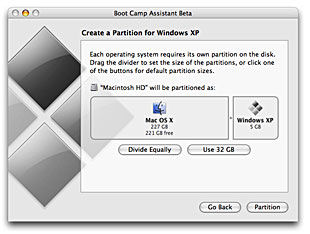 Geeks rejoiced when Apple released a product named Boot Camp in 2006. Boot Camp allowed for the installation of both Mac and Windows on the same machine. A full install of both systems, mind you, not an emulation or a virtual PC environment. When your computer boots up, you are given the option of which OS you want to run. This is known as dual booting. If you've tried Parallels and had problems, Boot Camp may be better way to get Windows up and running on your Mac. The downside is that you have to reboot the machine in order to switch from Windows to Mac, or vice versa.
Once again, to install Windows with Boot Camp, it's BYOS -- Bring Your Own Software. You must have a full version of the Windows OS that you want boot, and also a Mac with an Intel processor. You will need a CD burner and blank CD; the pre-install steps walk you through downloading necessary drivers that Windows needs to recognize Mac-specific hardware. The Boot Camp Assistant walks you through this task in an interactive, user-friendly way which otherwise would be kind of daunting if you had to go it alone. The Boot Camp Assistant also creates a new hard drive partition for your Windows OS, so you don't have to worry about the Windows OS messing with your Mac files. After the Assistant finishes its tasks, you are guided through additional prompts to finalize the install. For more help and info on Boot Camp, see this article describing how to boot Windows XP on an Intel-based Mac.
After installation, when you want to select which OS to start, you simply hold down the "Option" key until you see a picture of two disks. One will say "Windows" and the other will say "Macintosh HD". Click the arrow beneath each disk to select the one you want. You can also choose which system you want as the default OS by going into System Preferences when you are in Mac mode. Remember as always, before engaging in the installation of any product that mucks about with hard drive partitions or operating systems: back-up, Back-up, BACK-UP! Save any important files to your favorite backup media in case of any oopsies!
Just The Apps, Ma'am
Okay... so you don't need the entire Windows OS experience. If you just want to run some Windows-based apps or games on your Mac, without the hassle of installing an operating system, there's a solution for you as well.
CrossOver Mac is a program that will let you run Windows applications on your Mac, as opposed to an entire Windows OS. The best thing about CrossOver is that you don't need a copy of the Windows operating system, which can lower the cost of entry. CrossOver is a favorite among Mac users who want or need to run PC-based games or Windows business applications on the Mac OS.
In case you missed it earlier, this article is the second in a two-part series. See also Switching From Windows to Mac if you want some practical help about leaving Windows behind entirely.
Got comments about running Windows on your Mac? Post your thoughts and suggestions below...
|
|
|


This article was posted by Bob Rankin on 12 Mar 2007
| For Fun: Buy Bob a Snickers. |
 |
Prev Article: Switching From Windows to Mac |

The Top Twenty |
Next Article: Adding Memory |
 |
Post your Comments, Questions or Suggestions
|
Free Tech Support -- Ask Bob Rankin Subscribe to AskBobRankin Updates: Free Newsletter Copyright © 2005 - Bob Rankin - All Rights Reserved About Us Privacy Policy RSS/XML |
Article information: AskBobRankin -- Run Windows On Mac (Posted: 12 Mar 2007)
Source: https://askbobrankin.com/run_windows_on_mac.html
Copyright © 2005 - Bob Rankin - All Rights Reserved
Most recent comments on "Run Windows On Mac"
Posted by:

Hale
22 Mar 2007
I just recently switched from windows to mac and all my programs are windows but Crossover Mac doesn't support power PCs i guess boot camp is my best shot for now.
EDITOR'S NOTE: Not if you really want to run Mac OS... I'd suggest Virtual PC for Mac, which does support PowerPC.
Posted by:

Garry
29 Mar 2007
Good summary of Windows on Mac. DirectX works in Parallels, in my experience. Gamers may have problems because some games directly address video card hardware which doesn't exist on the Mac, but those same problems can occur using Boot Camp.
If a user has an older OS and an XP update disk, Parallels is perfectly happy to accept the two-step installation of XP. An original XP disk is not required. The current version of Parallels supports both Copy/Paste and Drag & Drop between Windows and Mac environments. It also runs Vista.
As you noted, the only way to run Intel-based operating systems on a PowerPC Mac is to use Microsoft's Virtual PC for the Mac. This solution, however, is quite slow, because it emulates an Intel chip in software. CrossOver Mac will only run specific Windows applications. Users should confirm if their favorite apps will run using it.
Finally, Apple's Boot Camp is beta software which will expire at the end of this summer. Boot Camp users will have to upgrade to Leopard (OS X 10.5, scheduled for release this spring) to continue to use it. The good news about Boot Camp is that the latest release runs Vista. The other good news is that it's free of charge.
A reminder: if the same copy of XP or Vista is installed on more than one computer (and a virtual machine such as Parallels counts as a computer), activation can be a problem. Parallels allows a Boot Camp installation of XP (and, I expect, Vista) to run in Parallels as well without separate activation. Another licensing note: the lesser versions of Vista are not licensed for use with a virtual machine.
Posted by:

Mike
03 Aug 2008
i have just gotten some mac g4s and want to put xp on them is there away to do that with out haveing the os for the mac on there
EDITOR'S NOTE: No, you will have to run XP in a virtual machine under the Mac OS.
Posted by:

Dave
05 Aug 2008
I want to do some level building/world building on a Mac with the TGEA engine (DirectX)... if I can't do it with Parallels... can I do it with Bootcamp? If so what generation of Mac will handle the graphics (pixel shader)?
Posted by:

Crys
22 Feb 2009
When using BootCamp to install Windows XP on MAC, will it run Direct X based games (like The Sims: The Complete Collection, and SimCity 4)?
EDITOR'S NOTE: It should do anything that any other Windows computer will do. Remember, this is REAL windows on Intel hardware -- not an emulation.
Posted by:

Jesus
12 Mar 2009
do I need to install XP in addition to Virtual PC on a G4 mac in orer to run it?
EDITOR'S NOTE: Yes, the Virtual PC program is just the simulation of the hardware -- you still need to install the software (OS).
Posted by:

APEX
14 Oct 2009
Please am having a Mac iBook 700 MHz PowerPC G3, But I wonna change it to Microsoft Windows OS.. Can someone please help me out on how to do this???
Thanks in Advance
Posted by:

sfj
27 Dec 2009
I have a camcorder with a hard drive and it is not compatible with my Mac so of course I can't download my videos to my computer.
Now that I have Leopard with Boot Camp, I can divide my hard drive and hopefully Windows will allow me to download my videos.
I haven't installed Windows yet because I don't know how much of my hard drive I need to use just for downloading videos.
I have no desire to use Windows for any other reason and I can't afford to buy a camcorder that is compatible with Mac.
If anyone can give me any advise on this it will be greatly appreciated. You may send me a personal email at: sfjohnson54@ymail.com.
Thanks
Posted by:

gloria
04 Jun 2010
I just want to run my Dragon Speak on my Mac- so it sounds like- from your article -that I could do that through the Cross Over MAc- and not hassle with the rest of those virtual or otherwise installations= yes?
thanks,
g
Posted by:

JENNY
30 Aug 2010
hi I bought parallels so that I could load windows on to my mac. I'm NO IT boff but I followed all your steps and installed parallels succeSsfully after purchasing it on the net. I don't have the start up discs. Now I am trying to load windows and it is asking me to "insert teh windows XP installation CD or DVD drive and click start??? I don't have any disks HELP ME!!!
EDITOR'S NOTE: Well, you DO need a licensed copy of Windows in order to run it on your computer, whether it's on the actual hardware or in a virtual machine. Best bet might be to check on Ebay for a legal Windows XP disc.
Posted by:

steven handley
04 Nov 2010
i have windows7 legit copy in my bootcamp, i am trying to run games like shaiya, rappelz, guildwars and sacred on the windos side of things and all are telling me to upgrade my graphics card drivers. i have the latest catalyst driver for ati and have installed the latest directx! but they still wont work... i have the latest mac.. spent a lot of money... it is capable of great things and runs mac games beautifully... BUT nothing will work with windows cos of my previouse said problem... any tips??
Posted by:

Jan Owen
03 Jan 2012
Hey, Bob. Being able to run Windows programs on a Mac Laptop sounds wonderful to me. Could you possible take this article a step further and talk about how interfacing with iCloud/iPhone4/Windows on a Mac would function. Right now I'm syncing with iCloud and 2 iPhone 4s and a Dell PC, and the translation is not faultless. It took me several months of long telephone calls with very patient Apple customer service people to get even a basic iCloud sync running. I love my Windows programs but am being hounded my family members to do a complete switch to Apple products -- and I'm a little jaded by all the translation issues at this point.
Posted by:

Connor
23 May 2012
So would I be able to play pc-games on my Mac using boot camp? I have the OSX snow leopard by the way. And would there be any potential issues running games on the mac like compatibility wise?