


Send it Later! The Power of Scheduled Messages
Did you ever wish you could jot down a text message now, but have it land in someone's inbox at the perfect moment, like later today, or first thing tomorrow? Scheduling your outbound messages lets you do just that, without staying up late or forgetting to send it later. In this article, you'll find practical reasons to schedule messages, self-reminder tricks, and step-by-step guides for Android, iPhone, and WhatsApp, plus a bonus on how to do the same with your email. Read on! |
Future Texting 101: How to Message at the Perfect Moment
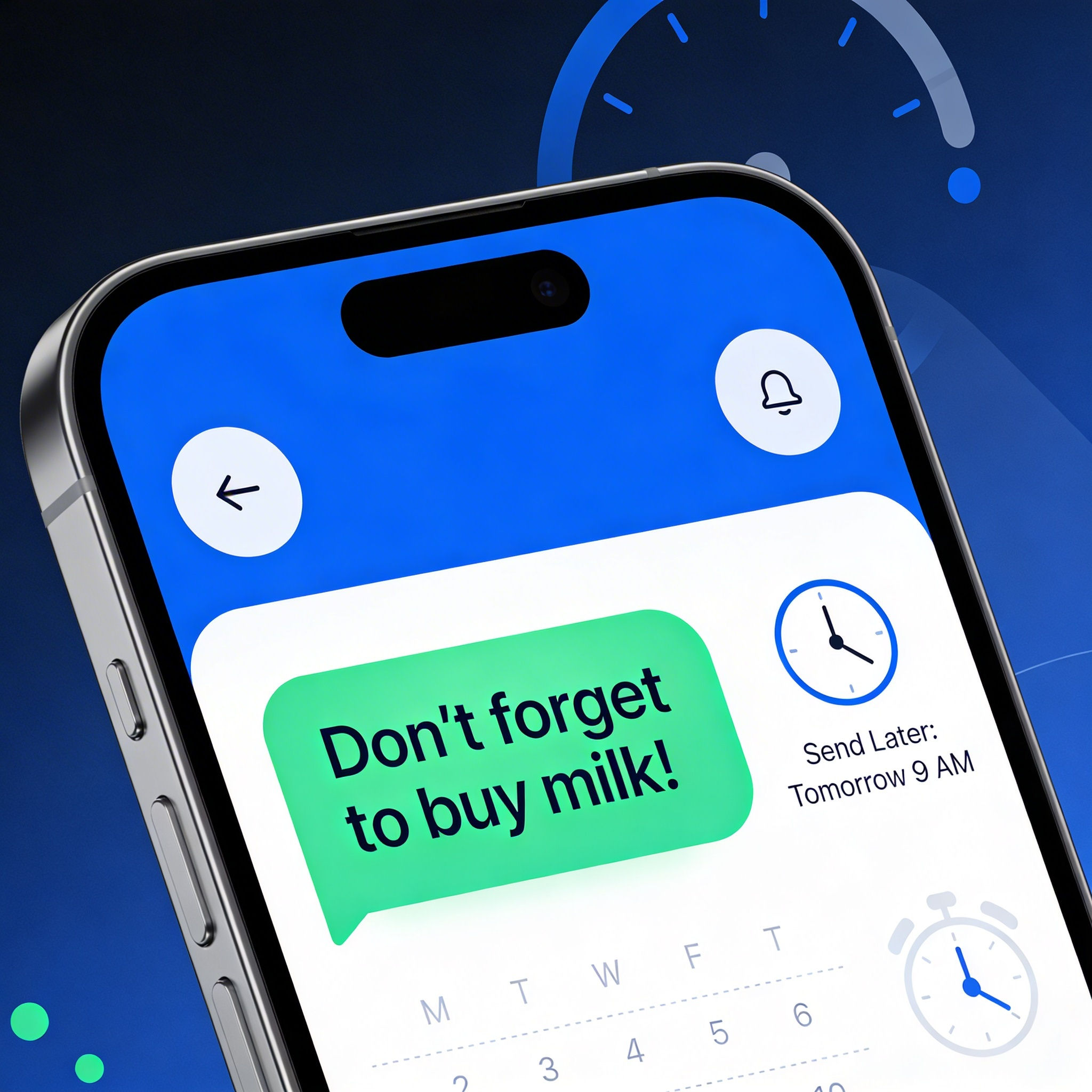
Hold on... don't hit the Send button yet! Why send a text later? Scheduling a text lets you write it now, then have your phone deliver it at the perfect time. That can come in handy for recipients in other time zones, avoiding do-not-disturb hours, reminders to yourself, and messages you don't want to forget.
Some practical reasons to schedule instead of sending right away include:
- The other person is likely asleep, in a meeting, or cannot be interrupted (nighttime, worship, work, travel).
- Different time zones, so “9 am their time” would otherwise mean you must remember and manually send at an odd hour.
- You want to get a thought off your mental to do list now, but you want it to arrive tomorrow or next week.
- Professional courtesy, so coworkers and clients do not see timestamps at 11:47 pm or Sunday morning.
- Habit and behavior nudges, for example “Text me at 6 pm to take my medication” or “Remind me to pay rent on the first.”
- You want to send a birthday, anniversary, or holiday greeting at a specific time, without relying on your memory.
Here's a simple example: You're slipping into bed at 11 pm, and you remember that you need to remind a friend about an appointment at 8 am. You schedule the text for 7:45 am, then forget about it. In the morning, they get a timely reminder, instead of an annoying late-night ping.
How to schedule texts on Android
Most modern Android phones with Google Messages or Samsung Messages can schedule outgoing text (SMS) messages. Here's how to do that:
Google Messages (Galaxy, Pixel, Motorola and many Android phones):
- Open Messages.
- Start a chat or open an existing conversation.
- Type your message, but do not tap Send yet.
- Press and hold the Send arrow until a Schedule send menu appears.
- Choose a suggested time (for example “Later today”) or tap Pick date and time.
- Select the date and time, then confirm.
- Press the Send button.
Don't worry, it won't get sent right away. Your message will stay as a scheduled item and will be delivered automatically at that time, as long as the phone has some network connectivity. (I often use Google Messages for Web to send and receive text messages from my desktop. It's convenient, and syncs with messages on my phone. But unfortunately, it lacks the "send later" feature.)
If you use Samsung Messages (many Galaxy phones), use these instructions:
- Open the Messages app.
- Compose a new message or open a thread and type your text.
- Tap the + or press and hold the Send arrow.
- Choose Schedule message, then pick the date and time (up to a year in the future on many models).
- Confirm and press Send to schedule.
If you change your mind, open the conversation, tap the scheduled bubble, and edit or cancel if your phone offers that option.
How to schedule texts on iPhone
On recent iOS versions, Apple leans on the Shortcuts app for scheduled messages, and newer iPhones are adding a built in “Send Later” in Messages.
Using “Send Later” in Messages (newer iPhones)
- Open Messages.
- Start a new conversation or open an existing one.
- Type your message.
- Tap the + button near the text field, then choose Send Later.
- Pick a suggested time (for example “Tomorrow morning”) or tap Pick Date & Time for exact scheduling.
- Confirm; the message will show a scheduled time indicator in the thread.
You can usually tap Edit on that scheduled bubble to change the time or delete it before it goes out.
Using Shortcuts Automation (iOS 17 and older or advanced control)
- Open Shortcuts, tap Automation.
- Tap New Automation, then choose Time of Day.
- Set the time and choose how often it repeats (Daily, Weekly, Monthly) or a specific date.
- Tap Next, then Add Action, search for Send Message.
- Enter the message text and select the recipient.
- Turn on Run Immediately if you want it fully automatic, then tap Done.
If you only want a one time message, delete the automation after it runs so it does not repeat.
Sending Later with WhatsApp
Native message scheduling in WhatsApp is only starting to appear in beta (test) builds and may not be widely available yet. When it fully launches, it is expected to let you type a message, choose a date and time, and let WhatsApp send it later, with the option to edit or cancel before that time. But until that is commonly available in WhatsApp, people often use workarounds such as:
The Shortcuts app on iPhone: Automation > Create Personal Automation > Time of Day > Add Action > WhatsApp > Message to set a scheduled message.
WhatsApp Web: Use a Chrome extensions like Send Later for WhatsApp or Blueticks to set scheduled messages directly in the browser.
Sending a text to yourself as a reminder
You can schedule messages to your own number so the future you gets a timely nudge.
On Android or iPhone, the steps are the same as above, except you set the recipient to your own contact entry or phone number. You can also combine a calendar event with a text. For example, on iPhone, create a Calendar event titled “Text Mom” at 9 am, and put the actual wording of the text in the Notes field so the notification reminds you exactly what to send.
Scheduling "Send Later" Emails
Scheduling emails works much like texts. You compose now, but set a delivery time. This keeps your inbox professional with no 3 am timestamps. Gmail, Outlook, Apple Mail, and others make it simple.
On Gmail:
- Open Gmail on web, Android, or iOS.
- Compose your email.
- Click the down arrow next to Send.
- Choose Schedule send (suggested times like "Tomorrow morning" or Pick date & time).
- Confirm. It goes to the Scheduled folder; edit or cancel from there before send time.
Other Email Services:
Outlook (Desktop, Web, Mobile): Compose, click arrow on Send, pick Schedule send or custom date/time.
Apple Mail (Mac/iOS): Compose, long press or tap Send Later icon, choose time/date. Shows in Send Later mailbox.
Yahoo Mail (mobile only): Basic scheduling via mobile app (tap three dots > Schedule for later).
Next time you're tempted to fire off a midnight text or you're worried about forgetting something important, reach for the "send later" option instead. With these simple steps for Android, iPhone, WhatsApp, and even email, you stay polite, timely, and organized. It will take a load off your mind, and eliminate untimely pings for your recipients. Start scheduling today, and watch your communication game level up.
Do you have a comment or question about this topic? Post it below...


This article was posted by Bob Rankin on 24 Mar 2026
| For Fun: Buy Bob a Snickers. |
 |
Prev Article: Selling on Craigslist or Facebook Marketplace? Watch Out for These Scams |

The Top Twenty |
Next Article: Where Does Your Digital Footprint Lead? |
 |
Post your Comments, Questions or Suggestions
|
Free Tech Support -- Ask Bob Rankin Subscribe to AskBobRankin Updates: Free Newsletter Copyright © 2005 - Bob Rankin - All Rights Reserved About Us Privacy Policy RSS/XML |
Article information: AskBobRankin -- Send it Later! The Power of Scheduled Messages (Posted: 24 Mar 2026)
Source: https://askbobrankin.com/send_it_later_the_power_of_scheduled_messages.html
Copyright © 2005 - Bob Rankin - All Rights Reserved
Most recent comments on "Send it Later! The Power of Scheduled Messages"
Posted by:

Lynn
24 Mar 2026
I had a dear friend who passed away in October, years ago. The following December, I received a Christmas greeting from him. It was very moving.
Posted by:

J Crawford
24 Mar 2026
I have been using the send later feature on my iPhone for quite some time. Wish there was a way to send a delayed message from my iPhone to an Android device.
Most of the time, I use Outlook on my Windows Desktop. The send later feature you mentioned does not work for me:(