


12 Things That Cause Computer Crashes
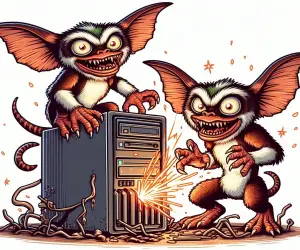
Have you ever experienced the dreaded Blue Screen of Death? Does your PC or Mac computer lock up, freeze, crash, or display cryptic error messages? Thess sorts of problem can be very difficult to diagnose, because many things can cause a desktop computer or laptop to crash (and even burn!). Before you blame those mischievous gremlins, here are some common causes of computer crashes and some tips on how to deal with them... |
Why Do Computers Crash?
Often I'll get a reader question along the lines of “My computer keeps crashing, what should I do?”. As much as I'd like to help, that's not enough information to diagnose the problem and suggest a solution. It's like telling your auto mechanic there's a funny noise coming from your car, and asking him for advice on how to fix it.
A computer crash may or may not be in the eyes of the beholder -- it can take the form of a complete power down, an unexpected restart, the Blue (or Black) Screen of Death, or a screen freeze. In some cases, just restarting the computer will get you going again. But chances are, you haven't really solved the problem. Here are a dozen things that can cause your computer to crash:
#1 - HEAT: An overheated processor (CPU) or graphics card (GPU) may shut down your computer without warning, to avoid damage. Heat can build up because a cooling fan is not working or is clogged with dust. Hard drives are also temperature sensitive, and I suspect that motherboards and RAM memory can become flaky when temperatures inside a desktop or laptop computer rise above normal.
One of my computers used to experience random crashes every few months. I found that periodically opening the case and cleaning all the fans, heat sinks and components with a can of compressed air would solve the problem temporarily. Replacing the system fan (which was making a loud buzzing noise) solved the problem.
There are several free utilities that monitor temperatures within your computer and fan speeds; some will even let you control fan speed. See Do You Know Your Computer's Worst Enemy? for additional tips and download links. A few years ago, my desktop PC would just lock up or shut down at seemingly random times. I used a free temperature monitor program to determine that my graphics adapter was overheating. When I opened the case, I found that its cooling fan had seized, and was partially melted! Fortunately, it was designed to send a "Warning, Danger!" signal to the motherboard, which prevented it from catching fire. Computers (and even smartphones) can catch fire, so don't ignore signs of overheating.
I should mention that laptops are especially prone to overheating, especially thin and light models. Laptops are more prone to heat-related crashes because their compact designs pack electrical components into small spaces. The thin chassis of a laptop relies on narrow heat pipes, heat sinks, and small fans to move heat away from the CPU and GPU, which can become clogged with dust, pet hair, or cooking grease over time. When airflow is restricted, temperatures rise quickly, and the system may respond in two main ways: thermal throttling or full shutdown.
Thermal throttling is when the processor or graphics chip deliberately slows itself down to reduce heat and protect the hardware from damage. This can make the laptop feel sluggish, stutter during video playback, or freeze briefly. A full shutdown happens when temperatures reach a critical threshold and the system powers off abruptly to prevent damage. It's a bad idea to use your laptop on soft surfaces like beds and couches that block vents. You might try using a laptop cooling pad, and periodically cleaning the fan and vents with compressed air. (Make sure the laptop is powered off, and aim the nozzle so you’re blowing dust out of the vents, not deeper into the laptop.)
AskBob reader Dan shared this related story: The cashier at a hair salon was swearing at her computer because it kept shutting down every few minutes. Her "expert" friend recommended an new PC, but Dan suspected a heat problem, and offered to check it out. He found that the heat sink was COMPLETELY packed with hair, grease and chemicals that had been pulled in by the fan. Dan removed the heat sink, cleaned it thoroughly, and it ran like a champ. Other environmental factors such as smoking, pets, carpeting and cooking fumes can exacerbate the overheating issue.
And as strange as it sounds, fire ants have been identified as culprits in some overheating incidents by infesting computer components and damaging thermal paste and pads. These ants are attracted to the electrical fields and warmth of PCs, where they can eat or nest within GPUs and power supplies. Yikes, if you have fire ants in your computer, overheating may not be your worst problem!
#2 - SOFTWARE ERRORS: If crashes occur only when you’re using a specific software application, that’s the first place to look for problems. Sometimes a software bug causes a crash when a certain operation is attempted. Check the software maker’s website for any updates that may fix your problem. It's also a good idea to scan your computer to ensure that all your software is up to date with the latest security patches. See Here's Why You Must Keep Your Software Updated (and how to do it for free) for some tips on getting that task done.
Don't forget that Chrome/Edge/Firefox browser extensions and Windows Store apps can cause problems. Keep them in mind when attempting to isolate a software problem. Occasionally, software may become corrupted or “scrambled” and cause crashes too. If a software update (or removal) and a disk check (see below) don’t fix your problem, you may have to remove and then re-install the corrupted software.
The Windows Reliability Monitor is a built-in diagnostic tool that gives you a timeline view of how stable your PC has been, and will show you if there have been crashes, unexpected shutdowns, or system errors. It’s a handy tool when you’re trying to figure out whether crashes are tied to a specific app, driver, or Windows update. On Windows 10 and 11, type “reliability” in the Start search box and press Enter.
#3 - HARD DRIVE ERRORS are yet another potential cause of computer crashes. A problem with your hard drive doesn't necessarily mean that it needs to be replaced. There are a variety of factors that can cause files, folders, or partitions to become damaged or lost. Human error, malware, and poorly designed software are all possibilities.
A drive error may be a logical error in the Master File Table, or a defective sector on the disk itself. Windows has a built-in utility that will detect and fix logical errors, and mark bad sectors so they are not used to store data. See Windows Hard Drive Errors for more information about the CHKDSK utility, and other programs that can help. (That article was written for Windows 7, but the information still applies to Windows 10 or 11.)
SSDs (Solid State Drives) can also develop issues such as bad blocks, firmware bugs, and optimization errors. And despite what you may have heard, CHKDSK does work on SSDs, and can help to clear up some problems.
If you can't restart your computer after a crash, see Harbinger of Hard Drive Hardship? before going off in search of a new hard drive.
#4 - MALWARE: Viruses and other forms of malware often causes computer crashes; in fact, some malware is written to do just that. Running a full scan with one or more good anti-malware tools is a good thing to do when crashes occur at random. My current favorite is PC Matic, which uses a "whitelist" approach, in addition to traditional "signature based" virus detection methods.
#5 - DEVICE DRIVERS: Outdated device drivers can cause crashes. I've heard reports where simply plugging a device into a USB port caused a system crash. Drivers usually work fine until you install a new operating system or a major update to an existing operating system, such as a Service Pack or one of those twice-yearly Windows Updates. If you start suffering crashes after an operating system change, updating the drivers for your printer, scanner, CD/DVD drive, external hard drive and other peripheral devices may solve the problem. The best place to look for new device drivers is the vendor's website. Stay away from "driver update" websites and downloadable programs that offer to scan your system and supply new drivers. To learn more about device drivers, see [TIP] Time to Update Your Drivers?
#6 - FLAKY MEMORY: It’s rare for RAM memory to go bad, but that can be a cause of computer crashes. Sometimes a RAM chip with a "bad spot" will work fine, until a software program attempts to use that portion of memory. Windows Memory Diagnostic is a built-in tool that will test your RAM memory for errors. On Windows 10 and 11, type “mdsched” in the Start search box and press Enter. Memtest86 is another utility that can diagnose problems with RAM and other hardware that may be causing computer crashes. My related article How to Test and Fix Your Computer Hardware contains links to that and several other handy diagnostic programs. Both of those memory testers require a system restart.
#7 - FAILING POWER SUPPLY: Unexpected restarts can also be a sign of a failing power supply. When someone has tried everything else, and their computer is still glitching at seemingly random times, I sometimes recommend a new power supply. Fortunately, power supplies are cheap and easy to replace yourself. See Is It Time to Replace Your Power Supply? for some helpful tips.
#8 - ELECTRICAL PROBLEMS: A sudden surge or loss of electrical power can damage your computer or cause it to crash. In addition to losing anything you were working on at the time, power glitches can also cause head crashes in hard drives, which can damage a disk and the data on it. A power surge can damage your power supply or other components. To guard against power surges and power failures, I do recommend that you get an uninterruptible power supply (UPS) to provide a backup power source and surge protection for your computer. For complete protection, look for one that comes with software and a cable that can send a signal to safely shutdown your computer in the event of a power failure. See Battery Backup Power - Here's What You Need to Know.
#9 - OVERCLOCKING: Overclocking involves fiddling with the BIOS settings to run a computer's CPU, GPU or RAM at a higher clock rate than it was originally designed for. In some cases, this can result in better performance, but it can also lead to system instability and crashes. Overclocking accelerates the wear and tear on computer components, and can cause overheating and memory errors. See How Fast Is Your CPU? Benchmark it! for some related info.
#10 - COSMIC RAYS: Really? Yes, really! A friend of mine who is an expert in electronics trouble shooting said this: "A Single Event Upset (SEU) can cause electronic circuitry to malfunction. An SEU can be caused by a power glitch, or a cosmic ray passing through a integrated circuit, and can actually flip the logic state (from 1 to 0 or vice versa) of a circuit. A cascading effect may trigger a hardware lockup, an error in calculation, or an infinite loop in software." See Silver Bullets, Cosmic Rays and Tired Computers to learn more about that.
#11 – Firmware and BIOS/UEFI Bugs These are less often the culprit of system crashes, but motherboard firmware can cause crashes after updates or even at seemingly random times. Consider checking your computer vendor's website for BIOS/UEFI updates. If there was a recent firmware update, reverting to an older version may fix instability issues.
#12 – Resource Exhaustion (Gremlins again)
Resource exhaustion happens when a computer runs out of a critical resource such as RAM, CPU time, or disk space, and the system can no longer handle new tasks smoothly. When memory is exhausted, the operating system starts swapping data in and out of the page file on the hard disk, which is much slower than using physical RAM. This “thrashing” makes the machine feel sluggish, unresponsive, or prone to freezing and crashes. Similarly, if the CPU is maxed out for long periods or the disk is completely full, programs may fail to start, save files, or stop responding, even though there is no obvious hardware fault.
From the user’s point of view, resource exhaustion looks like those pesky gremlins causing mysterious slowdowns, apps hanging, or the system crashing under heavy load. (This can happen when a buggy program has a memory leak or an infinite loop.) Running Task Manager or Resource Monitor can reveal which process is consuming excessive CPU, RAM, or disk. Closing or updating that app usually restores stability.
BONUS TIP: If your problem is software-related, there's a free program called WhoCrashed that you can run after experiencing a system crash, unexpected shutdown/reset, or "blue screen of death" event. WhoCrashed which will analyze your Windows system log files, report on the most likely cause, and offer suggestions on how to fix the problem. WhoCrashed runs on Windows XP, Vista, 7, 8, 10 and 11.
Do you have something to say about diagnosing and fixing computer crashes? Post your comment or question below...


This article was posted by Bob Rankin on 3 Feb 2026
| For Fun: Buy Bob a Snickers. |
 |
Prev Article: How to Find the Cheapest Flights (Without Losing Your Mind) |

The Top Twenty |
Next Article: It’s Been Verified - Your Free Search Just Hit a Paywall |
 |
Post your Comments, Questions or Suggestions
|
Free Tech Support -- Ask Bob Rankin Subscribe to AskBobRankin Updates: Free Newsletter Copyright © 2005 - Bob Rankin - All Rights Reserved About Us Privacy Policy RSS/XML |
Article information: AskBobRankin -- 12 Things That Cause Computer Crashes (Posted: 3 Feb 2026)
Source: https://askbobrankin.com/12_things_that_cause_computer_crashes.html
Copyright © 2005 - Bob Rankin - All Rights Reserved
Most recent comments on "12 Things That Cause Computer Crashes"
Posted by:

Renaud OLGIATI
03 Feb 2026
One thing to also consider: Unless you are utterly dependent on software that only exists in Windows version, or company policy mandates the Redmont products, remember the possibility of upgrading to Linux.
(I have been running various flavours of Linux over the last thirty years, my last Windows was 3.1, and I never had a BSOD, crash, or frozen computer :-3 )
Posted by:

Cliff
04 Feb 2026
Great read, thanks Bob!
Posted by:

Erenst van Niekerk
04 Feb 2026
As usuall excellent read. Keep it up!
Thanx Bob.
Posted by:

Kathleen Dombrowski
05 Feb 2026
As usual you hit the nail on the head! LAPTOP'S and why they are called that? On your lap, on your bed, on the floor, you get point. Restricting air flow is the main cause of lap top overheating. In my repair days I've seen some doozeys, fan's so packed w/God knows what they could barely spin. Main complaint: my laptop gets really hot.
Posted by:

mark smith
01 Mar 2026
Opened a customer system and found a nest of tiny ROACHES. Quickly sealed it in a plastic bag and gave it back to the customer.