


Hard Drive Partitions: Old-School or Useful Tool?
One reader asked about partitioning hard drives: “I just got a new computer with a big 2-terabyte hard drive and I'm wondering about hard drive partitioning strategies. A friend told me to create a very small C: partition for a swap file, put Windows on the D: drive, and create several other partitions for different types of data. That sounds complicated, so is this really a good idea?” Read on for my advice on hard drive partitioning... |
Hard Drive Partitioning: Myths, Mistakes and Misconceptions
In general, I disagree with the idea of having multiple partitions on a hard drive. Unless you are running a dual-boot system, with one partition for Windows, and another for Linux or some other operating system, I recommend that you stick with one large partition. I know I'll get some flack for this, but read on to see why I think that's the best strategy for most users.
Years ago, some hard drive controllers, as well as older versions of the Windows and Mac operating systems, could not accommodate a hard drive partition larger than 2 GB. (That 2 TB hard drive is 1000 times larger!) In those days, if you had a hard drive larger than 2GB, you needed multiple partitions to make use of the full capacity of the drive. So a 10GB drive required five 2GB partitions, which would end up being the C:, D:, E:, F: and G: drives on a Windows computer. But the hardware and software to support large hard drives has been around for almost 20 years now, and these gyrations are no longer necessary.
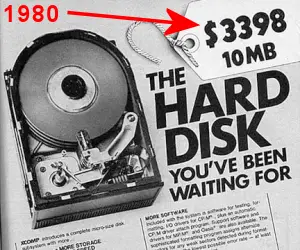
Moderns versions of Windows, Mac OS and Linux can handle partitions of almost any size, even the multi-terabyte drives that are available on the market now. A terabyte is 1000 gigabytes, and a gigabyte is 1000 megabytes. (My first hard drive was 10 megabytes.)
Partitioning Myth #1: You Need Lots of Partitions
Some people go hog-wild with partitioning, and advise people to create one partition for the operating system, another for the Windows swap file, and still other partitions for installed software, music and photos. The rationale is usually along the lines that if your Windows operating system gets hosed by viruses or spyware, then you can simply re-install Windows and your programs will be safe on another partition. But they're forgetting about the Windows Registry, which tells Windows where all the user-installed software resides on the hard drive. If the Registry gets whacked by a virus, or you re-install Windows, ALL of your software will have to be re-installed.
Another problem with the "operating system on C: and programs on D:" idea is that some programs don't even ASK where you want to install them. They just plop themselves down on the C: drive. And if you blindly copy them to the D: drive, they may not work, due to Registry problems. And even if the installer does give you a choice, the C: drive is always the default. Novice or casual users will probably not remember to change the target drive to D: or E: and the result will be a mishmash of programs installed on multiple partitions.
Partitioning Myth #2: A Swap File Partition Will Boost Performance
Some people think that having a separate partition for the swap file will help with performance. But everything I've read indicates just the opposite. Your system performance will be optimized when the swap file is on the same partition as the operating system, because that mimimizes the movement of drive head. And what if you make your Windows or swap file partitions too small? It's easy to underestimate the how large the swap file might grow. And it's not so easy to tweak the size of a partition if you run out of space.
Partitioning Myth #3: Moving Your Windows Partition Makes You Safer
Others claim that putting Windows on some drive other than C: will provide protection from malware or ransomware because hackers are stupid and always target the C: drive. Well that's just not true. If you want to protect yourself from viruses, spyware and other threats, practice safe computing habits and install some good anti-virus protection. Along those lines, I recommend that you read my article on PC Matic and whitelisting.
Partitioning Myth #4: Partitioning Protects Your Data From Hardware Failure
Using partitions to separate different types of data is not a form of data protection. If the hard drive fails, all partitions on it are likely to be affected. Making backups of your data to a separate drive or cloud storage is necessary to protect from hardware failure.
Partitioning Myth #5: Partitioning increases disk space
Whoever came up with this idea has apparently never seen a pie chart. Partitioning your hard drive doesn't magically create more disk space. A partition merely divides existing disk space into separate sections. You may end up with LESS usable disk space in some situations. For example, let's say you split a 100 GB drive into C: and D: partitions of 50 GB each. If the C: drive has lots of space and the D: drive is full, you'll need to shrink the C: partition and expand the D: partition in order to add more files to the D: drive. That's an unnecessary nuisance.
One Partition to Rule Them All?
There are other reasons why I disagree with the multiple partitions school of thought. First of all, it makes using and maintaining your computer that much harder. You'll always have to remember where things are supposed to be stored. "Uhh, do I put Photos on the D: drive, and Music on the E: drive? Or is it Programs on the D: drive, Music on the E: drive, and Photos on the F: drive? Aaauuugggh!" With a single partition, you have a lot less hassle.
Also, tasks like maintaining and optimizing your computer and backing up your files become more of a chore.. And again, if you "outgrow" a partition, it's not trivial to make it larger. Oh, and if you think backing up one partition into another partition on the same disk is a good idea, think again. If the drive fails because of a power surge, head crash or other mechanical defect, ALL of your partitions will be lost. Always backup on a separate drive or external media.
Modern operating systems are very smart when it comes to managing large amounts on data on a hard drive. They don't need multiple partitions to take full advantage of the hardware, organize your files, improve performance, or enhance your security. Give your system one big chunk of disk space, organize it with as many folders as you like, and let it do its thing!
Momma Don't Take My Partitions Away!
As I mentioned at the outset, I understand there are some folks who feel it's best to have separate partitions for the operating system, software, and user data. One partition is simplest and sufficient for most users, but separate partitions or separate drives can be useful when you have a clear purpose. If you're a savvy user and can keep it all straight (with a good backup strategy), more power to you!
If you do want to create, resize, or organize a partition in Windows, I recommend you start with the built-in Disk Management tool. It can initialize disks, create new volumes, format them, change drive letters, and shrink or extend existing partitions in most common situations. (To open Disk Management, right-click the Start button and select Disk Management.) Disk Management is a good fit when a drive already has unallocated space, or when you want to shrink an existing volume and create a new one from that free space. It also works for extending a partition into adjacent unallocated space on the same disk.
For more advanced jobs, such as moving partitions around or working around layout limitations, a third-party partition manager may be helpful, but for everyday use, Disk Management is usually all you need. Some popular options are AOMEI Partition Assistant, Paragon Partition Manager, and EaseUS Partition Master.
Just keep in mind when using with any partition manager that a modern Windows installation manages some "hidden" system and recovery partitions, so you should leave those alone unless you know exactly what they are doing.
Agree or disagree with my advice on partitioning? Your thoughts on this topic are welcome. Post your comment or question below...


This article was posted by Bob Rankin on 21 May 2026
| For Fun: Buy Bob a Snickers. |
 |
Prev Article: How Many of These Power Search Tricks Do You Know? |

The Top Twenty |
 |
Post your Comments, Questions or Suggestions
|
Free Tech Support -- Ask Bob Rankin Subscribe to AskBobRankin Updates: Free Newsletter Copyright © 2005 - Bob Rankin - All Rights Reserved About Us Privacy Policy RSS/XML |
Article information: AskBobRankin -- Hard Drive Partitions: Old-School or Useful Tool? (Posted: 21 May 2026)
Source: https://askbobrankin.com/hard_drive_partitions_oldschool_or_useful_tool.html
Copyright © 2005 - Bob Rankin - All Rights Reserved
Most recent comments on "Hard Drive Partitions: Old-School or Useful Tool?"
No comments have been posted on this article. Why not be the first?