


Change These Settings to Boost Speed, Security, Privacy
Today’s topic sounds geeky, but I promise I'll explain it all in plain English and show you how to make your Internet usage faster, safer, and more private. In the past, I have recommended using alternative DNS as a means to a faster and more reliable Web browsing experience. But faster surfing isn't the only benefit of switching your DNS servers. Read on... |
Improved Speed and Safety on the Info-Superhighway
Let's start by de-geekifying the DNS acronym. DNS stands for "Domain Name Service" and it's a service normally provided by your Internet Service Provider (ISP). Here's why it's necessary... Humans refer to websites by their common "dot com" names, but the computers that run things on the Internet know them only by numbers known as IP (internet protocol) addresses. When you tell your browser you want to visit a certain website, it must connect to a DNS server to translate that website name into a numeric IP address.
Normally, the DNS server that does that name-to-number lookup is operated by your ISP, but there's no technical reason why that must be so. Alternate DNS services can be used to speed up web surfing, provide an additional layer of security, correct typos, or assign shortcuts to commonly-typed website names. Here are some free alternative DNS services you can try.
OpenDNS Home is one such service, used by over 30 million people at Fortune 50 companies, small businesses, schools, and homes. The free service doesn't require you to install any software. By twiddling a few numbers in your router's setup screens, you can speed up web surfing. But you can also filter out malware, phishing sites, botnets, If you also want to filter out adult content, use the OpenDNS Family Shield instead. It works exactly the same as the OpenDNS Home service, but is preconfigured to block sites that may not be appropriate for younger users.
OpenDNS works with one of the leading anti-phishing projects on the Internet. PhishTank.com is a collaborative effort to identify and block phishing websites one bogus URL at a time. Any registered user can submit a suspected phish to PhishTank via email or the site’s “Add A Phish” uploading feature.
Each suspect URL is evaluated by a worldwide community of security consultants, academics, and registered users. When at least two users agree it’s a phish, the bogus URL is added to PhishTank’s database of verified phishing links. The number of votes needed to verify a phish varies depending on the reputations of the voters. Reputation is established by being right more often than you are wrong. Users who submit lots of false positives – URLs that turn out not to be phishing sites – and who, more often than not, incorrectly label others’ submissions as phish or not-phish, will have lower reputation ratings.
False positives – URLs incorrectly labeled “phish” by the community – can also be reported. PhishTank’s staff will review the classification and revise it if warranted. OpenDNS draws upon many resources such as PhishTank to decide which URLs and IP addresses to blocks for its users who have phishing protection enabled. It’s possible that a URL labeled “phish by the PhishTank community will not be blocked by OpenDNS.
The data collected and vetted via PhishTank is shared publicly and is used by other companies that develop web browsing and Internet security tools. Among them are Opera, WebOfTrust, Yahoo! Mail, McAfee, Carnegie-Mellon University, Mozilla, Kaspersky, and Avira.
It's Nice to Have Choices
You have options when it comes to selecting an alternate to your ISP's DNS servers. Here are some other popular free DNS services:
| Service | Main features | DNS addresses |
|---|---|---|
| OpenDNS (Cisco) | Long-standing service with phishing protection, content filtering, and optional "Family Shield" for adult-site blocking. | 208.67.222.222, 208.67.220.220 |
| Google Public DNS | Speed-focused, DNSSEC validation, defenses against spoofing; minimal logging of DNS data. | 8.8.8.8, 8.8.4.4 |
| Cloudflare (1.1.1.1) | Strong privacy stance (no IP logging), very fast, supports DNS over HTTPS and DNS over TLS. | 1.1.1.1, 1.0.0.1 |
| Quad9 | Security-focused, blocks known malicious domains using real-time threat feeds; based in Switzerland with strict privacy rules. | 9.9.9.9, 149.112.112.112 |
In the table above, you may have noticed some geeky terms like DNSSEC and DNS over HTTPS. Here's a quick rundown on what those mean. DNSSEC (Domain Name System Security Extensions) adds digital signatures to DNS records so your device can verify that a response really comes from the domain’s authoritative server and wasn’t tampered with in transit; it stops many spoofing attacks, but it does not encrypt the traffic. DNS over HTTPS (DoH) and DNS over TLS (DoT), on the other hand, encrypt your DNS queries themselves so outsiders on the network (like your ISP, rogue Wi-Fi users, or some trackers) can’t easily see which sites you visit. So DNSSEC is about authenticity and correctness of DNS data, while DoH and DoT are about confidentiality of your DNS requests, and you can use them together for stronger overall protection.
Which alternate DNS service is best? My answer is try more than one! You might not notice a big difference in speed, but the added privacy benefits are a definite plus. The OpenDNS setup guide will show you how to change your DNS settings.
But Does It Work?
There's really no downside to switching your DNS nameservers from the ones provided by your Internet Service Provider to OpenDNS or one of the others listed. Most users will see slightly improved page loading time, less "lag" when contacting a website, and fewer errors with unreachable websites. You should jot down your ISP's nameserver addresses in case you want to switch back.
I am somewhat skeptical about the “wisdom of the crowd” method used by PhishTank and OpenDNS. Phishing sites come and go rapidly, and I can’t believe that a “committee” of tens of thousands can keep up with the bad guys on every front. But if it blocks the most common phishing attacks, there's value in that. Just don't assume it will protect you from EVERY known phishing threat, and continue to use caution about clicking links you see in emails.
The “parental controls” offered by OpenDNS are probably more effective; p*rn, piracy and social media sites don’t change domain names nearly as often as phishing sites do. But like every parental-control program ever created, OpenDNS blocks some sites that arguably are not harmful to children. Also, its blocking applies to one’s entire network, so Mom and Dad have to give themselves permission to view “adult” sites like La Leche League, or shop at Victoria's Secret.
Please Pass the Caveat...
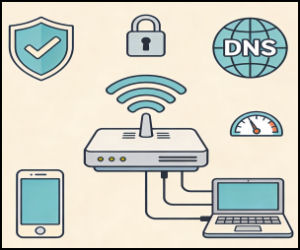
If you configure your Internet router with the OpenDNS nameservers, it's important to remember that it can protect only the computers, laptops and other devices that are connected to it, via a wired or wireless connection. When away from home, or outside of WiFi range, OpenDNS can't protect any mobile devices such as laptops, smartphones or tablets. However, you also have the option to modify the DNS settings on individual devices, rather than (or in addition to) your router. This OpenDNS setup guide will walk you through the steps to make it happen. Just remember to record your current nameserver settings somewhere as a backup, in case you want or need to switch back.
Another reason to modify the DNS settings on your computer (rather than the router), is that some ISP-supplied routers (I'm looking at you, Starlink) either hide or lock DNS settings.
Private DNS on Your Smartphone
It's worth mentioning that when your Android or iPhone device is NOT connected to your home WiFi router, you're accessing the Internet via one of two other sources. That could be your mobile carrier, or the WiFi in the coffee shop. To have the same level of alternate DNS goodness on your smartphone, you should consider turning on Private DNS mode (Android) or Private/Encrypted DNS (iPhone).
If you have an Android device, you can encrypt all your DNS lookups with Private DNS. This helps prevent ISPs, Wi-Fi hotspot owners, and other snoops from seeing which websites you visit. Here’s how to turn it on:
- Open Settings and tap Network & internet (on Samsung, look under Connections or More connection settings).
- Tap Private DNS.
- Choose Private DNS provider hostname.
- Enter one of these hostnames, then tap Save.
- Google: dns.google
- Cloudflare: one.one.one.one
- Quad9: dns.quad9.net
iPhones don’t have a “Private DNS” switch like Android, but you can still point Wi-Fi connections to alternate DNS servers. To set alternate DNS servers on a specific Wi-Fi network:
- Open Settings and tap Wi-Fi.
- Tap the blue "i" next to your current Wi-Fi network.
- Scroll down and tap Configure DNS.
- Change Automatic to Manual.
- Delete the existing DNS servers, tap Add Server, and enter the IP addresses for your chosen DNS service (for example, Google, Cloudflare, or Quad9), then tap Save.
Once this is configured, every app on your phone will send DNS queries over an encrypted channel.
Do you use an alternative DNS offering to boost your speed or security online? Your thoughts are welcome, post a comment or question below…


This article was posted by Bob Rankin on 24 Feb 2026
| For Fun: Buy Bob a Snickers. |
 |
Prev Article: Big Brother is Tracking You (and how you can fight back) |

The Top Twenty |
Next Article: 15 Identity Theft Mistakes to Avoid in 2026 (how many have you made?) |
 |
Post your Comments, Questions or Suggestions
|
Free Tech Support -- Ask Bob Rankin Subscribe to AskBobRankin Updates: Free Newsletter Copyright © 2005 - Bob Rankin - All Rights Reserved About Us Privacy Policy RSS/XML |
Article information: AskBobRankin -- Change These Settings to Boost Speed, Security, Privacy (Posted: 24 Feb 2026)
Source: https://askbobrankin.com/change_these_settings_to_boost_speed_security_privacy.html
Copyright © 2005 - Bob Rankin - All Rights Reserved
Most recent comments on "Change These Settings to Boost Speed, Security, Privacy"
Posted by:

Ryan James
24 Feb 2026
You lost me here " By twiddling a few numbers in your router's setup screens" and you never found me again from that point on.
EDITOR'S NOTE: See the link to the OpenDNS Setup instructions.
Posted by:

Ron
24 Feb 2026
Please correct me if I'm wrong, but setting your router to use OpenDNS or another service in an effort to protect the devices in your house from accessing adult or other unwanted sites doesn't work anymore as many web browsers have built-in 'Secure DNS', and thus can be used to bypass any protection offered by the router's DNS settings.
I hope I'm wrong though, as I set OpenDNS up on our home's router a long time ago.
Posted by:

Ken H
24 Feb 2026
According to the Open DNS website you linked, "Open DNS does not work with Starlink routers."
Posted by:

Bev
24 Feb 2026
In re to DNS Host names listed for Android, is one better than another....you have 3 listed. Ty.
Posted by:

Chuck Meyer
24 Feb 2026
On my Google Pixel 9,
Enter one of these hostnames, then tap Save.
Google: dns.google
Cloudflare: one.one.one.one
Quad9: dns.quad9.net
does not work with any of these.
Posted by:

Robert
25 Feb 2026
My Pixel 9s' options are "off,Automatic, and Private DNS provider hostname." "Automatic" is already selected. I never selected that. Am I good to go?
Posted by:

Renaud OLGIATI
25 Feb 2026
For added security and speed gain, invest $35 in a Raspberry Pi, install the PiHole distribution, and give your router its IP Address as primary DSN.
You can then add the URL of any annoying web page, or get ready-made lists, and never see them again.
Posted by:

Ian Stewart
25 Feb 2026
For certain sites - e.g. secure cloud storage - it would be good to bypass DNS altogether and just use the numerical IP address. This would be another defence against snooping I believe. Someone please correct me if I am wrong.
Posted by:

Ernest N. Wilcox Jr.
25 Feb 2026
In this item you provide IPv4 DNS addresses, but Windows now fully supports IPv6 addressing as well, and you can and should configure both, so here they are. I chose the Cloudflaire DNS servers, so here are both the IPv4 and IPv6 addresses:
:
Primary IPv4: 1.1.1.1
Secondary IPv4: 1.0.0.1
{
Primary IPv6: 2606:4700:4700::1111
Secondary IPv6: 2606:4700:4700::1001
I hope this helps others,
Ernie
Posted by:

paul
04 Mar 2026
I have Starlink. I also have a Pi-hole for DNS. So whatever Starlink or any other ISP is using to serve DNS is irrelevant. Pi-hole is serving DNS on my LAN and /I/ control the filtering. What is Pi-hole using for DNS? Who cares? It's filtering regardless.
Ok. What you do is tell your router the DNS server address. For example, my router is at 192.168.0.25. The Pi-hole is at .24 so I tell the router that's the DNS server. Pi-hole does the rest. And everything on my LAN is filtered.
And yeah, this stuff is sort of complicated and confusing. But I figured it out.
I have IPv6 turned off everywhere I see the option. I want everything to go through my router.